Column Resizer
The column resizer is a visual tool that lets you drag column boundaries to resize them, rather than typing width values manually. This is often the quickest way to adjust your layout.
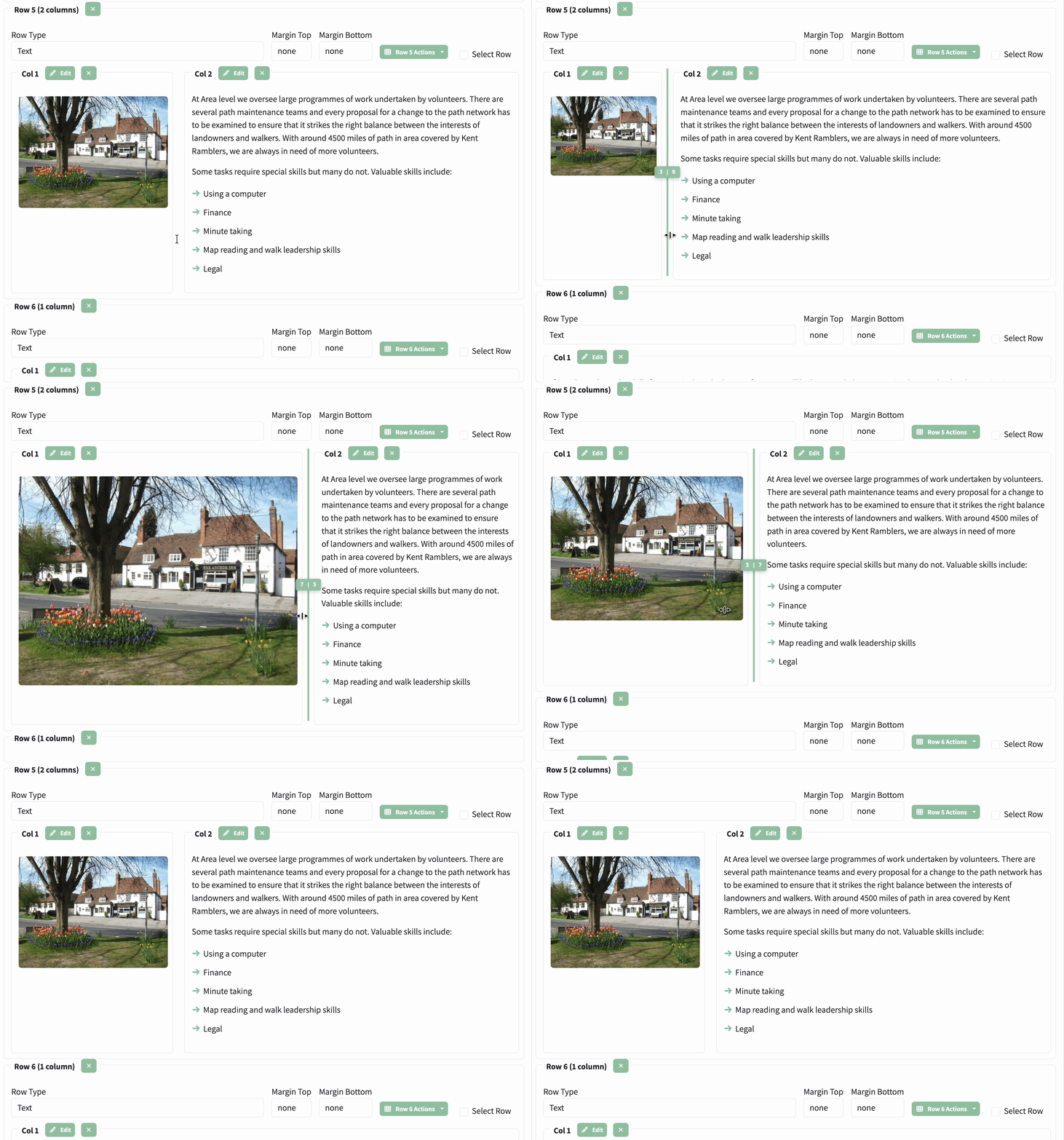
The animation above shows the column resizer in action — drag the green bar between columns to adjust their widths in real time.
How to use the splitter bar
- Locate the handle — a thin vertical bar appears at the boundary between adjacent columns
- Hover over it — the bar highlights in green to show it's interactive
- Click and drag left or right to resize the columns on either side
- Watch the label — during dragging, a tooltip shows the current width distribution (e.g. "6 | 6" or "8 | 4")
- Release to set the new widths
Key points
- The minimum width for any column is 1 grid unit — you cannot drag a column to zero
- The splitter preserves the total — if two columns share 12 units, making one wider automatically makes the other narrower
- Works with both mouse and touch input (desktop and tablet)
- The splitter only appears in edit mode — visitors to the published site will not see it
- If you have three or more columns, a splitter bar appears between each adjacent pair
- If a column is in expanded/focus mode, the splitter is hidden — collapse it first to resize
The Expand Button
Each column has an Expand button (shown as a resize icon) that temporarily makes the column full width (12 columns). This is useful when you need more space to edit the content within a narrow column.
Click the expand button again to restore the original width. The expand is purely for editing convenience — it does not affect the published layout.
Drag and Drop Columns
As well as resizing columns, you can reorder them by dragging:
- Look for the drag handle icon (↕) next to the column edit controls
- Click and hold the handle, then drag the column left or right within the row
- Release to drop the column in its new position
This is useful when you want to swap the order of two columns — for example, moving an image column from the right to the left side of a text column.
Note: Dragging reorders columns without changing their widths. To resize columns, use the splitter bar described above.
See also