Committee documents such as AGM minutes, financial returns, and meeting notes can be displayed on any page using a Committee Documents content row. Use this for things the committee needs to read. It is not the place to run a process such as walk risk assessment, which belongs on the walk itself.
Year navigation is generated automatically — when you add documents for a new year, a new year card appears without any manual setup.
Documents are displayed within navigation cards that visitors can swipe or click through. How you organise these cards is completely up to you — by year is the most common approach, but you could organise by meeting type, topic, or any grouping that makes sense for your group.
For an example of documents organised by year, see the East Kent Walking Group committee page.
Visitors can:
Documents can also link to externally hosted files (e.g. PDFs hosted on Google Drive) if they haven't been uploaded to the site yet.
Each committee documents page can optionally include a header image. This appears above the document list and gives the page a more polished look. To add one, set the Image Source in the committee documents row settings. The image could be a group photo, a logo, or anything relevant to the documents on that page.
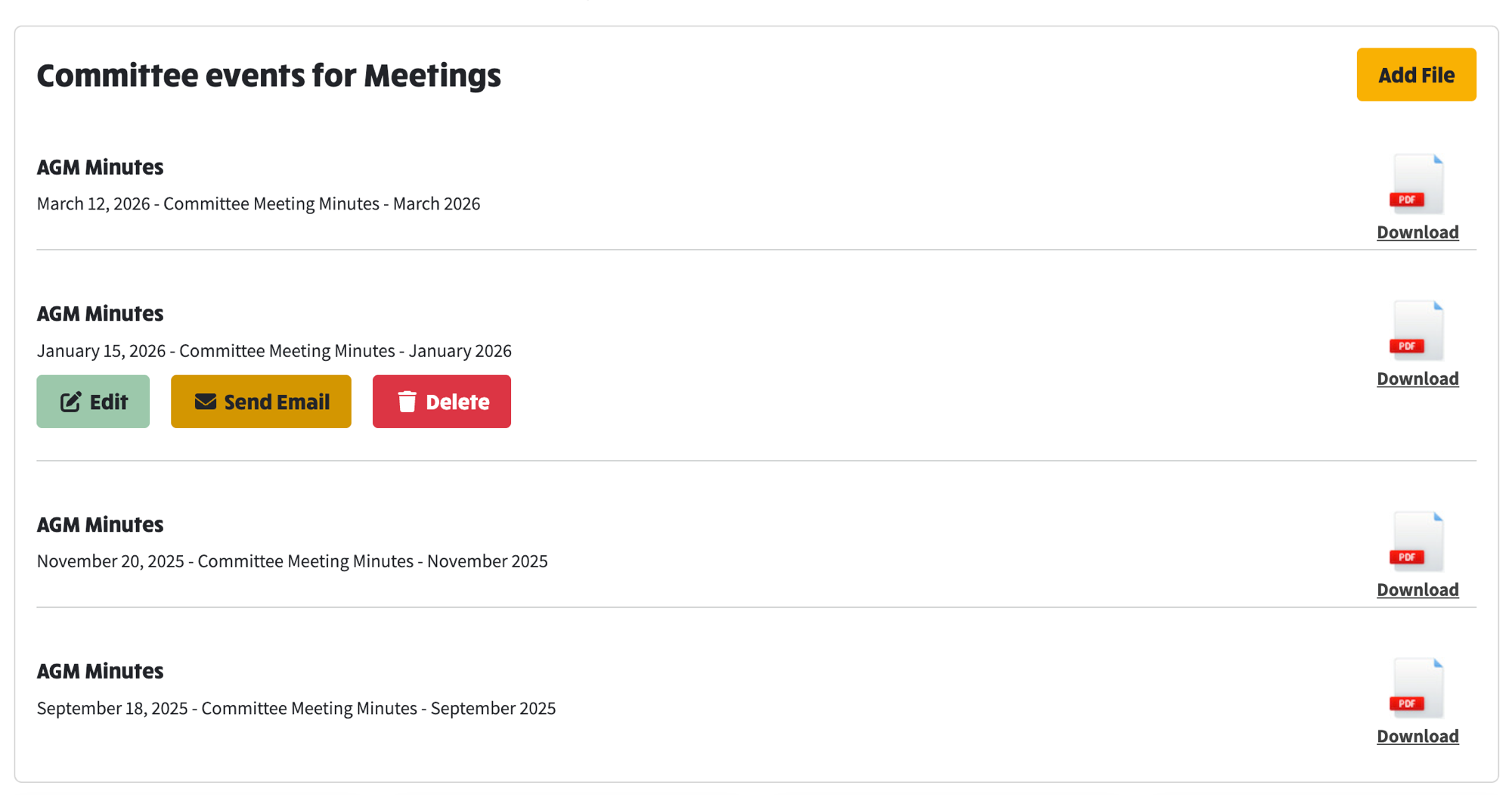
When you are logged in as an admin and viewing a committee documents row, each document has a Send Email button. Clicking this takes you directly to the email composer with the document already attached as context.
This is useful for notifying members about new documents — for example, when you upload new meeting minutes or AGM papers, you can immediately send an email to let members know the documents are available.
The email composer will pre-populate with details of the selected document. You can then choose your recipients, edit the message, and send.
The screenshot below shows the Edit, Send Email, and Delete buttons that appear on each document when you are logged in as an admin. The Add File button in the top-right allows you to upload new documents.
Be careful which file type you use. The type controls who can see the document, depending on whether they are logged in.
The types of document available on your site are not fixed. Your group can define its own file types, and can change the visibility of each one.
Go to Admin > Committee Settings and open the Configuration tab. Here you can:
That is the setting to check if a document is showing to the public when it should not, or hidden when it should be visible.
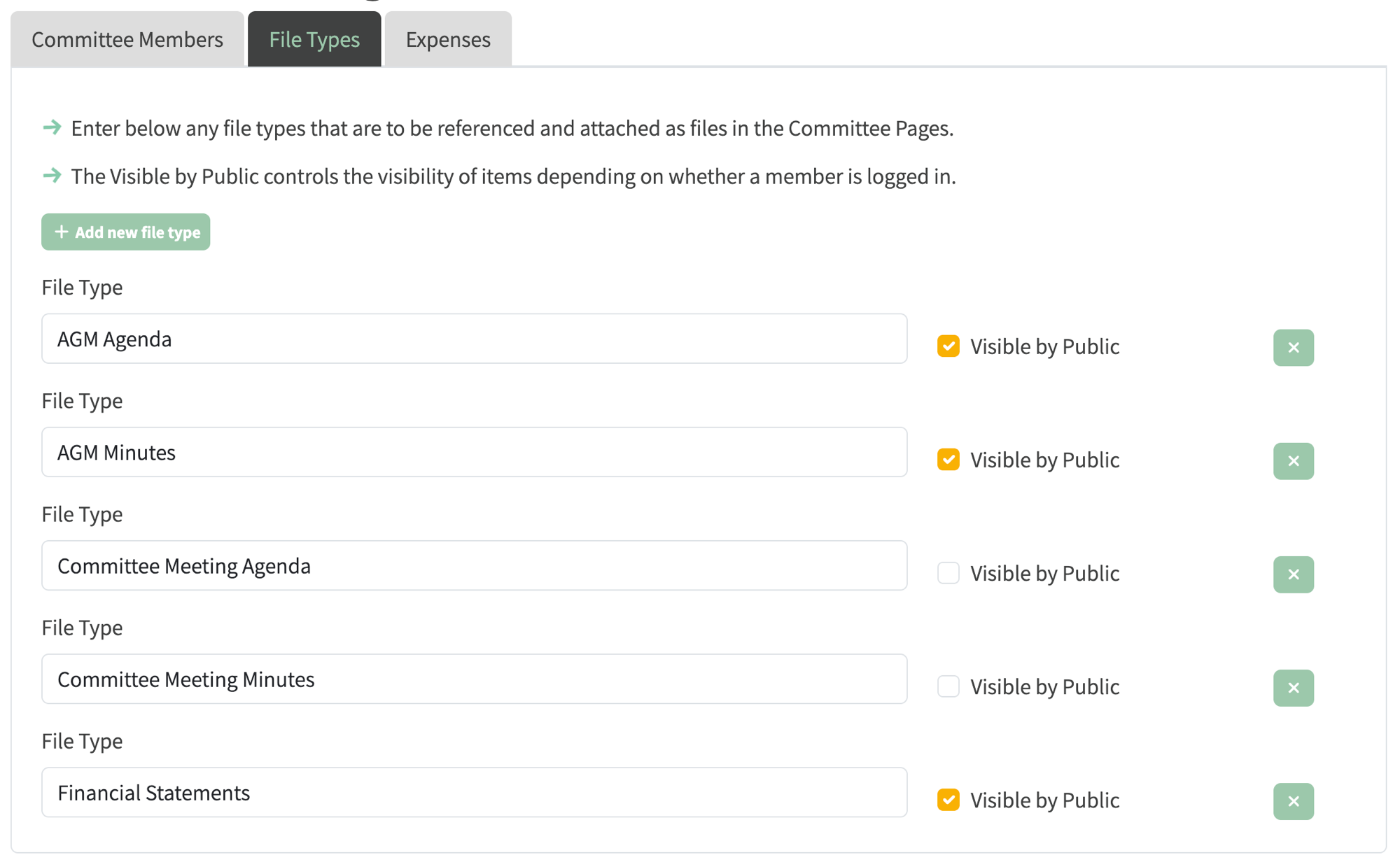
The File Types tab in Committee Settings — each file type can be set to public or members-only
Committee files can be a PDF or Word upload, or an editable document. Prefer the editable document.
You edit an editable document in the visual editor on the site, much like Word: what you see is what you get. Everyone else sees a read-only page with the group's branding. Print / A4 gives a clean printed copy.
If you keep a PDF, every change means creating the file in some other program, uploading it again, and then people can only view it in that fixed layout. Word is not much better, because anyone who wants to change it needs a Word reader.
On a Word or PDF file, people who can manage committee files see Convert to editable document. That creates a new editable document from the file. The original is kept.
Walk leaders and other members do not see Convert. They see View in new tab and Download on the original file, or the finished page once you have converted it.