The usual committee area on an NGX site is a home page at committee, a page per year (committee/2026, committee/2025, …), and a shared fragment that draws a card for each year at the foot of every one of those pages. New group sites have the fragment from the migration template already created - you still need the pages and the navbar item.
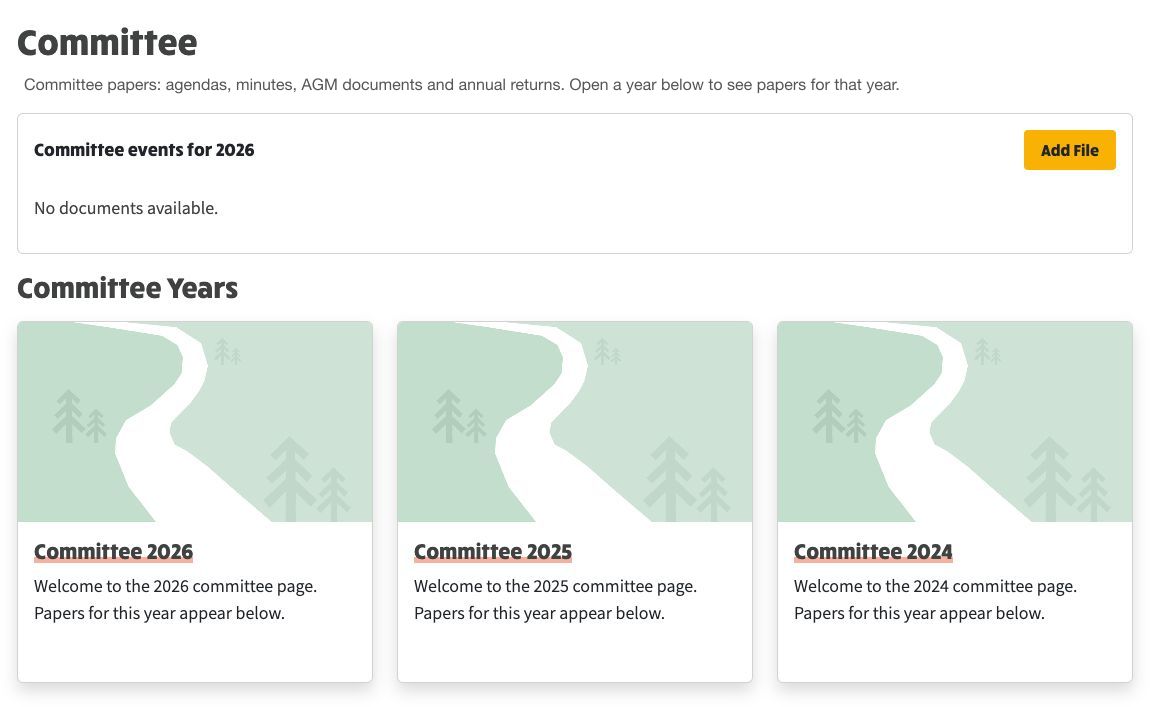
Committee home: latest papers at the top, then the Committee Years cards from the shared fragment.
committee — heading, a Committee Documents row that can show the latest files, then the years fragment.committee/YYYY — heading for that year, a Committee Documents row for that year’s files (optional cover image), then the same fragment.fragments/committee-years — one Album Index row that lists every page whose path starts with committee/.Edit the fragment once. Every committee page that embeds it updates.
Many migrated sites already have fragments/committee-years. Check Content Templates → Shared fragments or open fragments/committee-years.
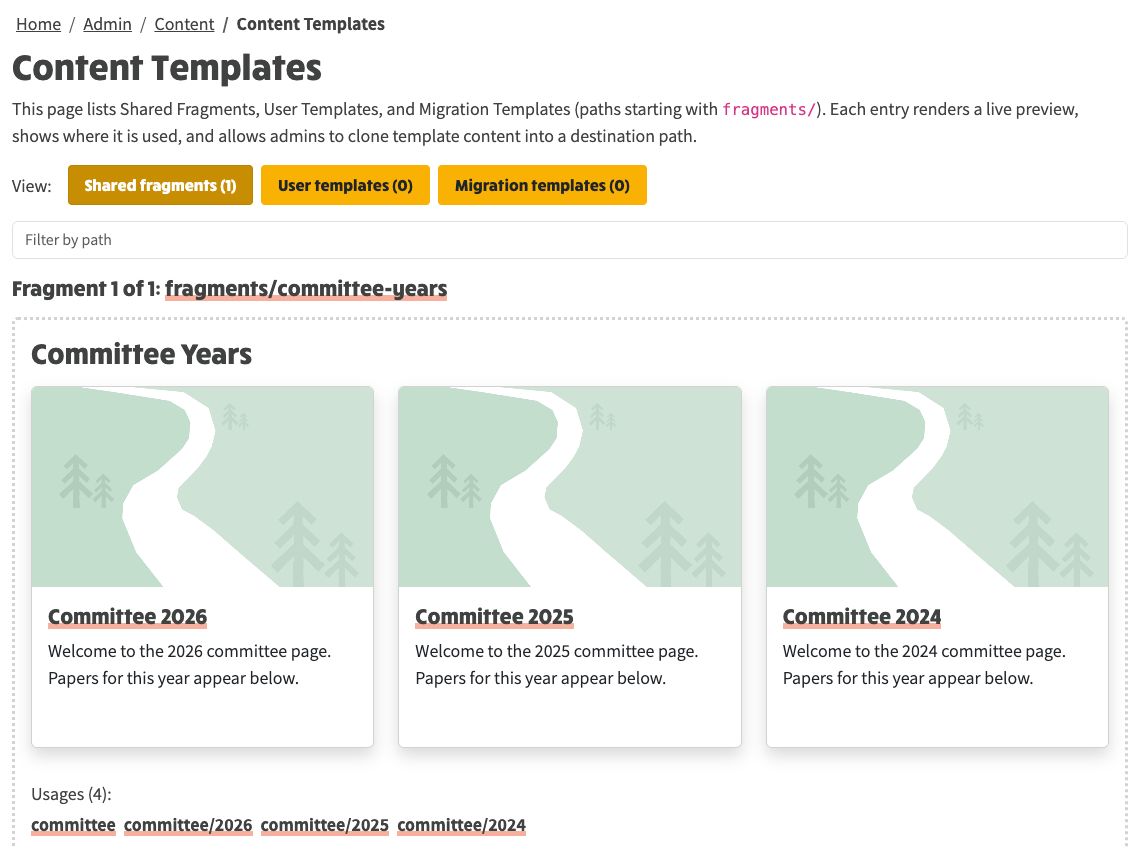
Content Templates listing the committee-years fragment, with a live preview of the year cards.
If it is present, skip to Create the year pages. If it is missing, create it next.
fragments/committee-years and create the page if it does not exist.committee, match starts with, max path segments 2 (so you get committee/2026 and not deeper pages).## Committee Years.You can also start from an existing page: select the years row, choose Create Named Fragment, and name it committee-years. Full fragment steps: Shared Fragments.
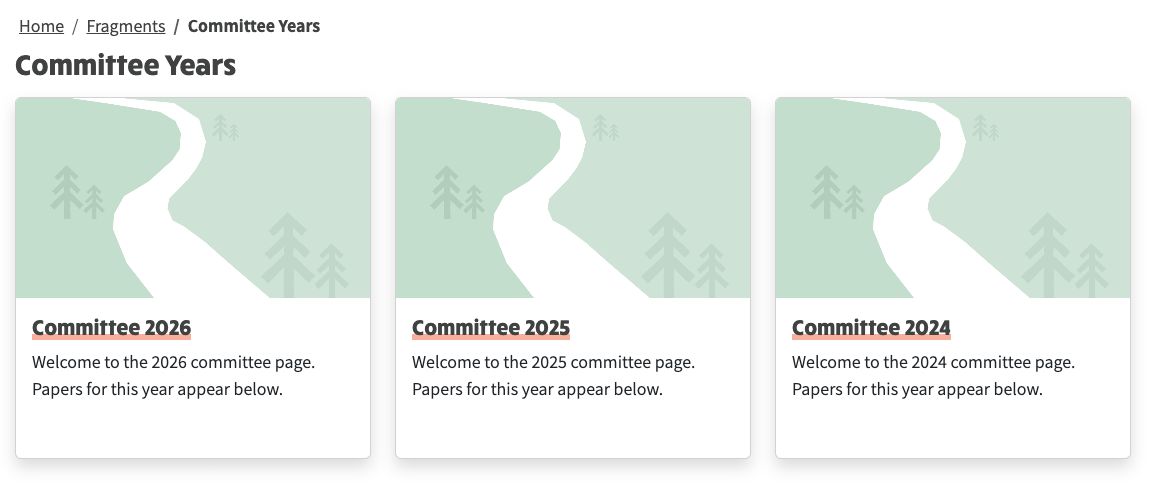
The fragment page itself, showing the three year cards once the year pages exist.
Create committee, then committee/2026, committee/2025, committee/2024 (or whichever years you need).
On the home page, add three rows:
# Committee heading and a sentence about papers.fragments/committee-years from the dropdown.On each year page:
# Committee YYYY and a short welcome. Do not put the cover image on this row.fragments/committee-years fragment as the home.Document rows in more detail: Committee Documents.
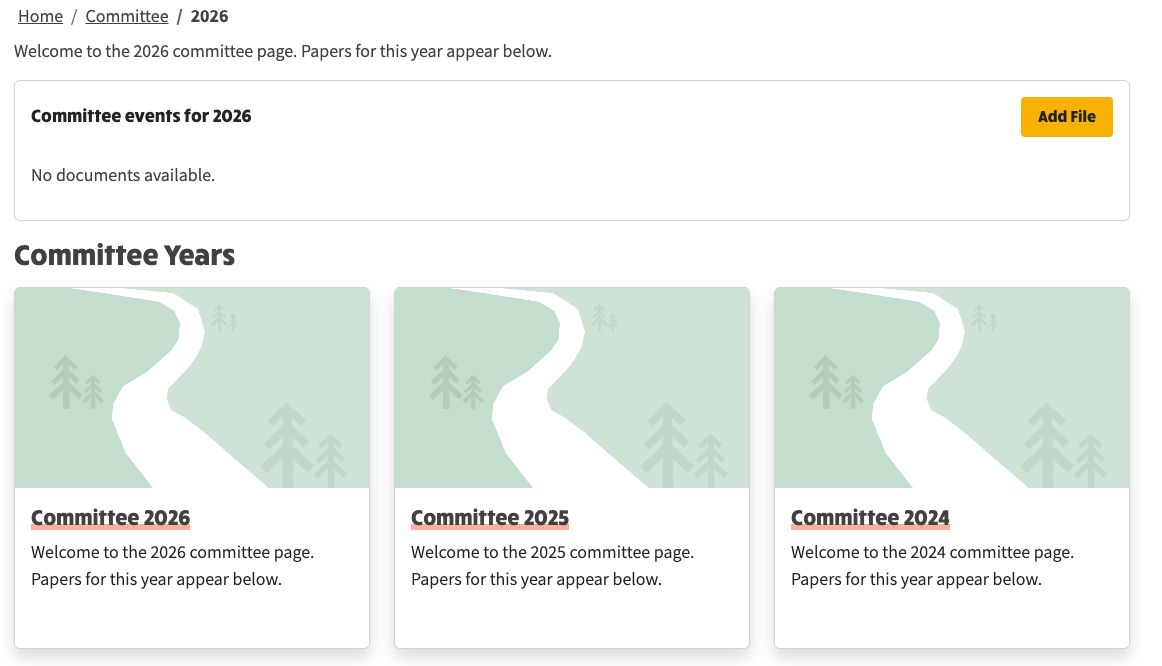
A year page: papers for that year, then the same years strip so you can move between years.
The pages are not in the top bar until you add them. Add a navbar item with Web Url committee and title Committee, Public, just before Admin.
On a year page, signed-in committee members use Add File on the documents row. Leave that off the public page text; the button is only there when you are signed in. You can upload a PDF or Word file, or create an editable document on the site. File types and who can see them (public AGM papers versus committee-only minutes) are set in Committee Settings.
You do not need to be a member of another group’s site to view their public AGM papers. Committee-only files on your own site need a logged-in group member whose role allows it.
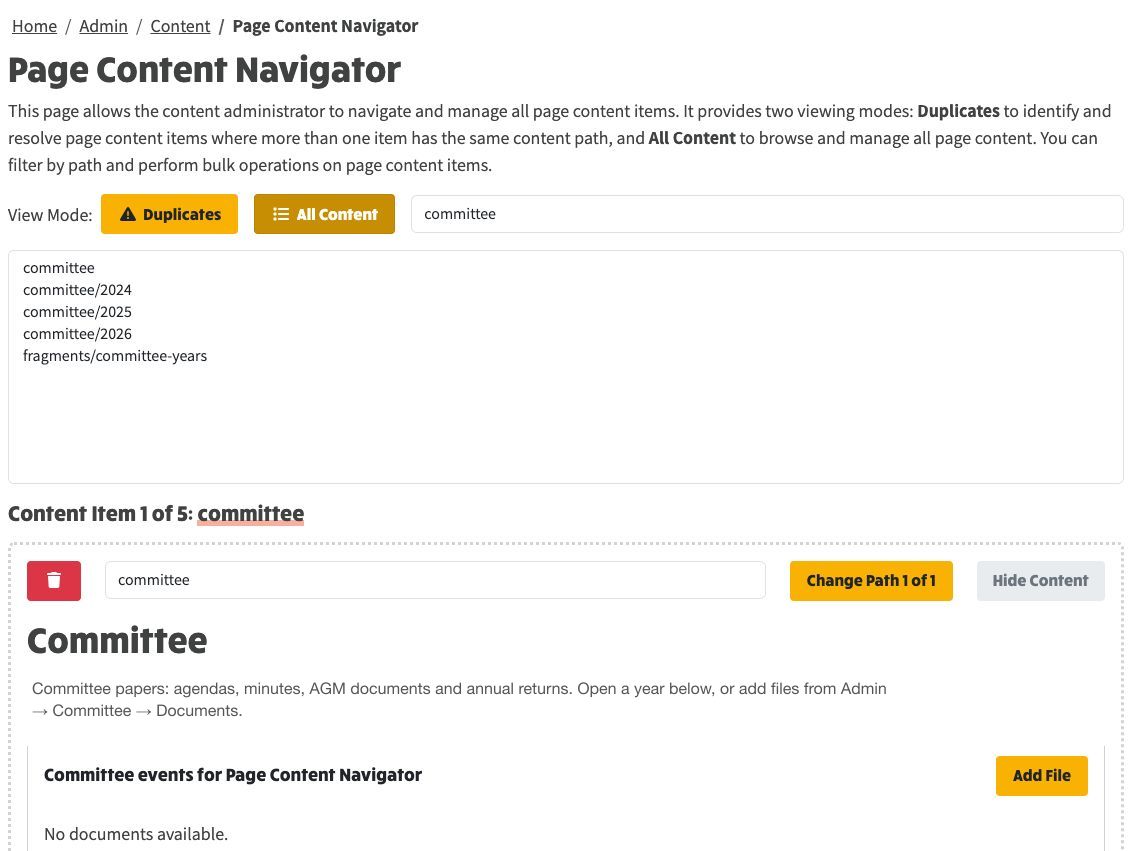
Page Content Navigator filtered to committee, showing the home, three years and the fragment.