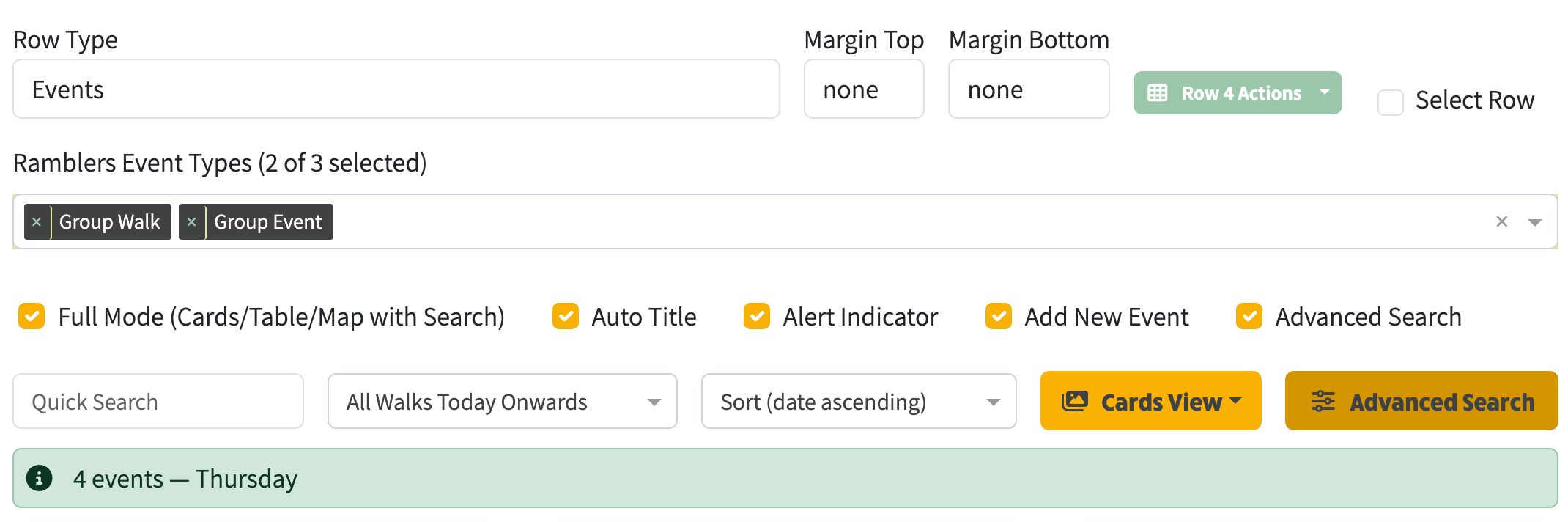
An Events row embeds a live listing of walks or social events directly into any page. Events are pulled automatically from your site's event data — you choose which types to show, how to filter them, and how much control visitors have over searching and sorting. Below is a screenshot of the Events Row Type in Site Edit mode showing Group Walk and Group Event event types pre-selected:
The first thing to configure is which types of event to display. Use the Event Types dropdown to select one or more of:
You can select multiple types to show a combined listing.
Events rows can run in two display modes:
When Full Mode is enabled (the default on the main walks or events page), visitors get the full experience:
When Full Mode is turned off, the events row shows a simpler card listing. This is ideal for embedding a small selection of events on a page like your home page or an "upcoming events" sidebar. In simple mode you have more control over exactly which events appear and how they are displayed.
Use the Filter Criteria dropdown to control which events are shown:
When using a date range, you can choose how dates are selected:
You can also hand-pick individual events to display by selecting them from the Specific Events dropdown. This is useful when you want to feature particular events on a page rather than showing everything. A good example of this being used is on North West Kent Ramblers noticeboard.
Events can be sorted by date in either direction:
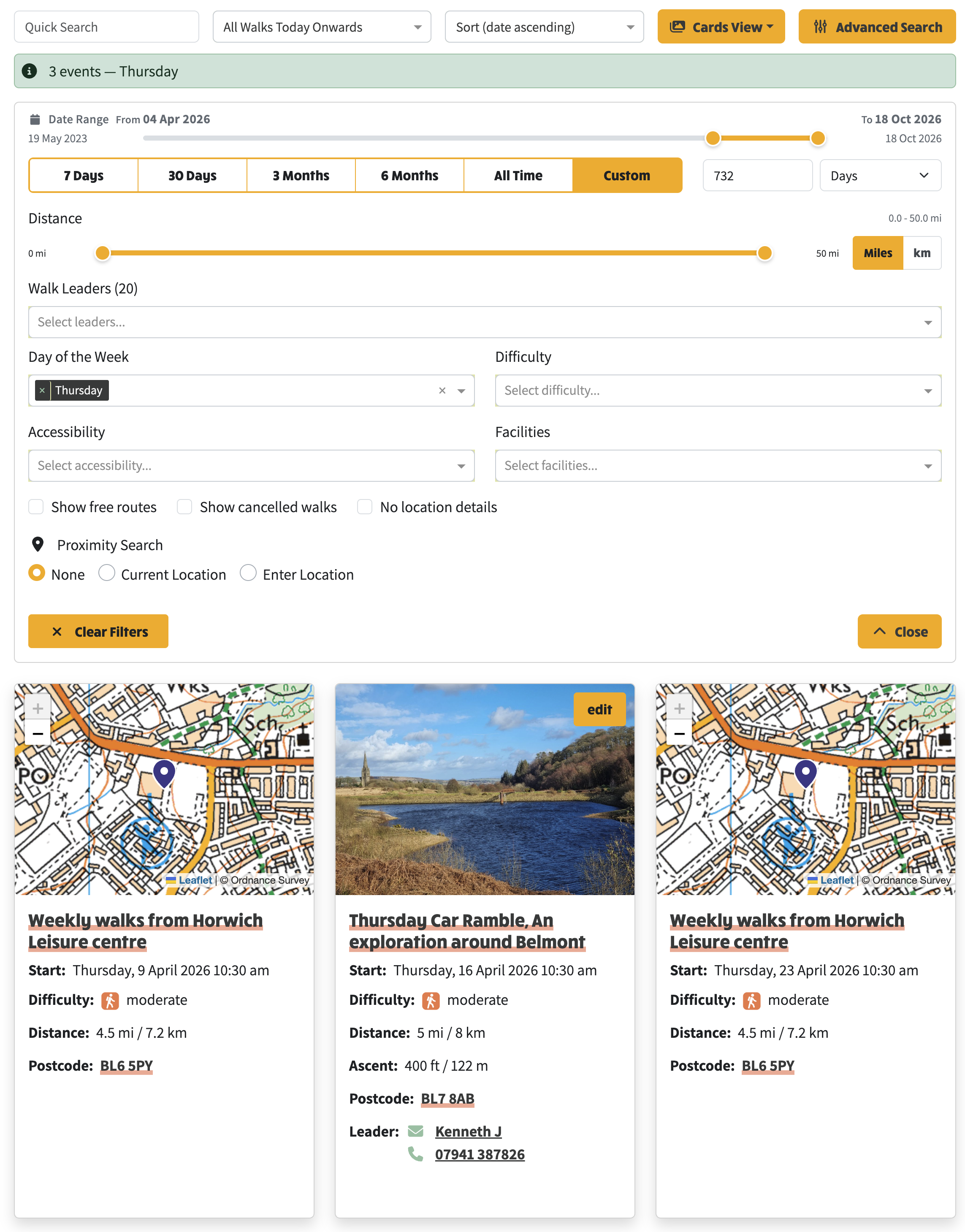
When Advanced Search is enabled, visitors see a search pane with powerful filters:
Below is a preview of the advanced search showing just Thursday Walks coming up:
When you configure an events row in the CMS editor, the search criteria you set are saved as part of the page content. This means the events row will always show results matching your chosen filters — effectively acting as a preset query.
For example, you could create a page called "Weekend Walks" with an events row filtered to Saturday and Sunday only, or a "Short Walks" page filtered to walks under 5 miles. Each page remembers its search criteria and applies them automatically when visitors arrive.
The saved criteria include the date range preset label (e.g. "Next 3 Months") so that the date window stays relative and doesn't go stale.
Several toggles control what visitors see and can do:
| Setting | What it does |
|---|---|
| Auto Title | Automatically generates a title based on the filter and event types |
| Quick Search | Shows a text search box for filtering by keyword |
| Pagination | Splits results across pages rather than showing everything at once |
| Add New Event | Shows a button for admins to create a new event |
| Alert Indicator | Shows a summary alert with the number of results and current filter |
| Advanced Search | Shows the full advanced search pane |
| View Selector | Lets visitors switch between cards, table, and map views |
| Allow Filter Change | Lets visitors change the filter criteria |
| Allow Sort Change | Lets visitors change the sort order |
By turning options on or off, you can create anything from a fully interactive events explorer to a simple, locked-down listing of specific events.
The Max Columns setting controls how many event cards appear per row. For example:
Cards will stack vertically on smaller screens regardless of this setting.
Here are some common ways to use events rows:
Full mode with all event types, advanced search enabled, view selector enabled. This gives visitors the complete search and browse experience.
Simple mode, future events only, 3 columns, no search, no pagination. Shows a clean grid of the next few upcoming events.
Simple mode, future events, filtered to Saturday and Sunday only via saved criteria. A preset query that always shows the right results.
Simple mode, past events, date descending, with pagination. A browsable archive of completed events.