Editing an existing Action buttons page
- A good example of a page that uses an Action Buttons structure is walks/weekends-away. To open this in a new tab without losing this page, hold down the control key and click here.
- You should see the page as is shown below with a breadcrumb: Home / Walks / Weekends Away along the top. It's been outlined in a red border so you can tell the difference between this article and the page we are describing.
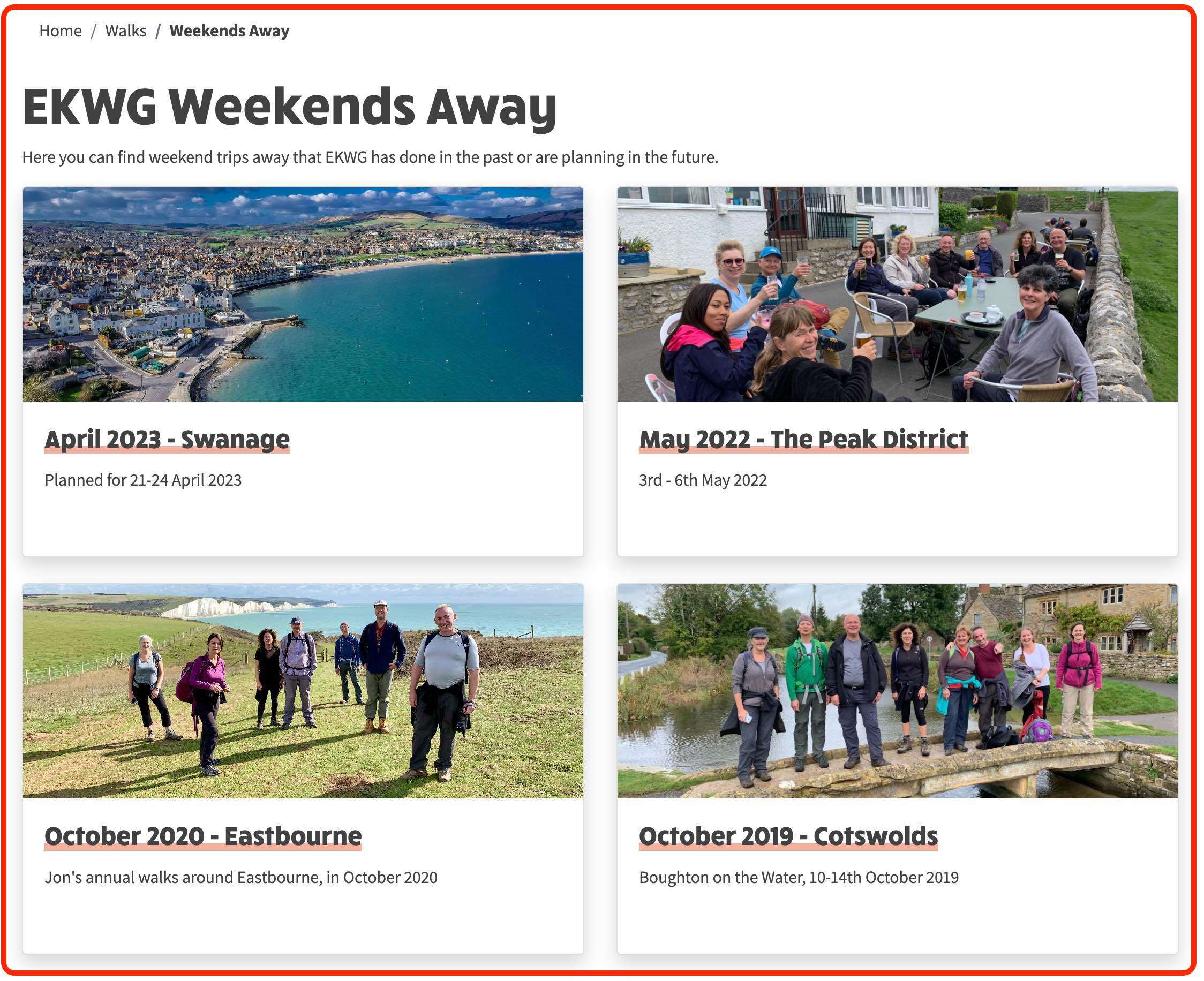
- However when you go into Site Edit mode, the view will change to what you see below:
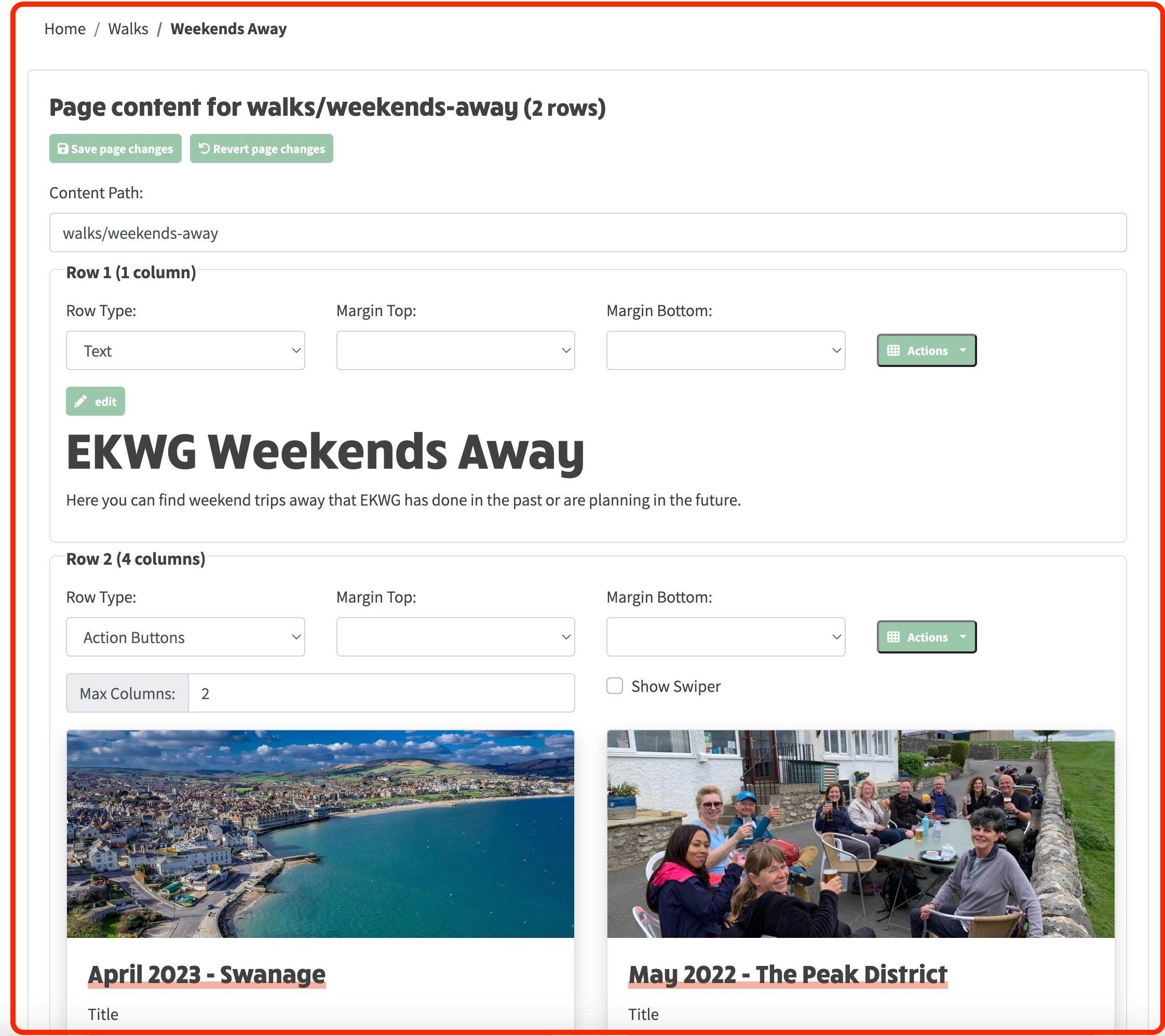
- Note that in the above page there are 2 rows - the first one is a Text row containing a title for the page and a brief introduction. The second one is an Action Buttons row which is now explained in more detail now.
The first row of an Action Button Row
- An Action buttons row consists of any number of columns, where each column contains a single action button. In the above example, 4 columns are defined but the buttons only span 2 columns when displayed because of the setting of Max Columns. Based on this value, however many action buttons that have been created, will wrap into the specified number of columns.
Text Row Structure
- The first line you will see is the page content title Page content for walks/walk-grading (3 rows).
- Next, a row of buttons are displayed that allow you to Save page changes or Revert page changes. These buttons are repeated at the bottom of the page as well for your convenience.
- Next, the editable Content Path field is displayed. This refers to the url relative to the website home page that you would have to visit on the website in order to see this page.
- The 3 rows are then then listed in sequence with a border drawn around the contents of each row so you can see where each starts and finishes.
Editing a Row
- When you initially view a row in edit mode, the first line you see is the Row Type which will be Text, Margin Top, Margin Bottom and an Actions dropdown button
- Below this initial line you will then see as many green edit buttons as there are columns in the row. In the example above, you will only see one as the Row has one column - see row title Row 1 (1 column))
- The column content will initially be shown in its display format, but if you click the edit button, or the content itself, you will enter edit mode for the column.
A Row can contain between 1 and 12 columns