Page Structure
Rows and Columns
When you create content and choose Text as the Row Type you are able to build a multi-column grid layout. This provides significant formatting flexibility as a page can contain any number of rows, and a row can contain up to 12 columns.
Each column has a width setting which controls how much space it takes up horizontally. If you had 2 columns in a row, the space allocated to each would be equal as follows:

- However, if your row contained 3 columns and each column had a width of 4, then it would look like this:

- What's important for things to look right on the page is that the width of the columns should always add up to 12. You can mix and match column widths, so you can have one column of 8 width and another with width 4:

Adding One or More Column To a Row
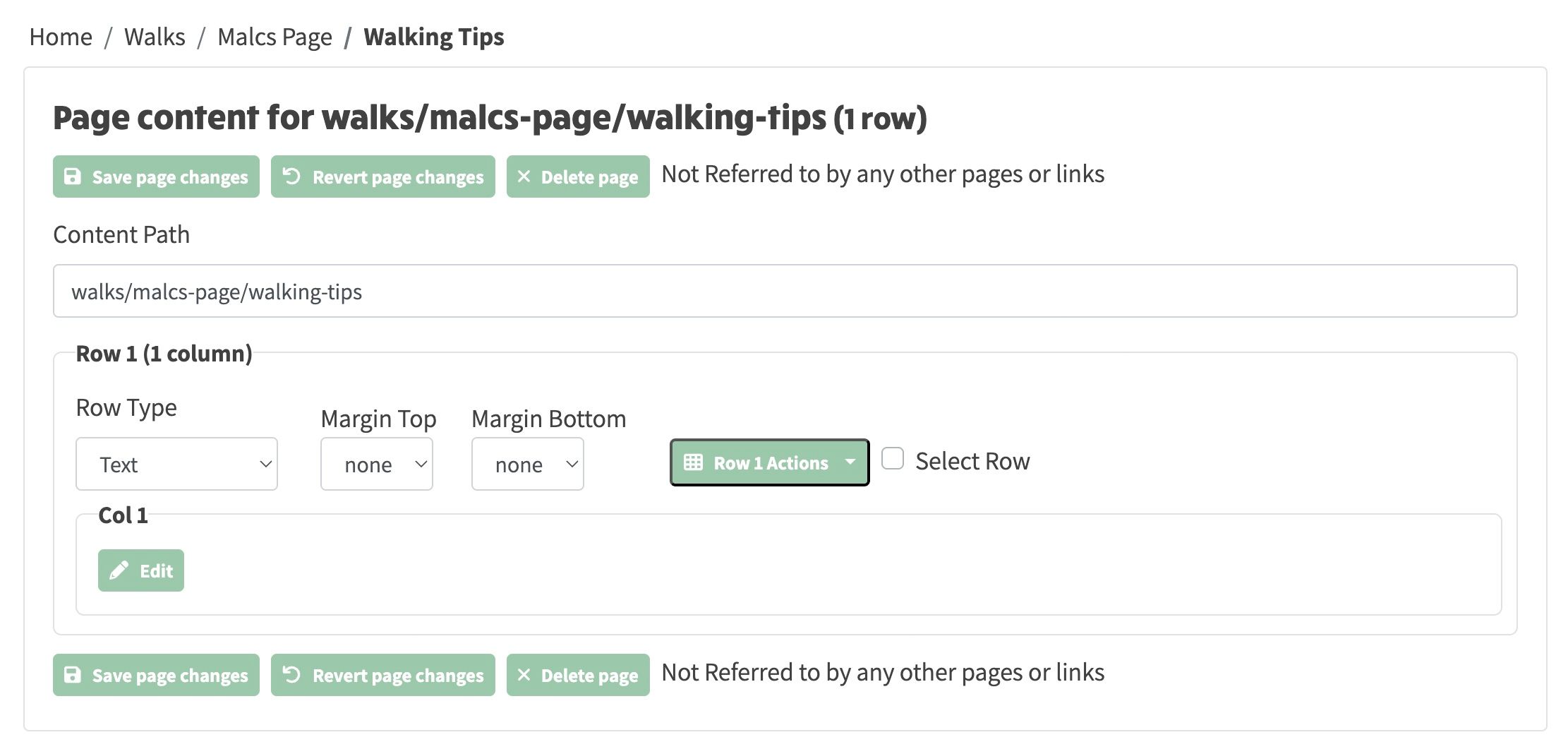
- By default, when you choose Create Content on an empty page, 1 Text row with 1 column will be created in your new page and it will initially look like the screenshot below:
- Column settings can be edited by clicking Edit within the column. When you do this, the column changes to edit mode and looks like this:
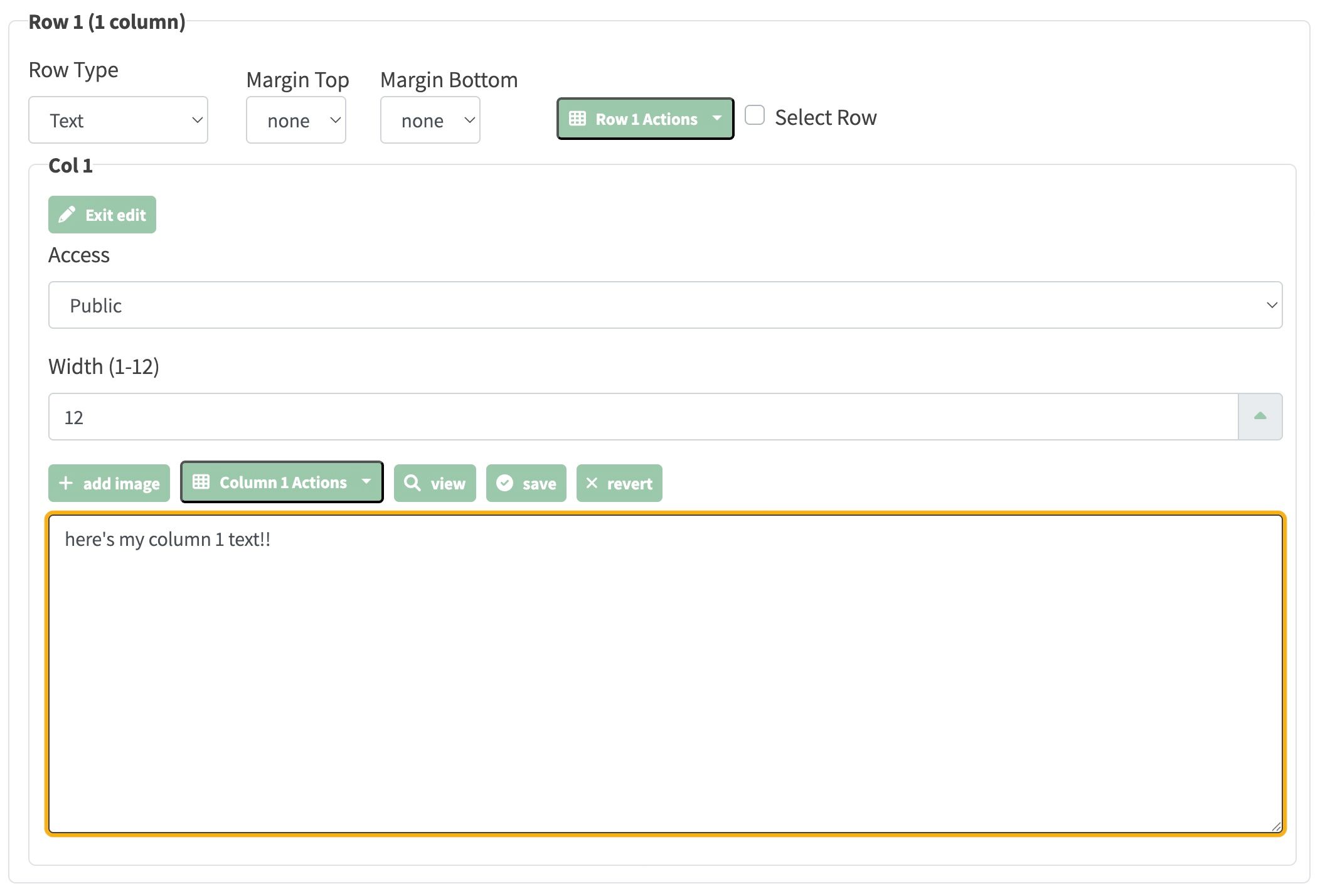
- At this point you can type and format the text in the visual editor, as well as change Access, Width (1-12) and access Column Actions.
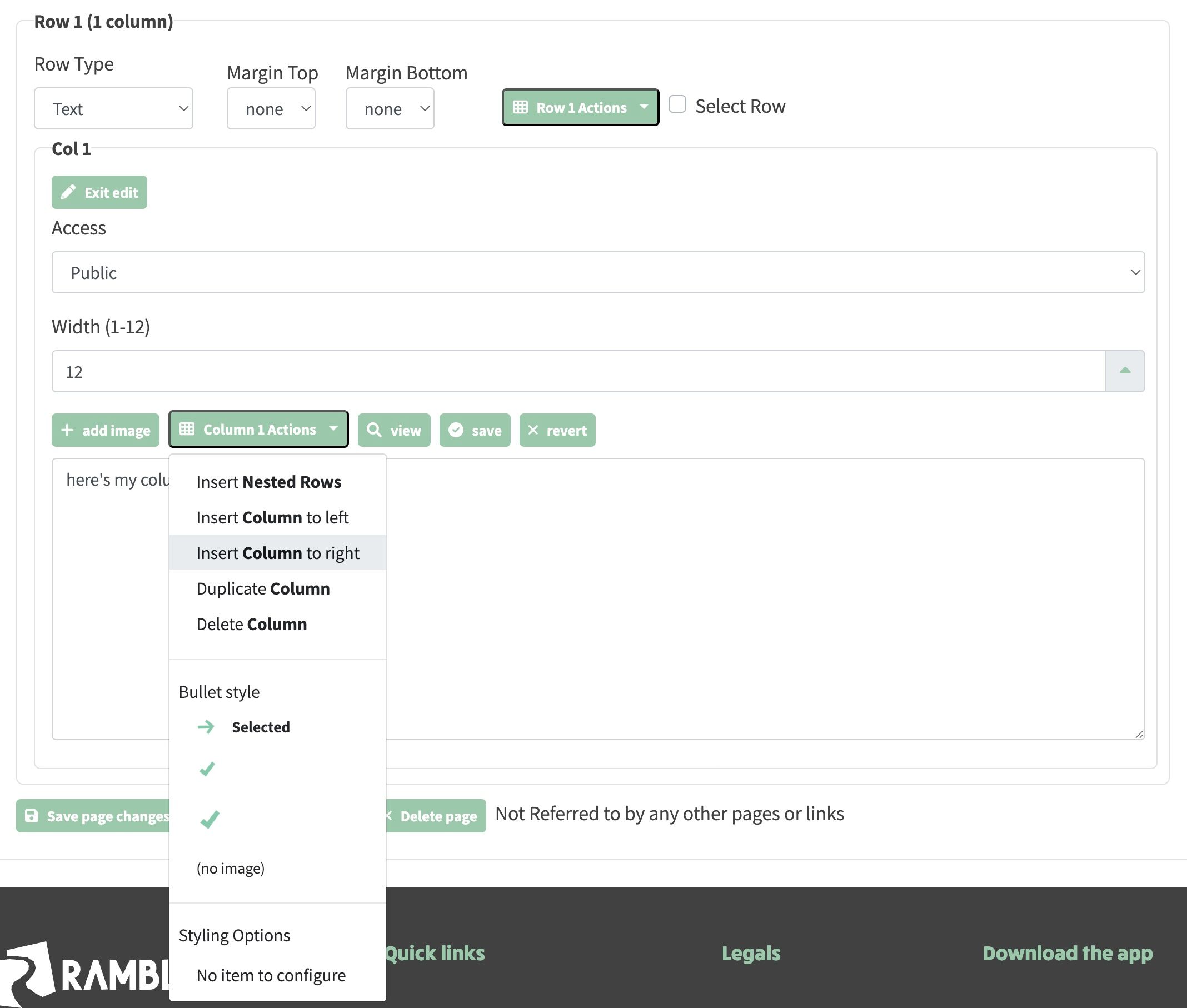
- Column Actions offers many features, but the most common one is Insert Column:
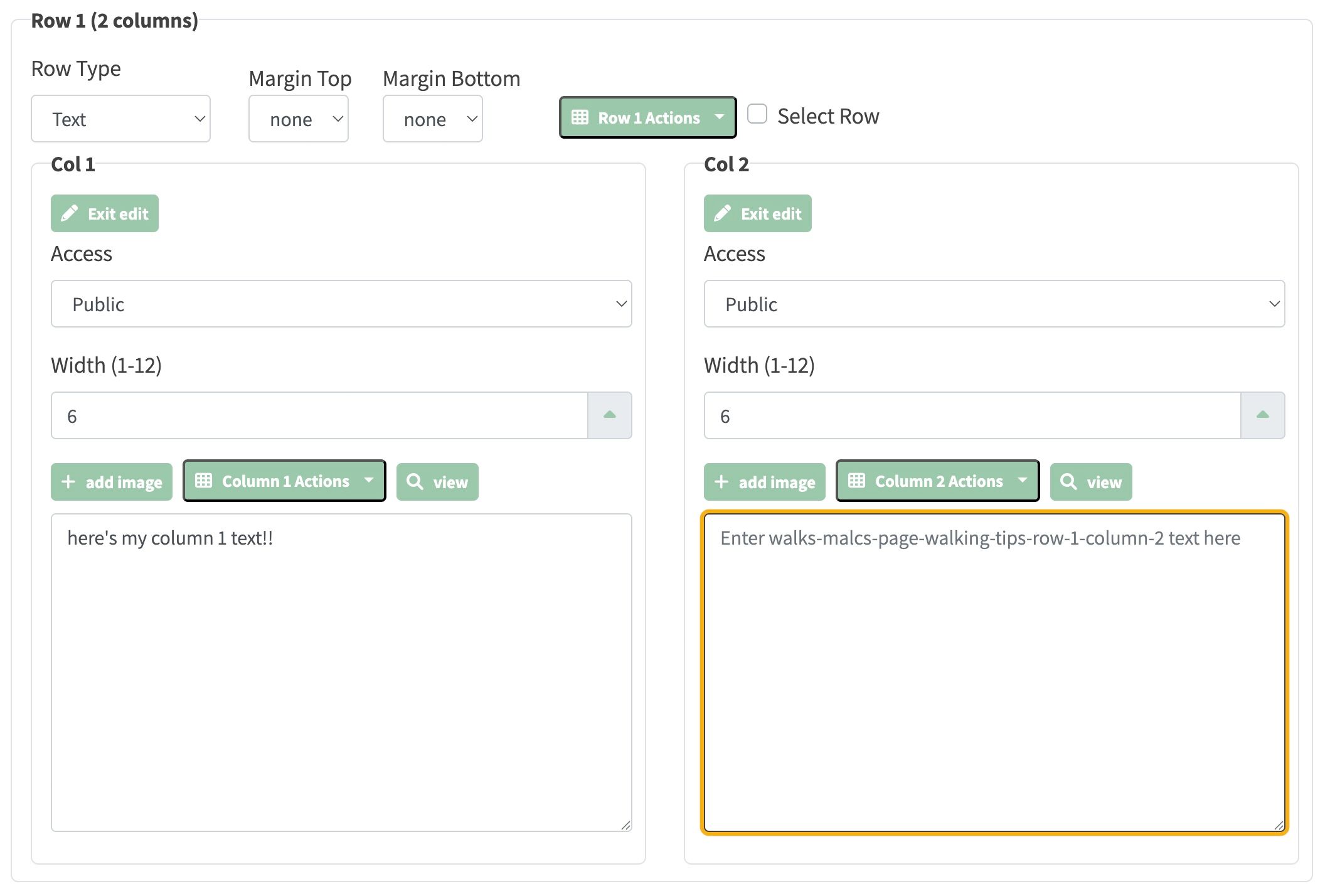
- Once you've inserted a new column, the row will then look like the screenshot below, where each column has a width of 6 and you are able to separately enter text for column 1 or 2:
- If you enter some text into both columns, then click Save page changes on the page and come out of site edit mode, the screen will then appear as below, with two blocks of text spread equally across the row as the screenshot below:

Common Column Layouts
Here are some commonly used column width combinations:
| Layout |
Column Widths |
Use Case |
| Single column |
12 |
Full-width text or images |
| Two equal columns |
6 + 6 |
Side-by-side content of equal importance |
| Text with sidebar |
8 + 4 or 9 + 3 |
Main content with an image or sidebar |
| Three equal columns |
4 + 4 + 4 |
Feature cards or comparison grids |
Each column can contain formatted text, an image, a YouTube video, or nested rows for more complex layouts.
Automatic Width Redistribution
When you add a new column to a row, the widths of all columns are automatically redistributed equally. For example:
- Adding a second column to a full-width row changes it from one column of width 12 to two columns of width 6 each
- Adding a third column redistributes to three columns of width 4 each
You can then manually adjust individual column widths using the Width (1–12) input field, or drag the Column Resizer splitter bar between columns. Just make sure the total of all column widths in the row adds up to 12.
When you remove a column, the remaining columns are also redistributed equally.
Responsive Behaviour
The Min Columns and Max Columns settings on each row control how columns wrap on different screen sizes:
- Max Columns (1–4) — the maximum number of columns to display on wide screens (desktop)
- Min Columns (1–4) — the minimum number of columns to maintain on narrow screens (mobile)
For example, a row with Max Columns set to 3 and Min Columns set to 1 will show three columns side by side on a desktop but stack them vertically on a mobile phone. This means your multi-column layouts will always look good regardless of the visitor's device.
Deleting a Row
To delete a row from the page:
- Enter Site Edit Mode
- Click the Row Actions dropdown for the row you want to remove
- Select Delete Row
The row and all its columns will be removed. Remember to Save page changes afterwards.
Deleting a Column
To remove a single column from a row:
- Click the Edit button on the column
- Click the Column Actions dropdown
- Select Delete Column
The remaining columns will be automatically redistributed to fill the available width.
Joining Rows
If you have two separate rows that you want to combine into a single multi-column row, use the Join with Row Below feature:
- Find the first of the two rows you want to join
- Click the join button (the downward arrow icon between the column controls)
- The column(s) from the row below will be merged into the current row
This is useful when you want to place content side by side that was originally in separate rows. After joining, you can use the Column Resizer to adjust the column widths.
See the screenshot below:
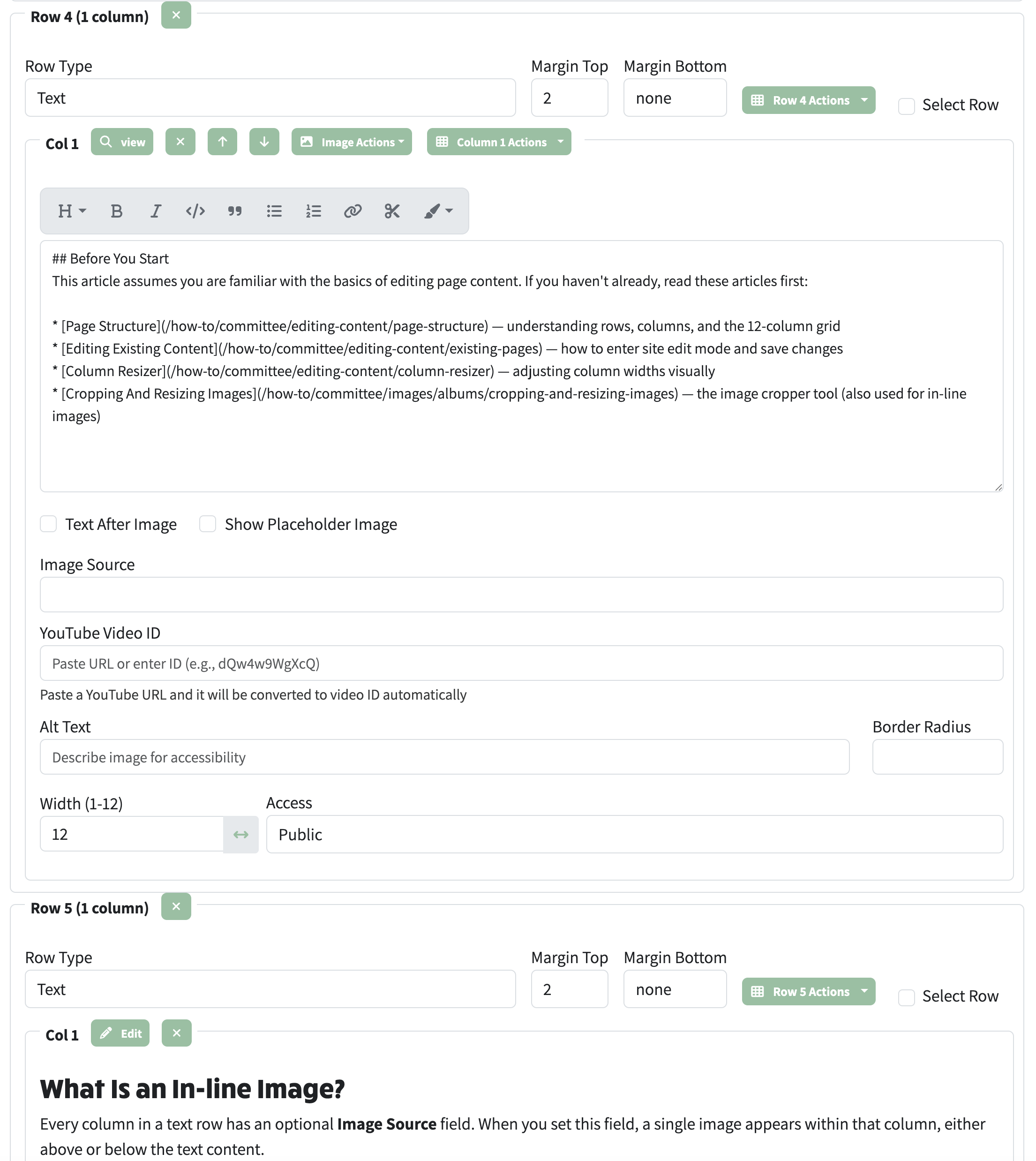
Reordering Rows and Columns
Drag and Drop Rows
Rows can be reordered by dragging them to a new position:
- In site edit mode, look for the Select Row checkbox on the right side of the row header
- Grab the row by its header area and drag it up or down
- Drop it in the desired position
Drag and Drop Columns
Columns within a row can also be reordered by dragging:
- Look for the drag handle icon (the vertical arrows ↕) next to the column controls
- Grab the handle and drag the column left or right within the row
- Drop it in the desired position
For resizing columns (rather than reordering them), see the Column Resizer guide.
- Congratulations, you have now learnt pretty much all you need to know about how to build up rows and columns of text!
- Doing more complex layouts is really no more than repeating the above steps, for each row and column you add.
- For a quicker way to resize columns, see the Column Resizer guide.