Shared Fragments
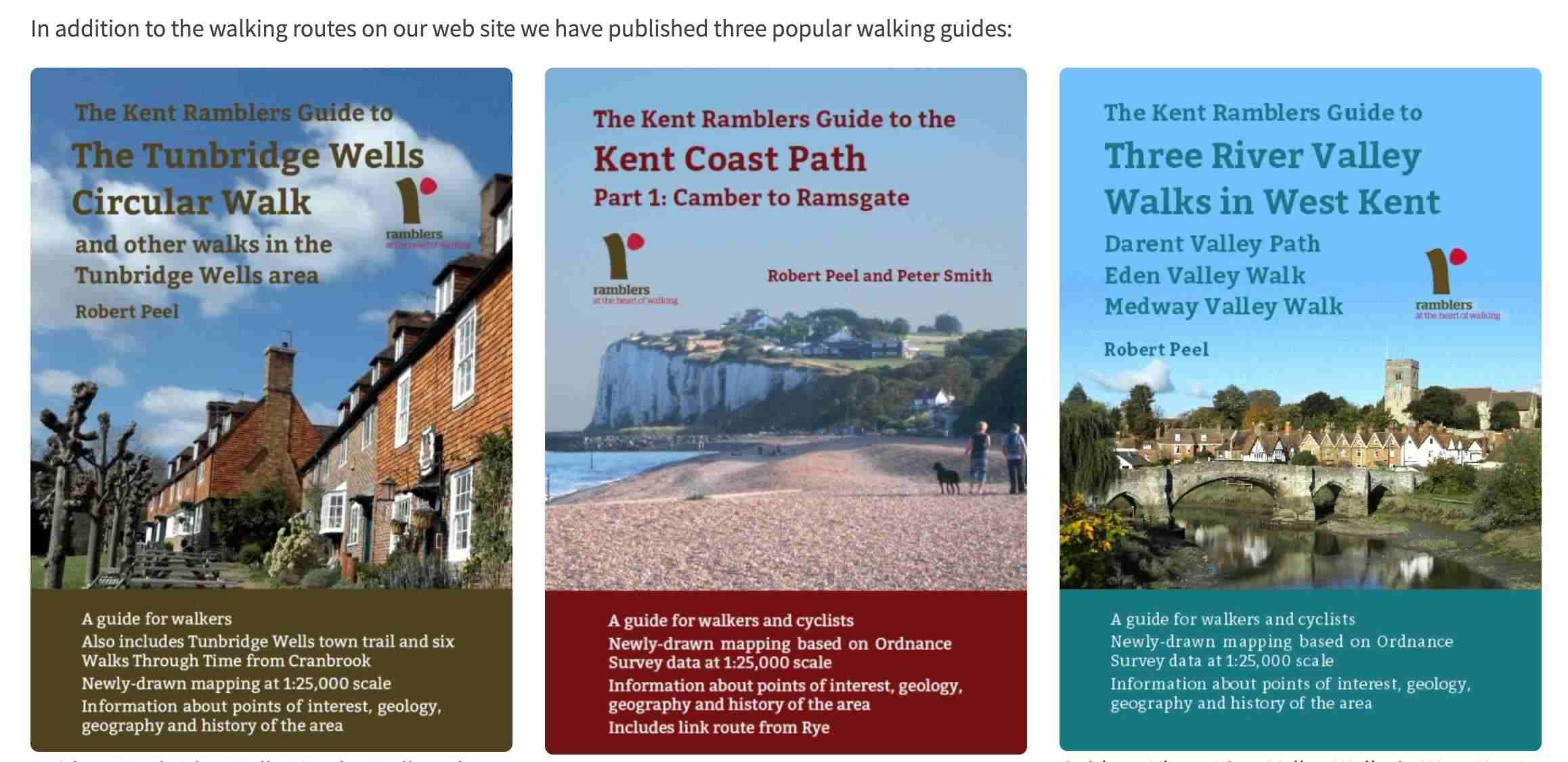
Shared fragments are reusable content blocks that can be embedded across multiple pages. Edit the fragment once, and every page that uses it updates automatically. Below is an example of the shared fragment on the Kent area website that appears at the bottom of every walking route.
When to Use Shared Fragments
Shared fragments are ideal for:
- Content that appears on multiple pages (e.g., a contact information block, a standard disclaimer)
- Navigation elements shared across a section
- Any content you want to maintain in one place but display in many
How Fragments Work
- A fragment is a regular page stored under the
fragments/ path
- It contains rows of content just like any other page (text, action buttons, carousels, etc.)
- Other pages reference the fragment by embedding a Shared Fragment row
- When the fragment is updated, all pages that reference it reflect the changes immediately
Creating a Fragment
Method 1: Create from Existing Content
- Open a page in the CMS editor that has content you want to reuse
- Select the rows you want to turn into a fragment
- Choose Create Named Fragment from the actions menu
- Enter a descriptive name for the fragment (e.g., "committee-years", "council-meetings")
- The system creates a new page at
fragments/{your-fragment-name} with copies of the selected rows
Method 2: Create Directly
- Create a new page with the path
fragments/{fragment-name}
- Add whatever content rows you need (text, action buttons, etc.)
- Save the page
Embedding a Fragment in a Page
- Open the target page in the CMS editor
- Click Add Row (or the + button between existing rows)
- Select Shared Fragment from the row type dropdown
- Use the Fragment dropdown to select from available fragments
- A live preview of the fragment content appears in the editor
- Save the page
Editing a Fragment
When you see a shared fragment row in the CMS editor:
- Click the Edit Fragment button to open the fragment page in a new tab
- Make your changes to the fragment content
- Save the fragment
- All pages that use this fragment will now show the updated content
Managing Fragments
All fragments can be viewed and edited from the Content Templates admin page:
View all fragments
You can also browse all pages on the site — including fragments — from the Page Content Navigator:
View all pages
Examples of Shared Fragments in Use
The Kent Ramblers site demonstrates several practical uses of shared fragments:
Popular Walking Guides Fragment
The four-popular-walking-guides fragment promotes Kent's walking publications and is embedded across 7 walking route pages, providing consistent cross-promotion without duplicating content.
See it in use on:
Content Templates
The site also uses fragment templates (stored under fragments/templates/) as starting points for creating new pages with a consistent layout — for example, route pages and contact pages.
Tips
- Fragments are referenced by their database ID, not their path — so renaming a fragment's path won't break existing references
- Fragments can contain any row type, including other fragments (nested fragments)
- Changes to a fragment propagate instantly — there's no need to re-save the pages that use it
- Give fragments clear, descriptive names so they're easy to find in the dropdown