The recommended way to run committee email is the shared inbox.
Mail sent to a role address (for example walks@your-group.org.uk) is delivered into Admin → Inbox. The committee reads and replies there. Replies go out from the role address, and the conversation stays with the role when the person holding it changes. Several people can be notified that new mail has arrived, without copying the message into personal inboxes.
The older Email Forwarding guide uses a Cloudflare worker to copy role mail on to personal inboxes. That is still supported if a site already uses it. It is not the path to choose for a new setup.
If the shared inbox is not connected yet, set that up first:
This page is what you do after that: several addresses on one role, and several people notified when mail arrives.
| What | Where |
|---|---|
| Role addresses and Brevo senders | Admin → Committee Settings → edit a role → Outbound Email |
| Who is notified when new mail arrives | Admin → Mail Settings → Inbox → Role mailboxes |
| Your own notify choice | Profile → Email Subscriptions → Inbox notifications |
| Read and reply | Admin → Inbox |
One role can have more than one address on your group's domain. Mail to any of them arrives in the same inbox for that role. When you send, you can choose any of them as From.
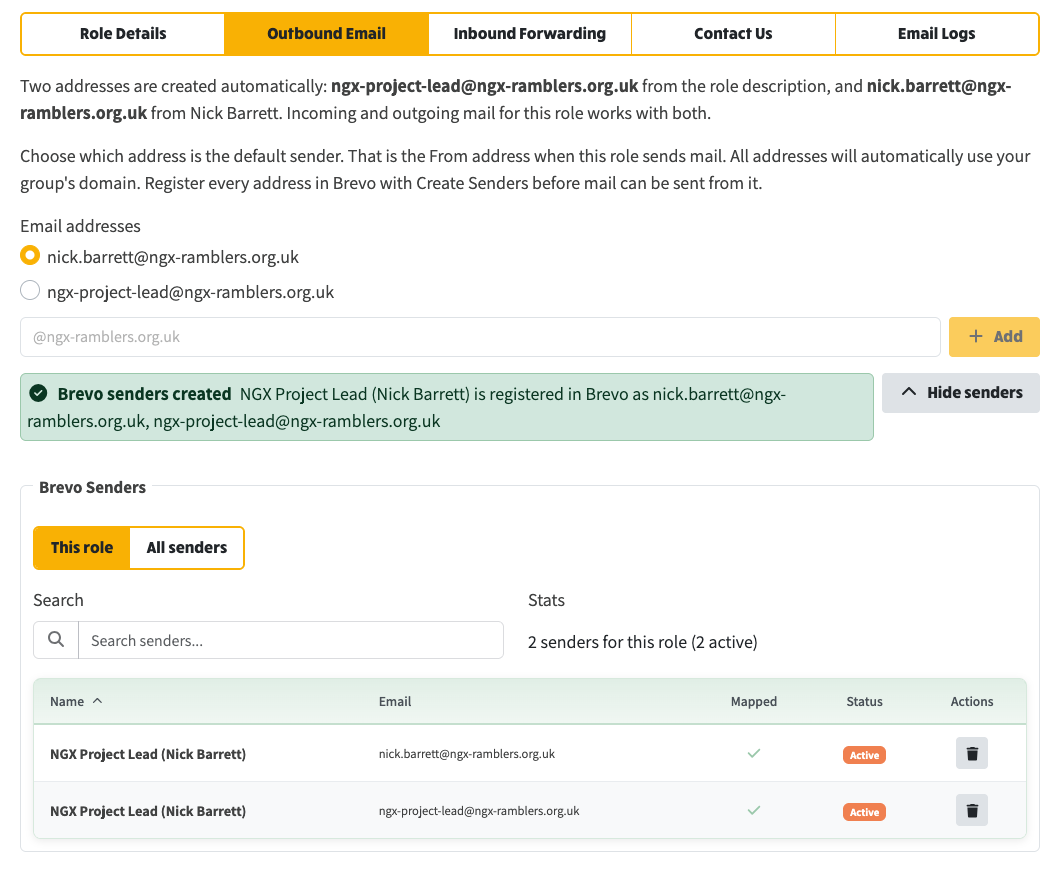
Open Admin → Committee Settings, edit the role, and open Outbound Email.
Committee Settings → Outbound Email: generated role and name addresses, default sender, extra local-part field, and the Brevo senders list for this role.
NGX creates two addresses for you when it can:
ngx-project-lead@your-group.org.uk)nick.barrett@your-group.org.uk)They use the group's domain. You do not type the @domain part.
If the role already had a stored address that is neither of those (a leftover such as walks@), that stays in the list until you remove it.
Type only the local part (the bit before @) and choose Add. NGX rejects an @ in that field. Every address on the list uses the group's domain.
Pick the default sender with the radio button. That is the From address when this role sends mail, unless you choose a different one in the composer.
Save the role (and Committee Settings) so extras persist. You do not have to create Brevo senders in order to save the addresses.
Mail cannot be sent from an address until it is a Brevo sender.
The sender Name in Brevo is set when the sender is created, as role description (full name). Older records may show only the person's name. Update Sender Name renames a record. It does not merge two records for the same address.
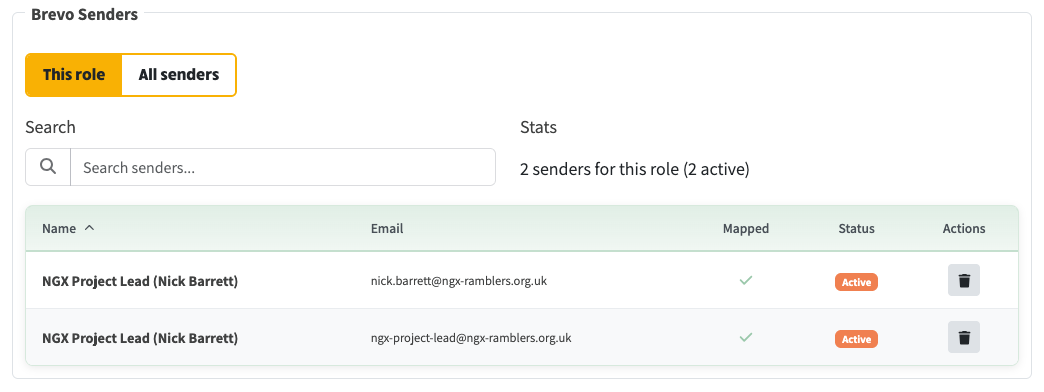
View senders on the role, defaulting to This role. Mapped means the address is on this role's list.
The shared inbox is one mailbox per role. Notification is separate: an email (and optional browser notification) that says new mail has arrived. More than one person can be notified for the same role, including a role that has no assigned member.
This applies however the shared inbox receives mail: direct delivery through Cloudflare, or a connected Gmail account.
Open Admin → Mail Settings, Inbox tab, and scroll to Role mailboxes.
Each role address is a row. Extra addresses for that role are listed under it. For Notify, choose one of:
Changes here save as you go (you will see Saved). You do not need to open Committee Settings to add a second person.
Roles and who holds them are still set in Committee Settings. This list only decides who is notified.
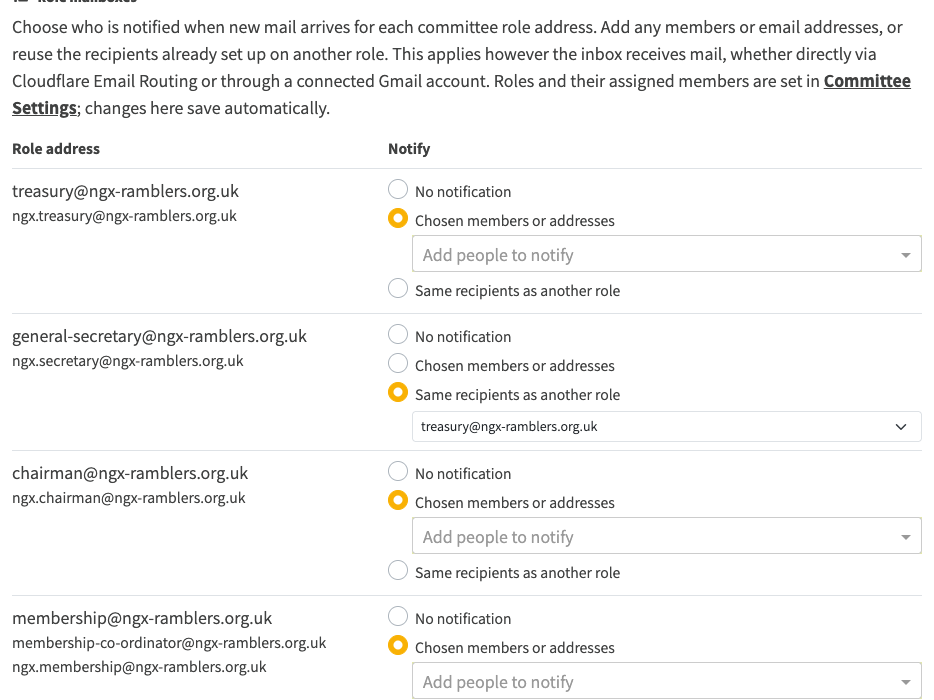
Mail Settings → Inbox → Role mailboxes: extra addresses listed under each role, and the notify choice (none, chosen people, or the same list as another role).
Profile → Email Subscriptions → Inbox notifications lists the role addresses assigned to you.
For each one, choose:
You also see who else is assigned to that role. Use Save on the profile page. That change stays in step with the Mail Settings list.
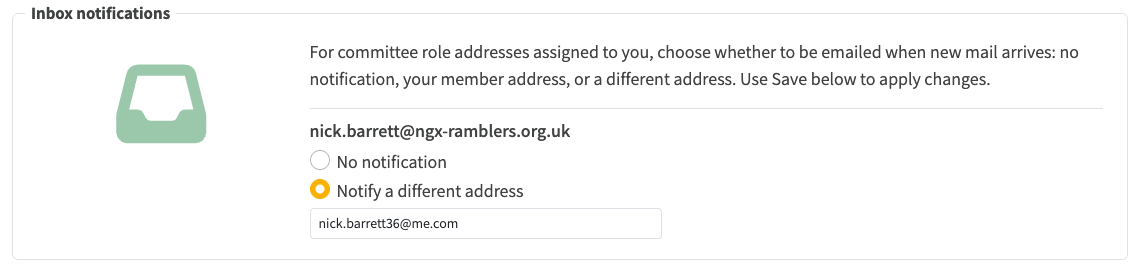
Profile → Email Subscriptions → Inbox notifications: your own notify choice for a role address assigned to you.
Keep one Walks role and one shared inbox. On Mail Settings → Inbox → Role mailboxes, set Walks to Chosen members or addresses and add both people. They both open Admin → Inbox for that role. Each can turn their own notify email on or off in Profile → Email Subscriptions.
On the Walks role, keep the generated role address, add jane.doe as an extra (or use the generated full-name address), set the default sender, Create Senders, and Save.
That is expected. Open View senders, stay on This role, and you should still see it with Mapped as a cross. Delete it from Brevo if you do not need it.
See Email Forwarding. That is the older worker path and is not recommended for new setup.