On Profile → External Email Setup, choose Mac then Outlook. Create an application password first, then add the account in Outlook as IMAP.
chair@group.example.org.uk) and choose Continue.
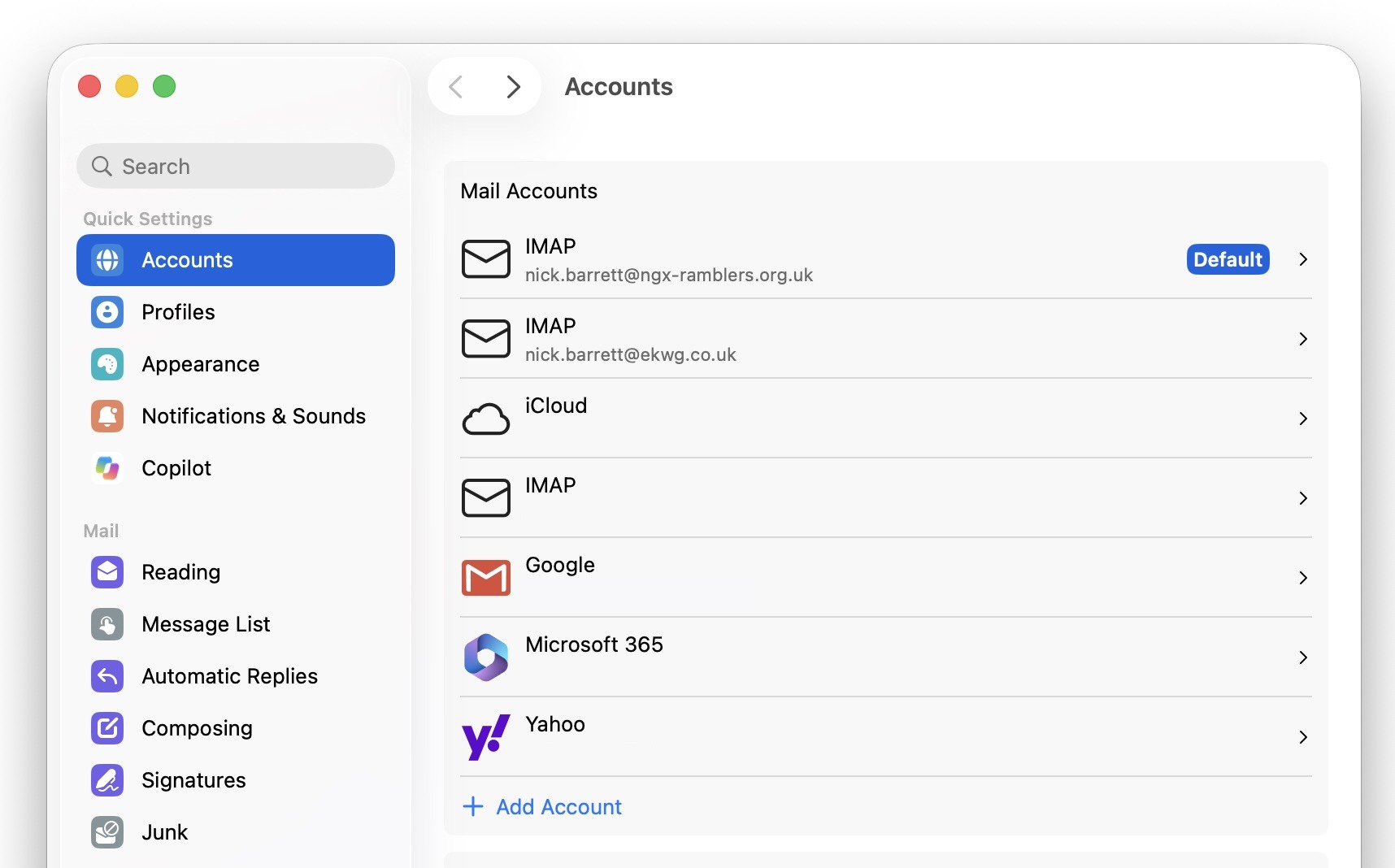
Outlook on a Mac: Settings → Accounts. Committee mail appears as IMAP. Choose Add Account to start.
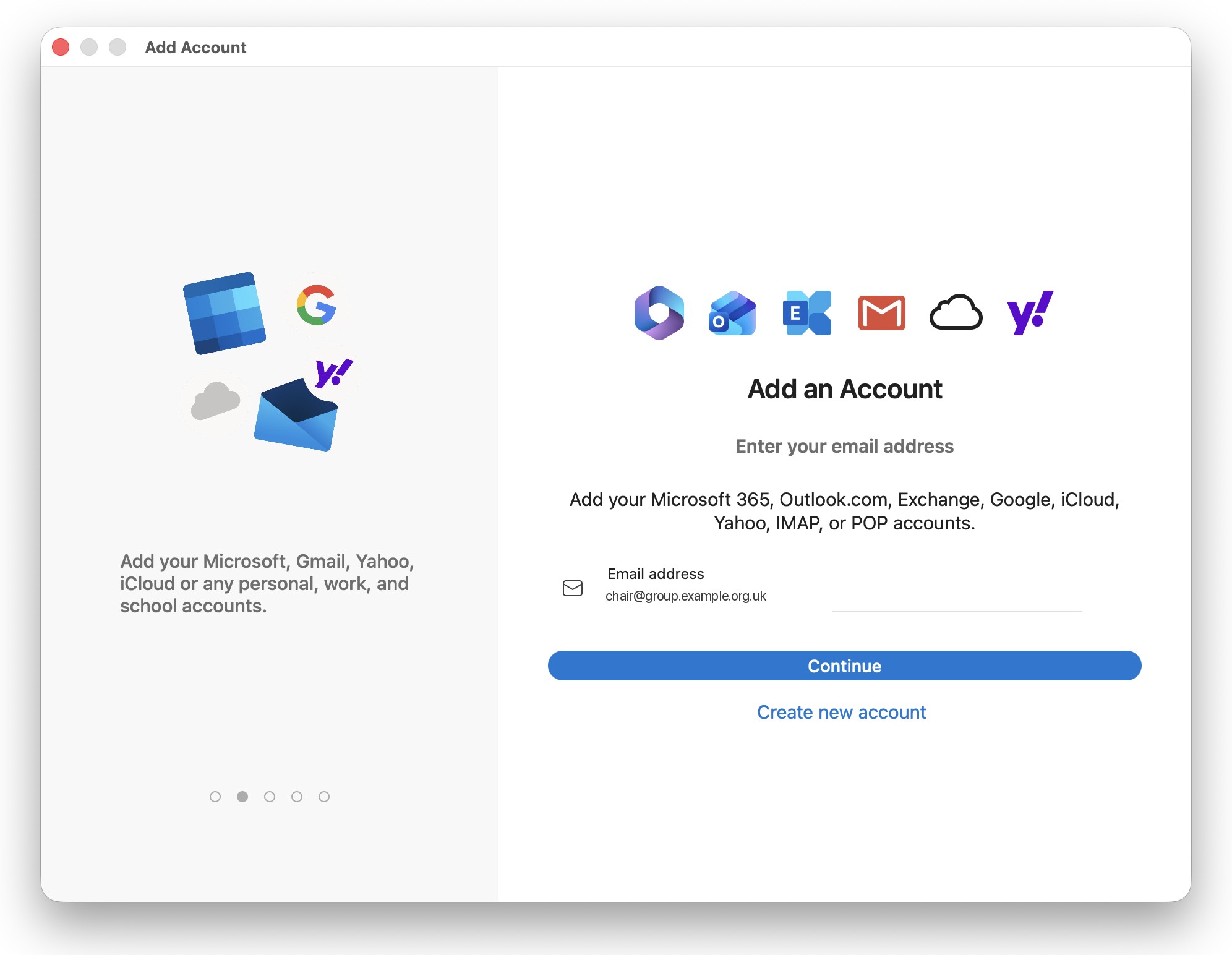
Outlook on a Mac: enter the committee role address, then Continue.
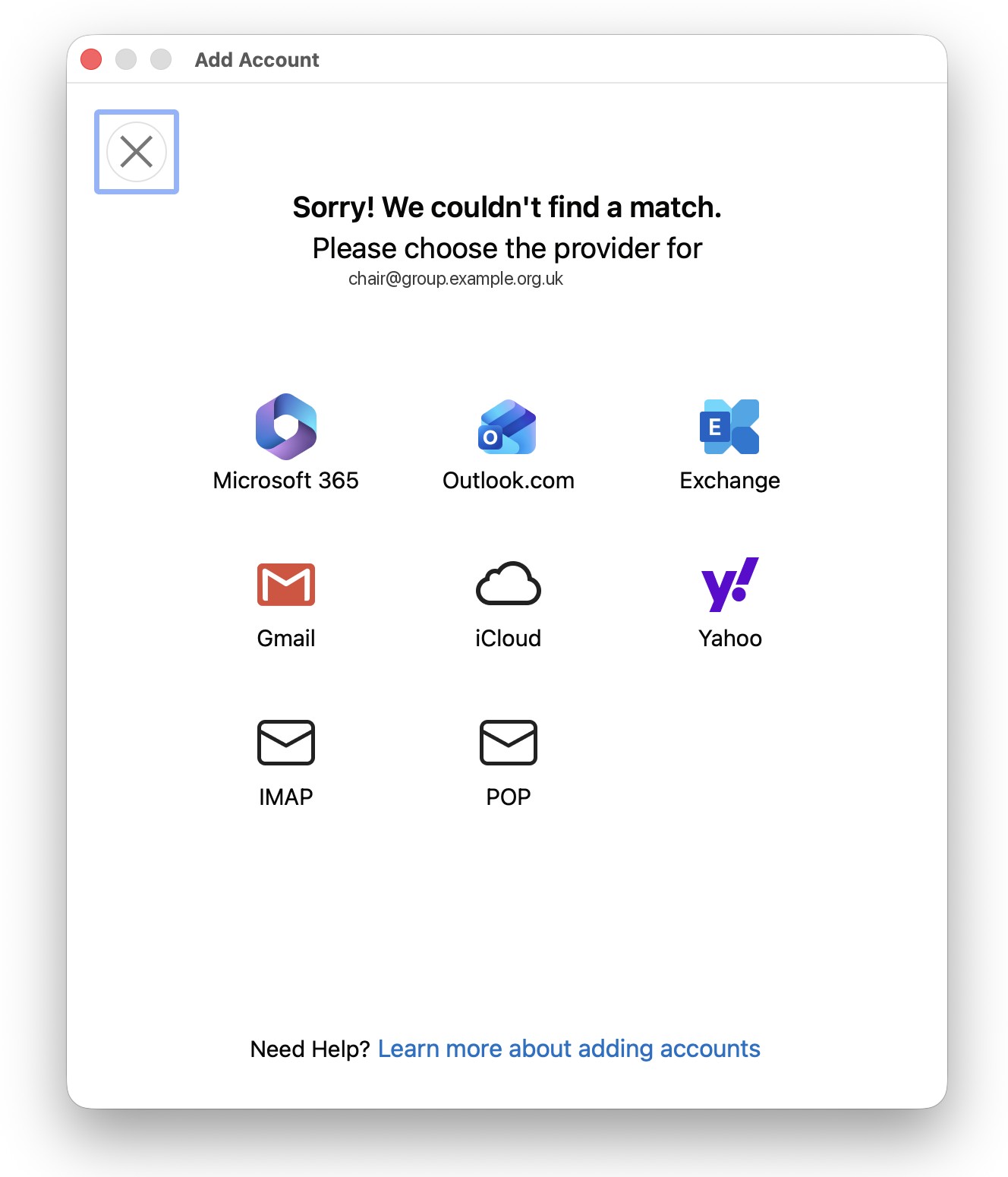
Outlook cannot match the address to Microsoft 365. Choose IMAP, not Exchange.
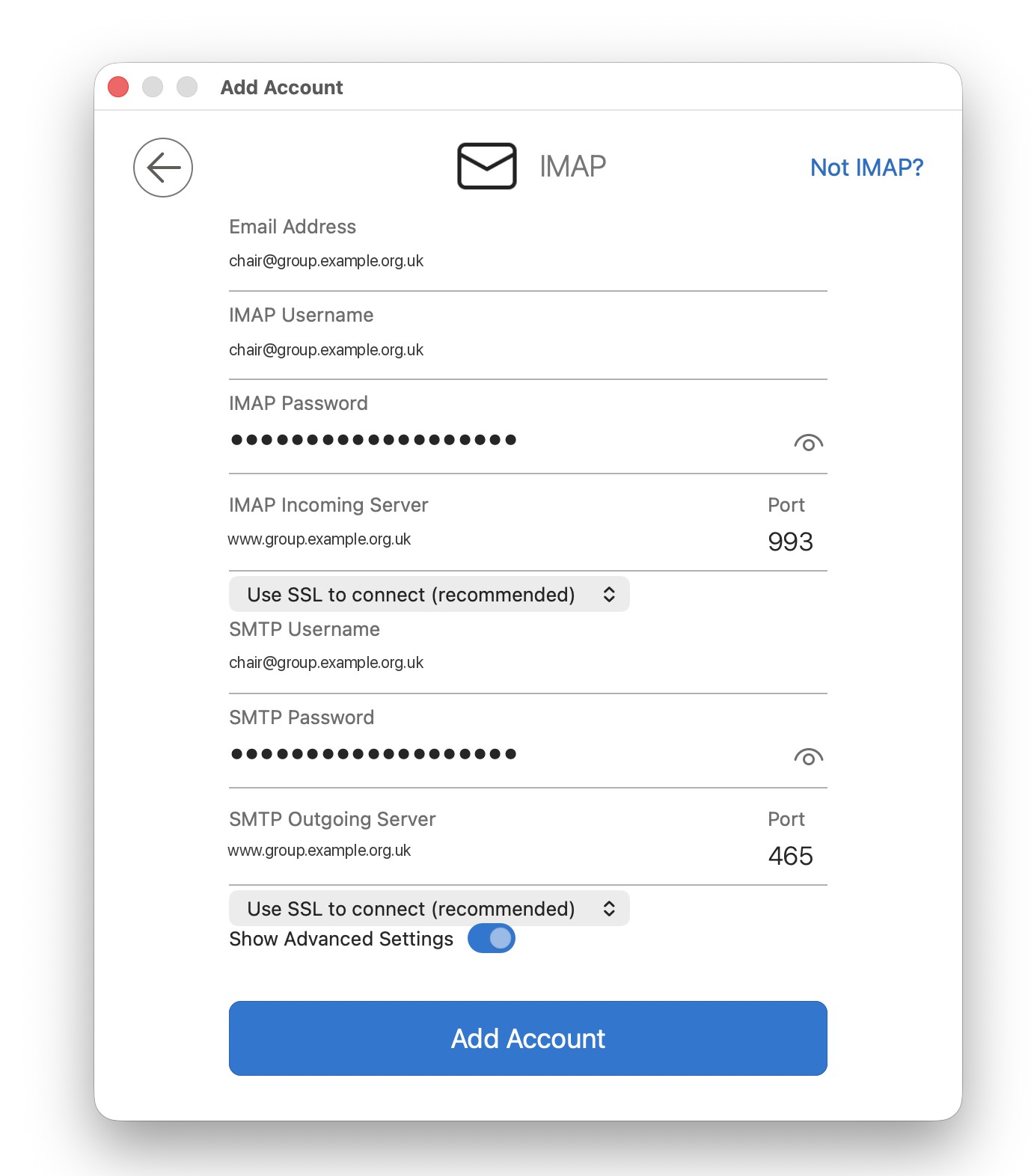
Turn on Show Advanced Settings. Incoming 993, outgoing 465, SSL/TLS on both. Username is the committee address. Password is the application password.
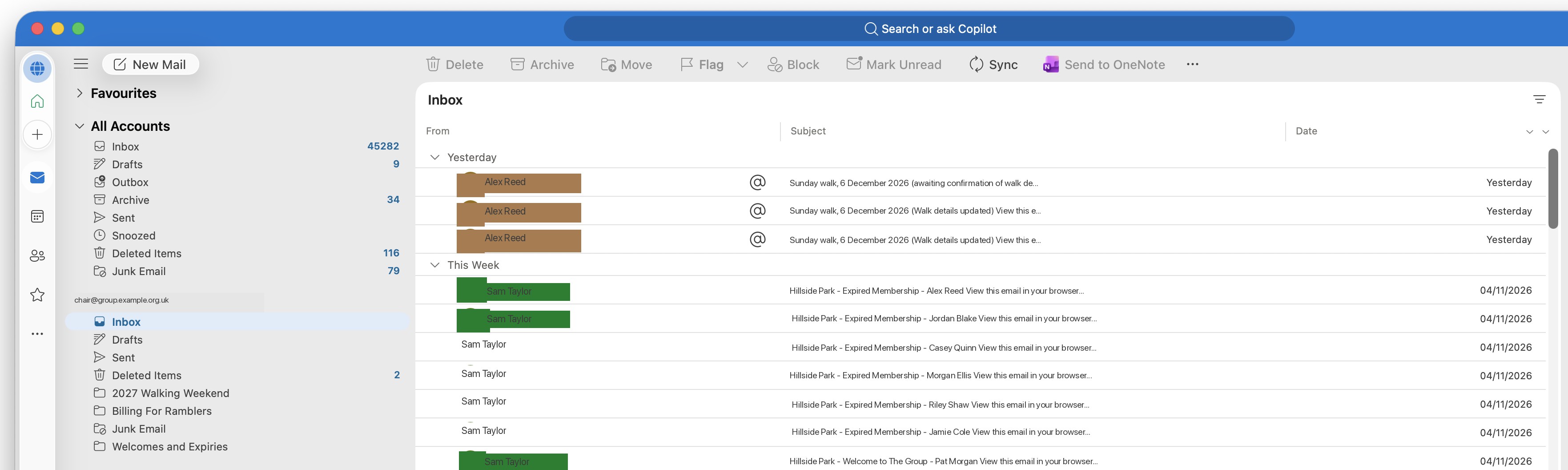
Once Outlook connects, the committee mailbox appears in the sidebar and mail downloads over IMAP.
On Profile → External Email Setup, choose Windows then the Outlook version you use (new Outlook or classic). Choose IMAP if the app asks for the account type. Expand Show more or Advanced settings to enter the ports.
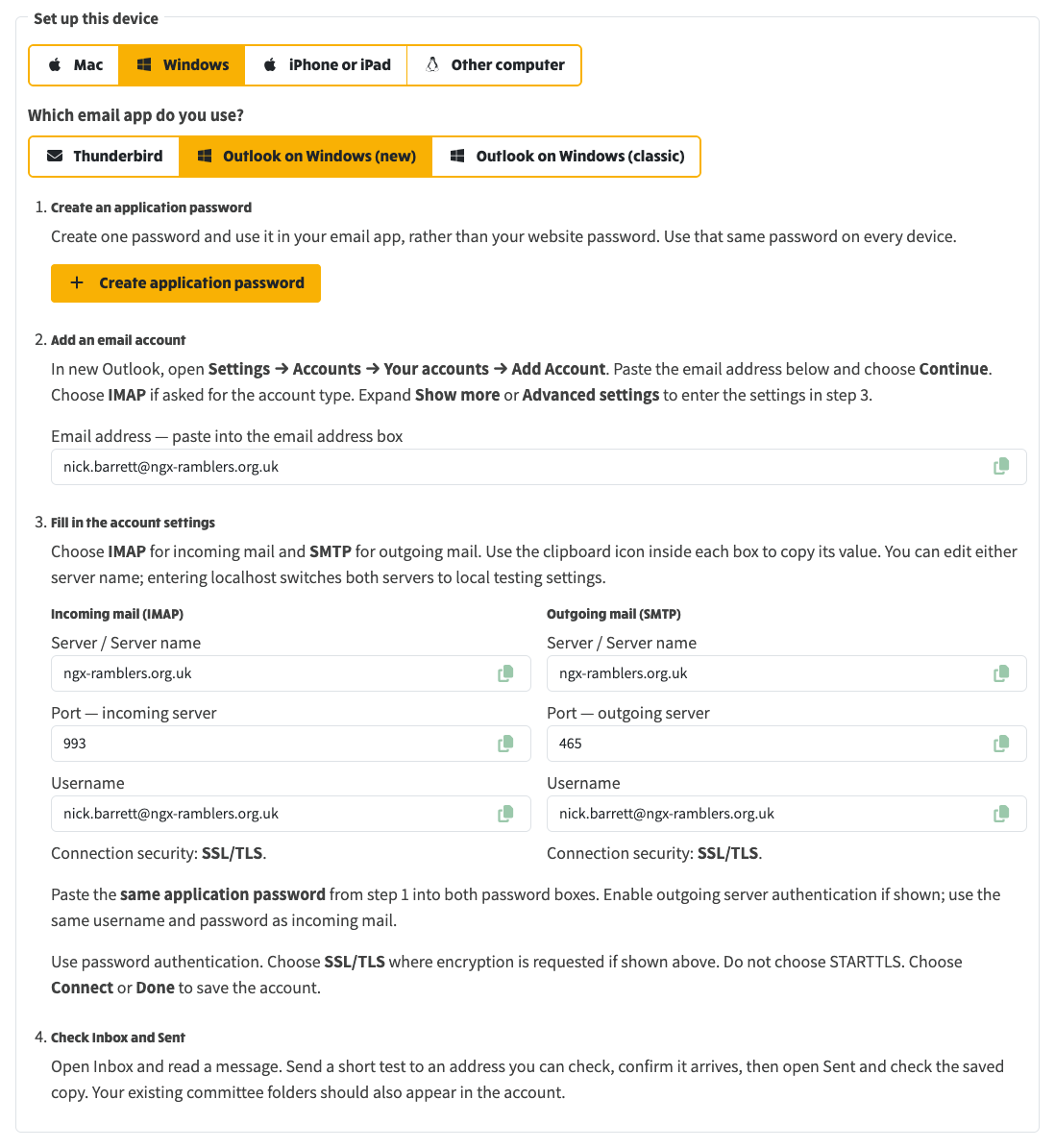
New Outlook on Windows: add the account as IMAP, paste the same hostname, ports 993 and 465, SSL/TLS, and the application password. Do not choose STARTTLS.
Related