# External Email → Gmail on Android
The Gmail app on Android uses the same IMAP and SMTP values as Outlook and Apple Mail. Do not add the committee address as a Google account, and do not sign in with Google.
Open Gmail. Tap the profile picture at the top right (circled) to open the account list, then **Add another account**.
1. On [Profile → External Email](https://ngx-ramblers.org.uk/admin/profile/external-email-setup "{{siteUrl}}"), create the application password if you do not already have one, then copy the incoming and outgoing values (or use the copy icon next to the address).
2. In Gmail, open the account menu → Add another account → Other.
3. Paste the committee role address and choose Next, then Personal (IMAP).
4. Incoming server: username is the committee address, password is the application password, server is the public site hostname from [Profile → External Email](https://ngx-ramblers.org.uk/admin/profile/external-email-setup "{{siteUrl}}"), port 993, security SSL/TLS. Gmail often fills the server from the part after @ in the address. That is usually the website without **www**. Replace it with the hostname from [Profile → External Email Setup](https://ngx-ramblers.org.uk/admin/profile/external-email-setup "{{siteUrl}}") before you continue. If the site is visited with **www**, the hostname must include **www**.
5. Outgoing server: the same hostname, username and application password, port 465, security SSL/TLS. Turn on sign-in required if Gmail shows that switch. Do not choose STARTTLS.
6. Finish the account options, then open Inbox and send a short test. Check that a copy appears in Sent on the website.
Outlook for Android uses the same hostname, ports and application password. Add the account as IMAP, not Microsoft 365 or Exchange. Samsung Email and other Android IMAP apps use the same four numbers: incoming 993 with SSL/TLS, outgoing 465 with SSL/TLS.
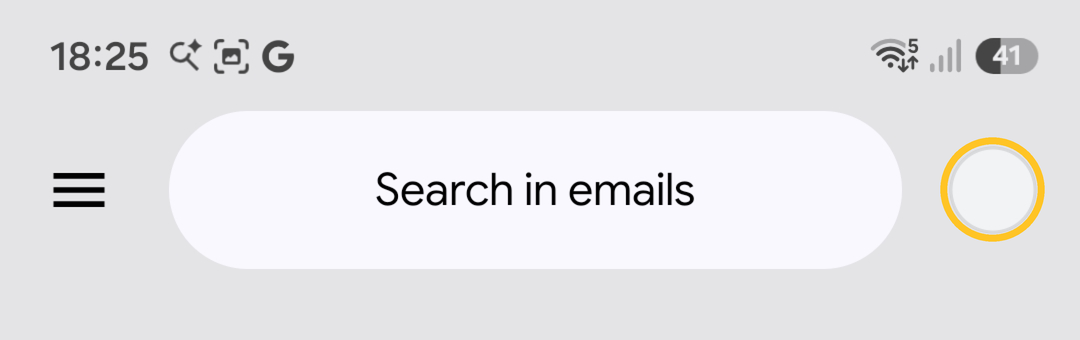
*Inbox: tap the profile picture at the top right (circled), then **Add another account**.*
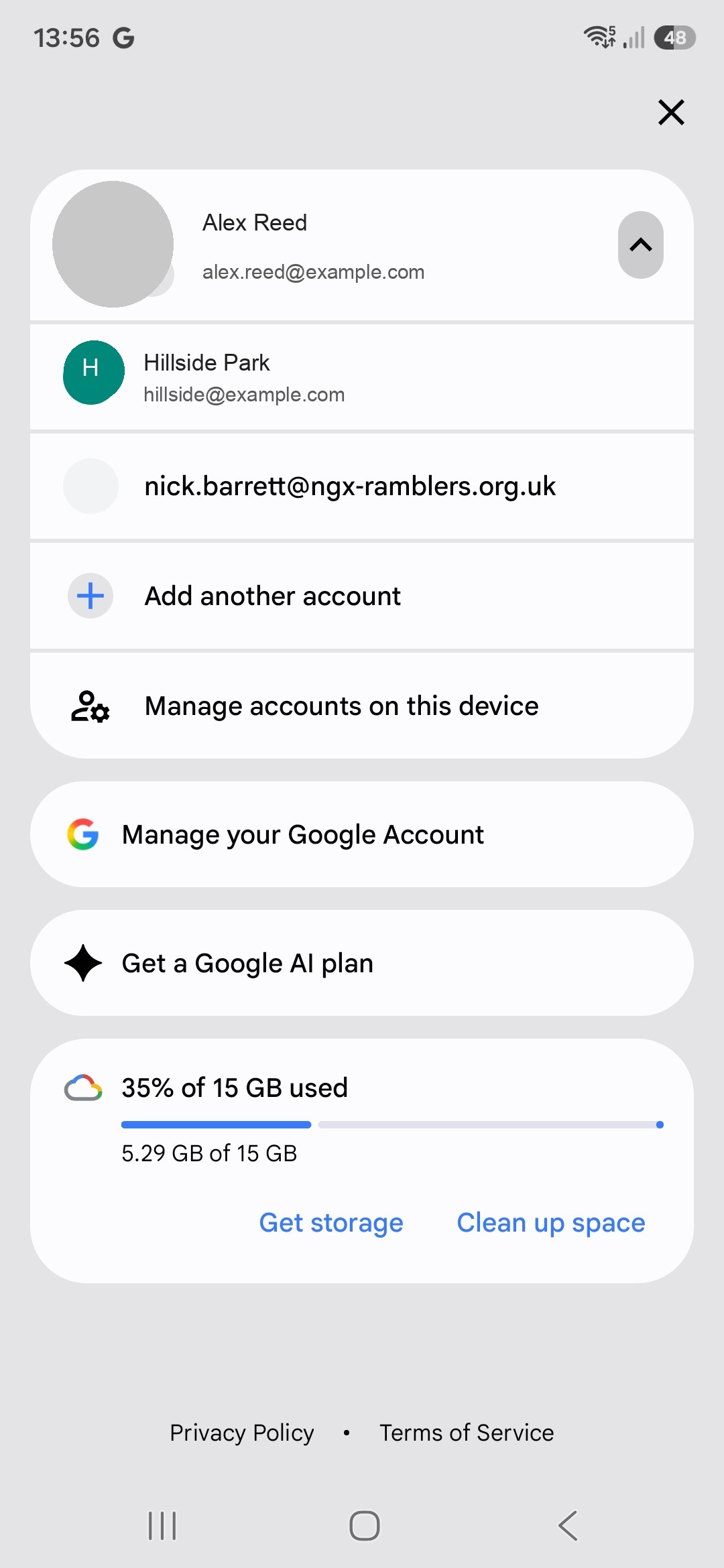
*Gmail on Android: the committee address is in the account list. Choose **Add another account**.*
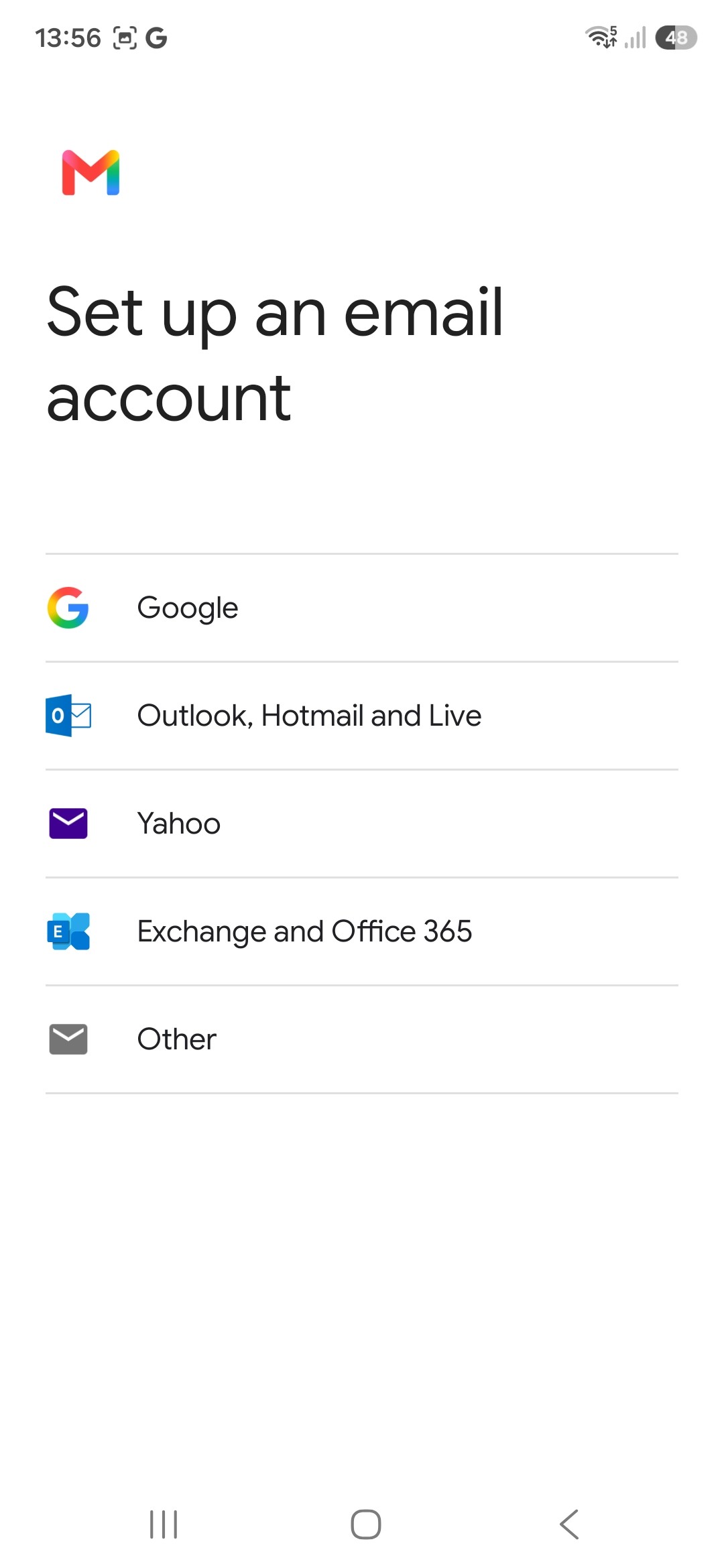
*Set up an email account: choose **Other**, not Google, Outlook or Exchange.*
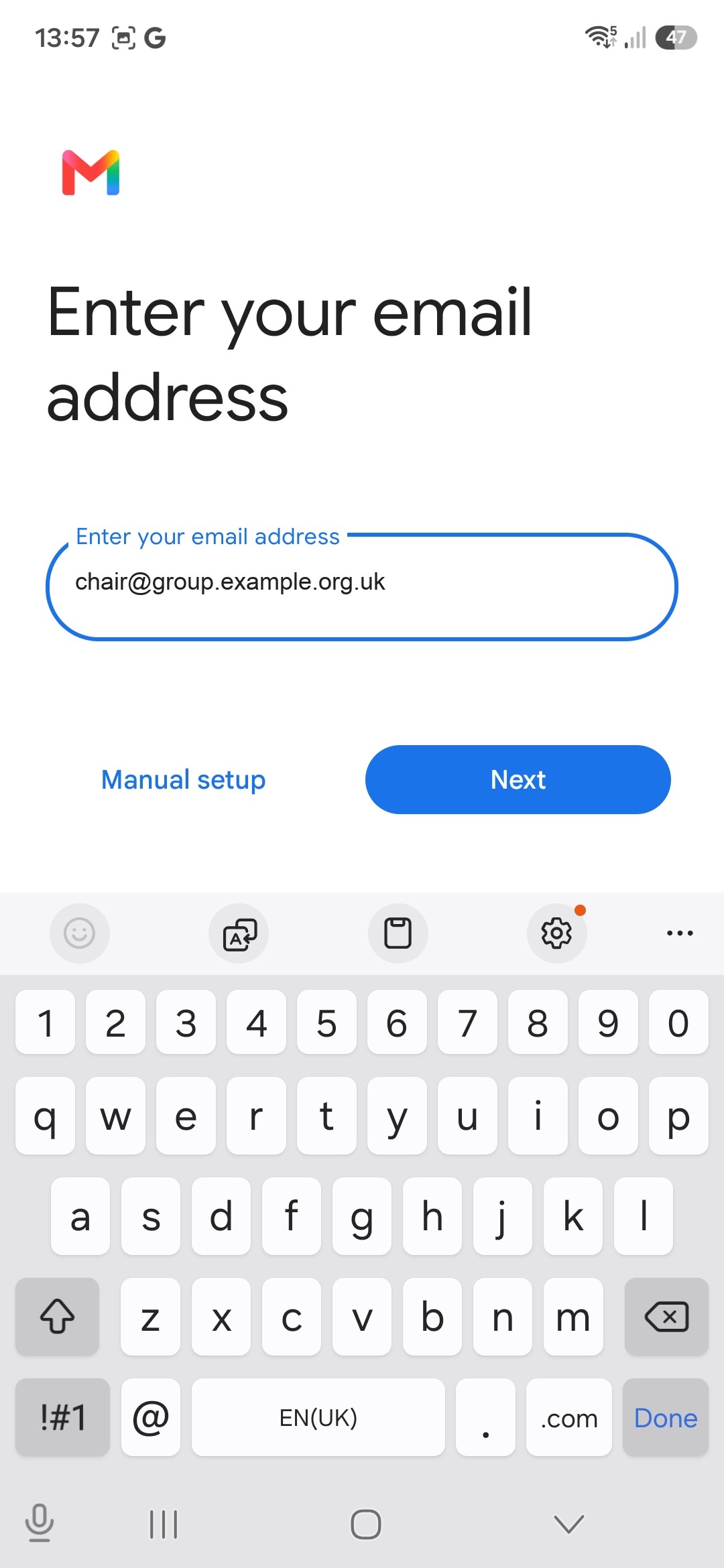
*Paste the committee role address. **Manual setup** is on this screen if Gmail tries to guess the provider.*
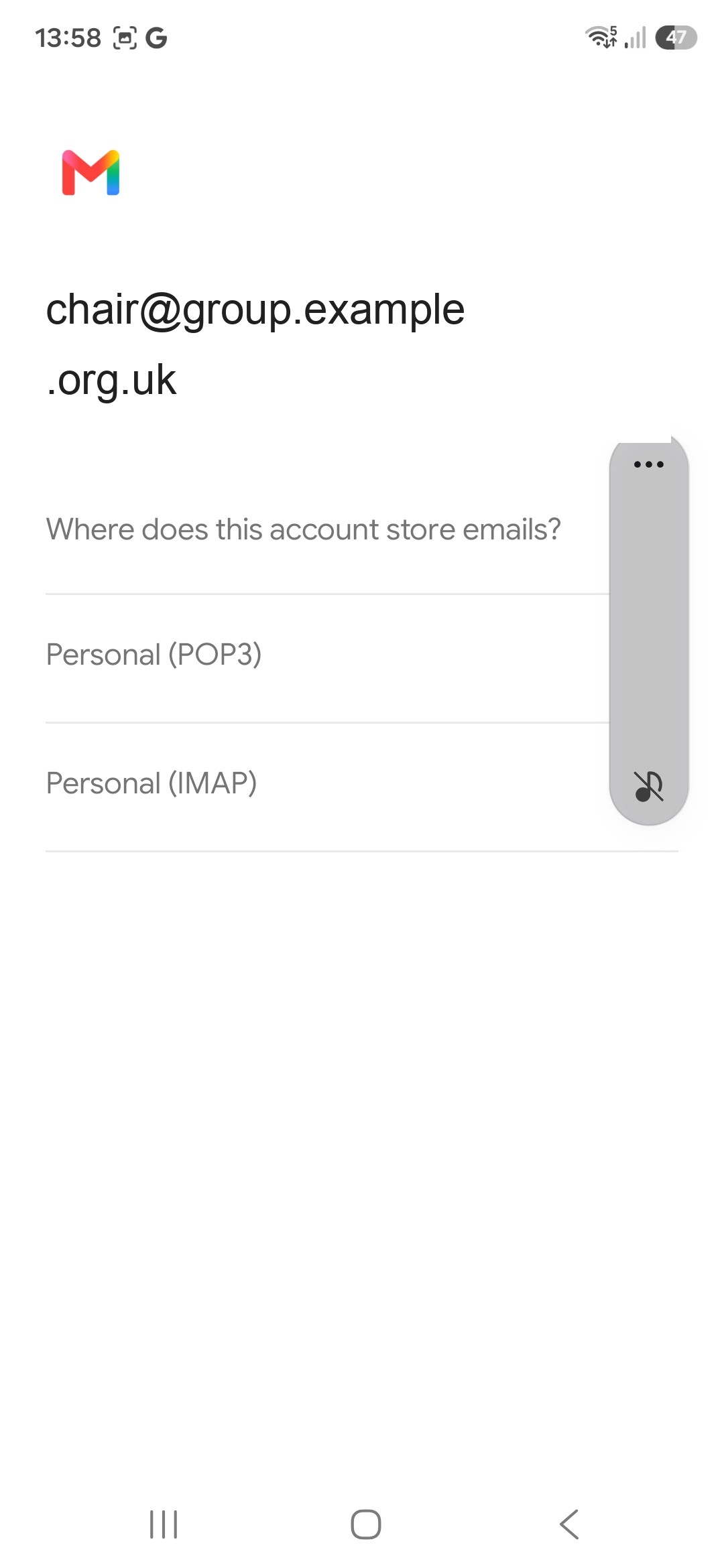
*Where does this account store emails: choose **Personal (IMAP)**, not POP3.*
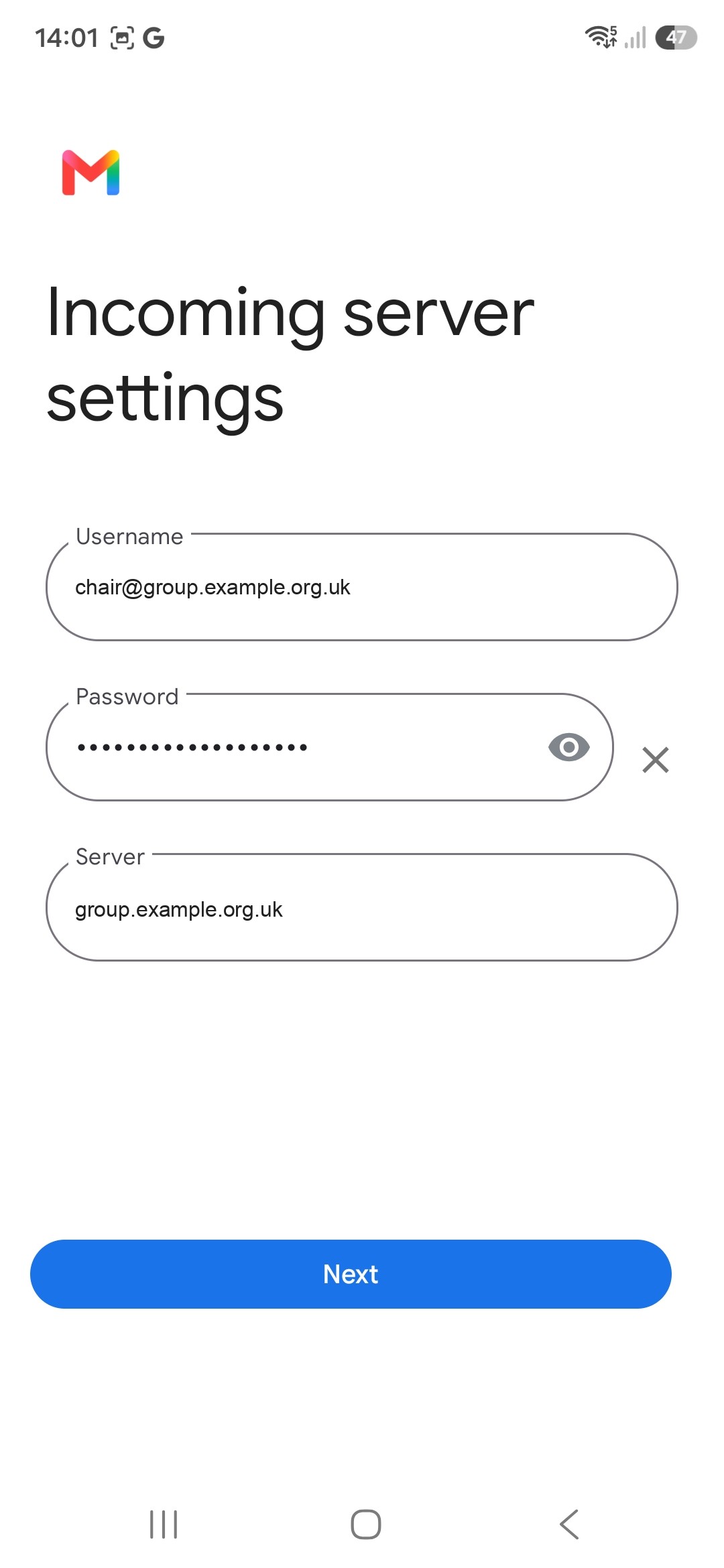
*Gmail fills Server from the part after @. Replace it with the hostname from [Profile → External Email Setup](https://ngx-ramblers.org.uk/admin/profile/external-email-setup "{{siteUrl}}"), including **www** if that is how the site is visited.*
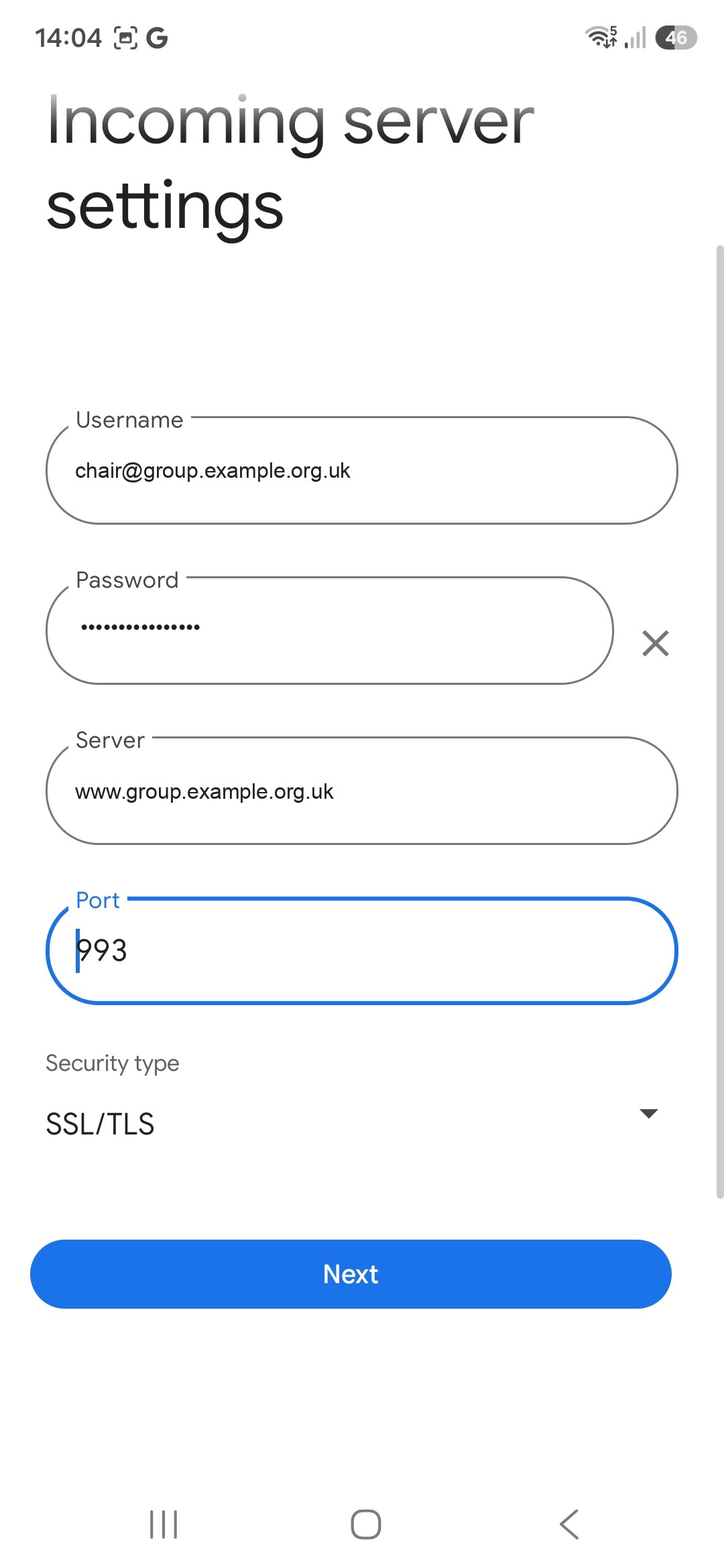
*Incoming: username is the committee address, password is the application password, server is the public site hostname, port **993**, security **SSL/TLS**.*
> **Related**
>
> [External Email](https://ngx-ramblers.org.uk/how-to/committee/email-articles/external-email)
>
> [30 October 2026 release note](https://ngx-ramblers.org.uk/how-to/committee/release-notes/2026-10-30-issue-407)
>
> [Committee role mailboxes and inbox notifications](https://ngx-ramblers.org.uk/how-to/committee/email-articles/committee-role-inbox)
>
> [Admin → Inbox](https://ngx-ramblers.org.uk/admin/inbox "{{siteUrl}}")