# External Email → Outlook on a Mac
On [Profile → External Email](https://ngx-ramblers.org.uk/admin/profile/external-email-setup "{{siteUrl}}"), choose Mac then Outlook. Create an application password first, then add the account in Outlook as IMAP.
1. Enter the committee role address (for example `chair@group.example.org.uk`) and choose Continue.
2. Outlook cannot match a group address to Microsoft 365. Choose IMAP, not Exchange or Outlook.com.
3. Turn on Show Advanced Settings and paste the values from [Profile → External Email](https://ngx-ramblers.org.uk/admin/profile/external-email-setup "{{siteUrl}}"): username is the committee address, password is the application password (not the website login), incoming host is the public site hostname on port 993 with SSL/TLS, outgoing is the same host on port 465 with SSL/TLS. Do not choose STARTTLS. If the website address includes www, the hostname must include www.
4. Add Account. The committee mailbox appears in the sidebar and mail downloads over IMAP.
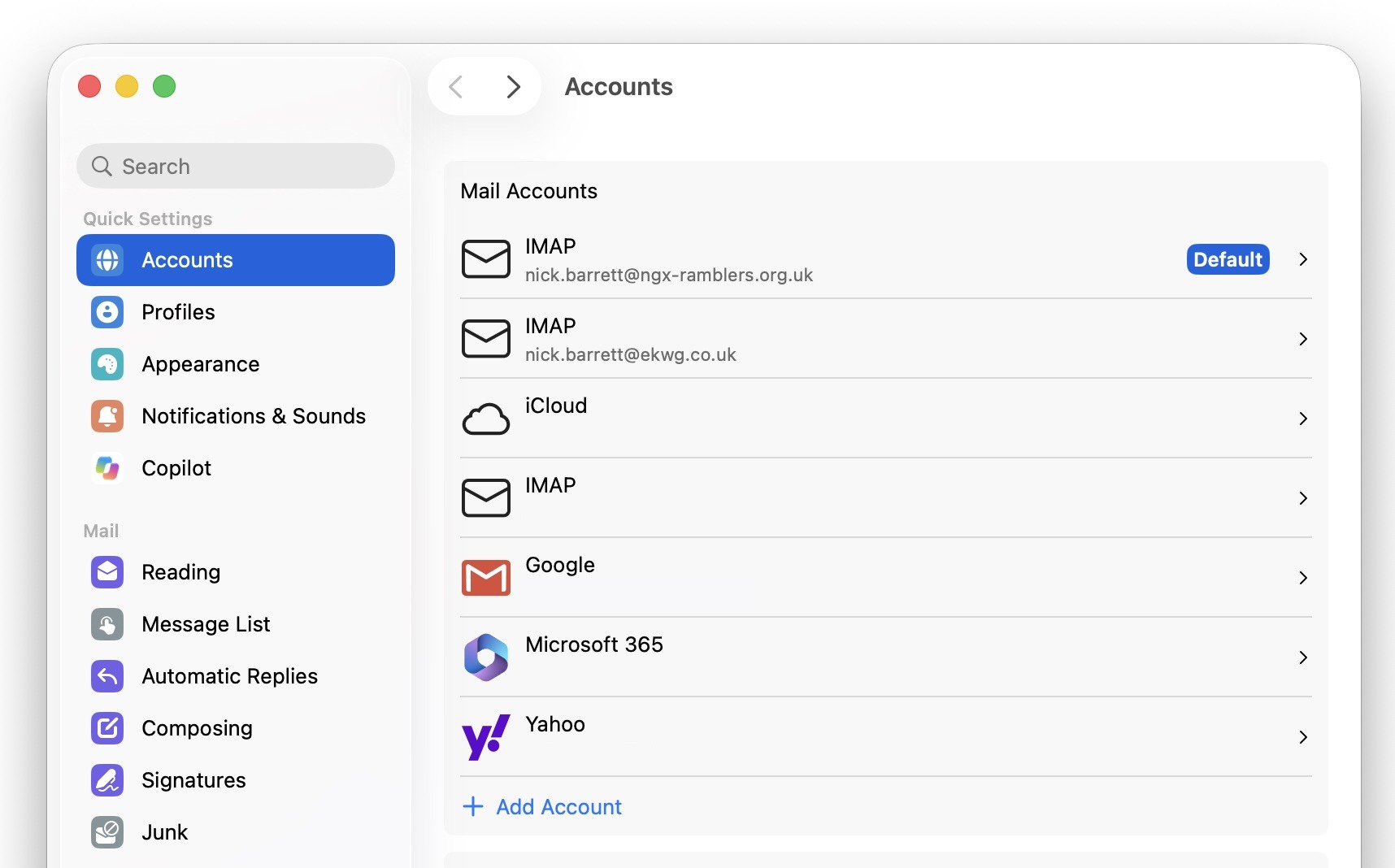
*Outlook on a Mac: Settings → Accounts. Committee mail appears as IMAP. Choose **Add Account** to start.*
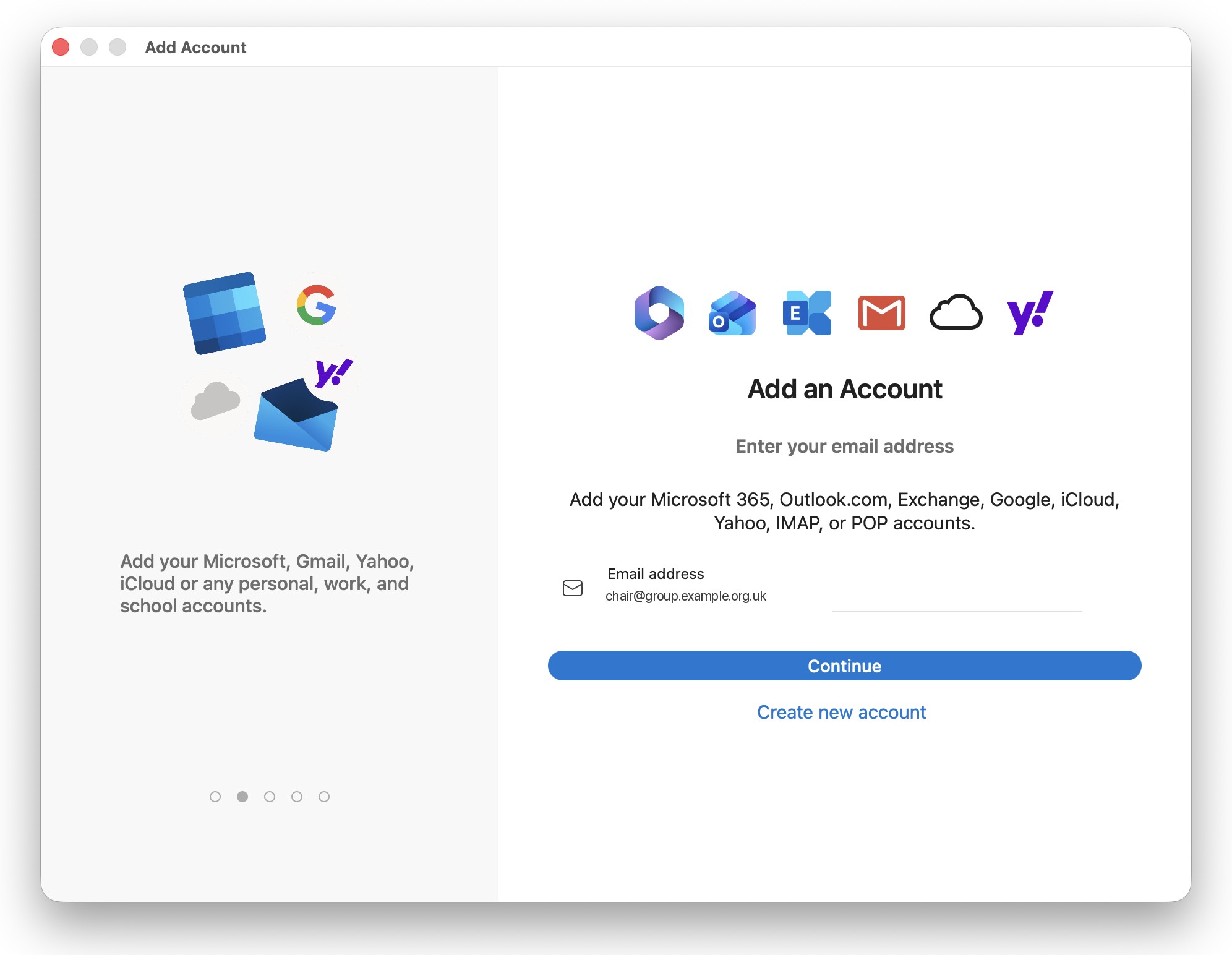
*Outlook on a Mac: enter the committee role address, then Continue.*
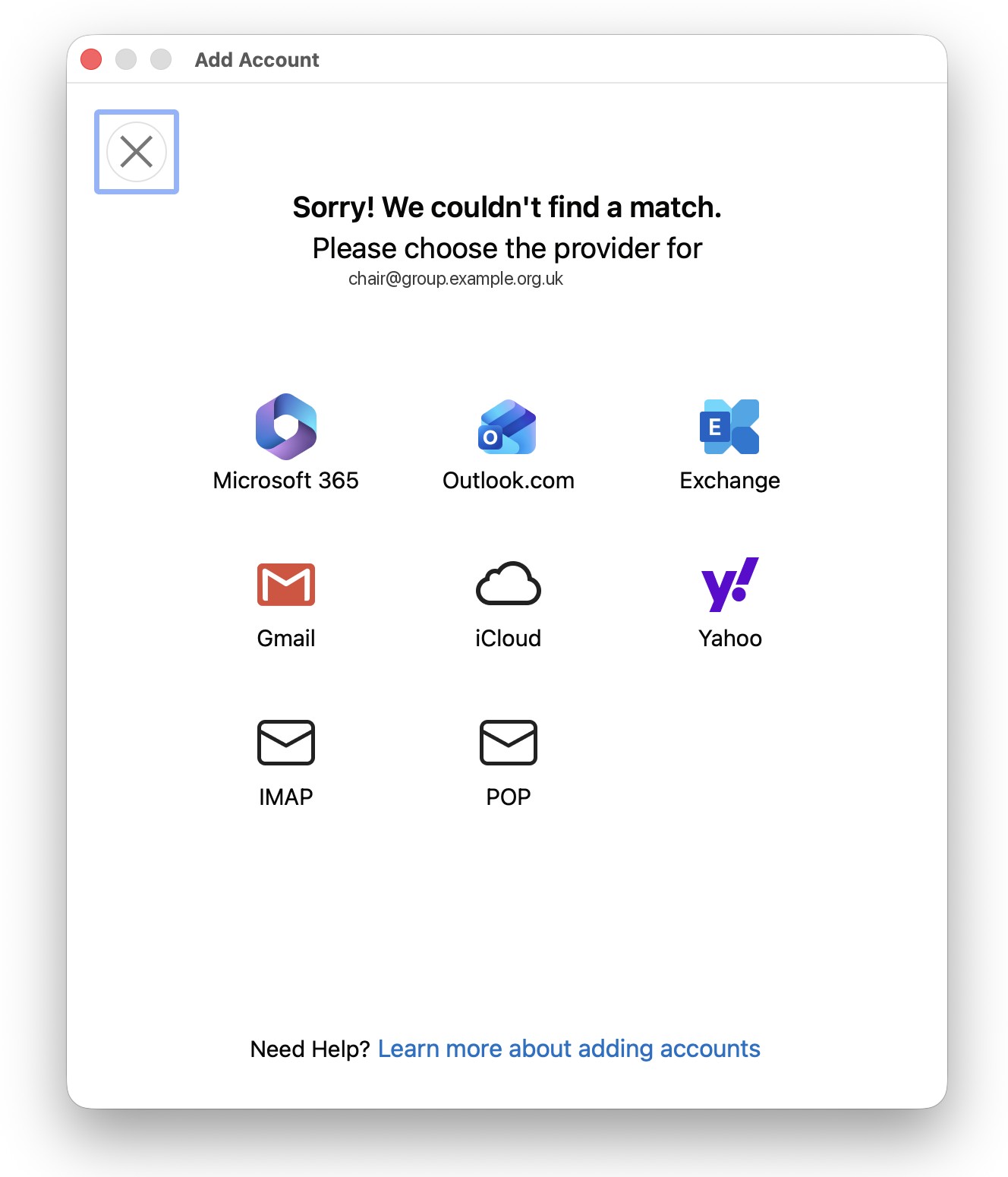
*Outlook cannot match the address to Microsoft 365. Choose IMAP, not Exchange.*
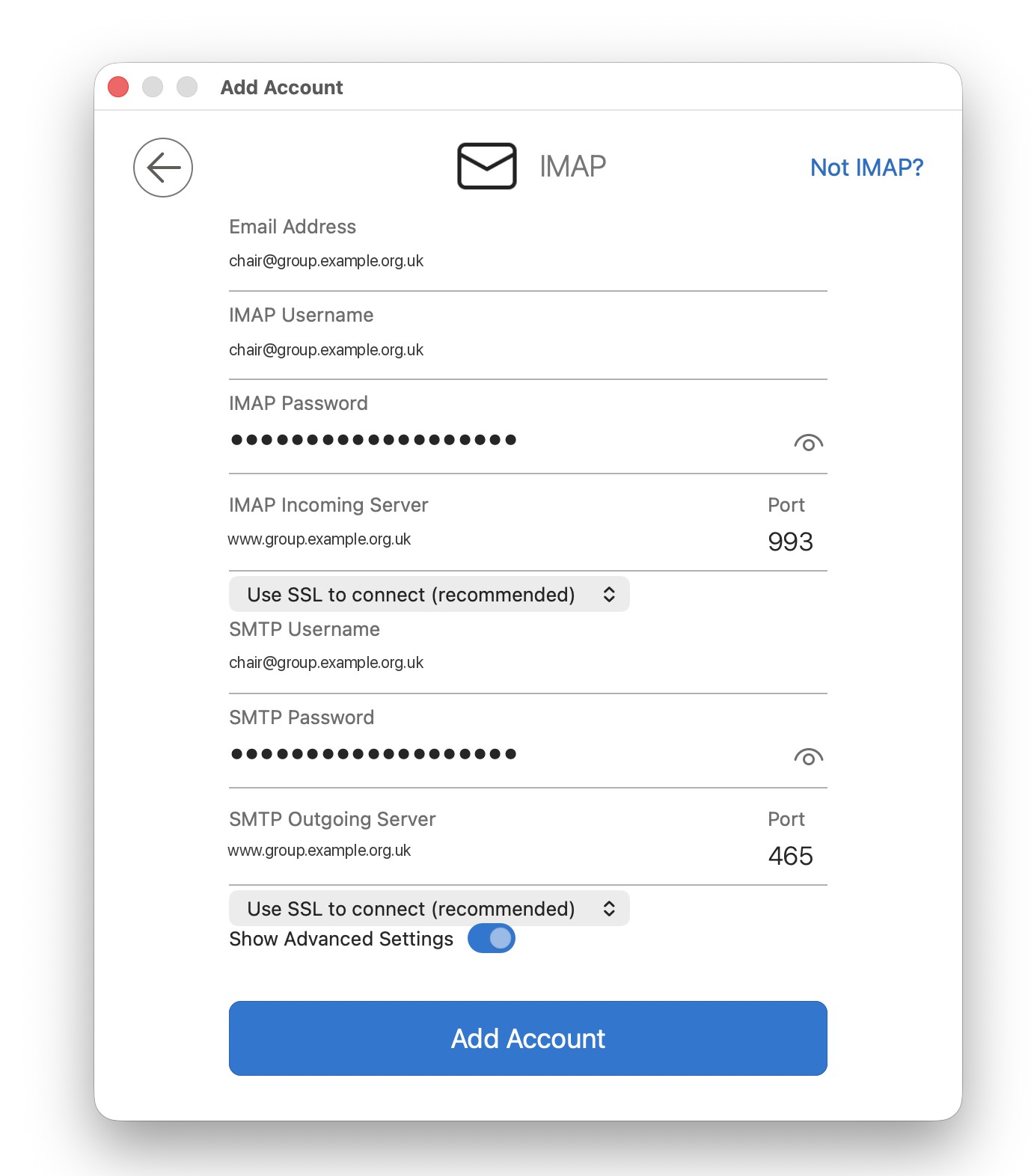
*Turn on Show Advanced Settings. Incoming 993, outgoing 465, SSL/TLS on both. Username is the committee address. Password is the application password.*
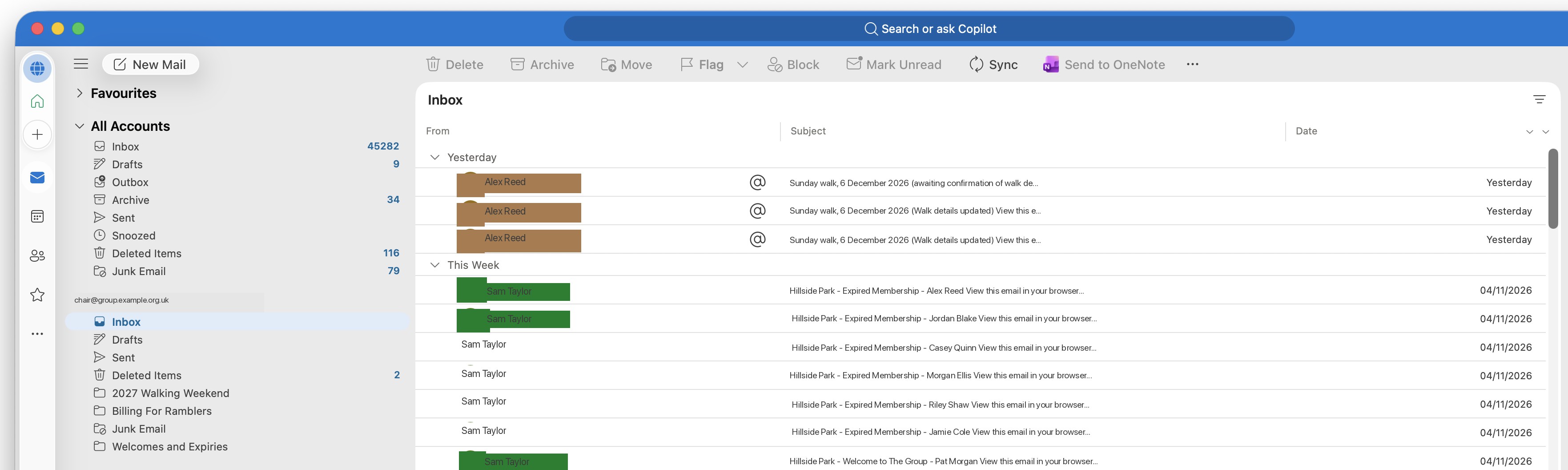
*Once Outlook connects, the committee mailbox appears in the sidebar and mail downloads over IMAP.*
## Outlook on Windows
On [Profile → External Email](https://ngx-ramblers.org.uk/admin/profile/external-email-setup "{{siteUrl}}"), choose **Windows** then the Outlook version you use (new Outlook or classic). Choose IMAP if the app asks for the account type. Expand Show more or Advanced settings to enter the ports.
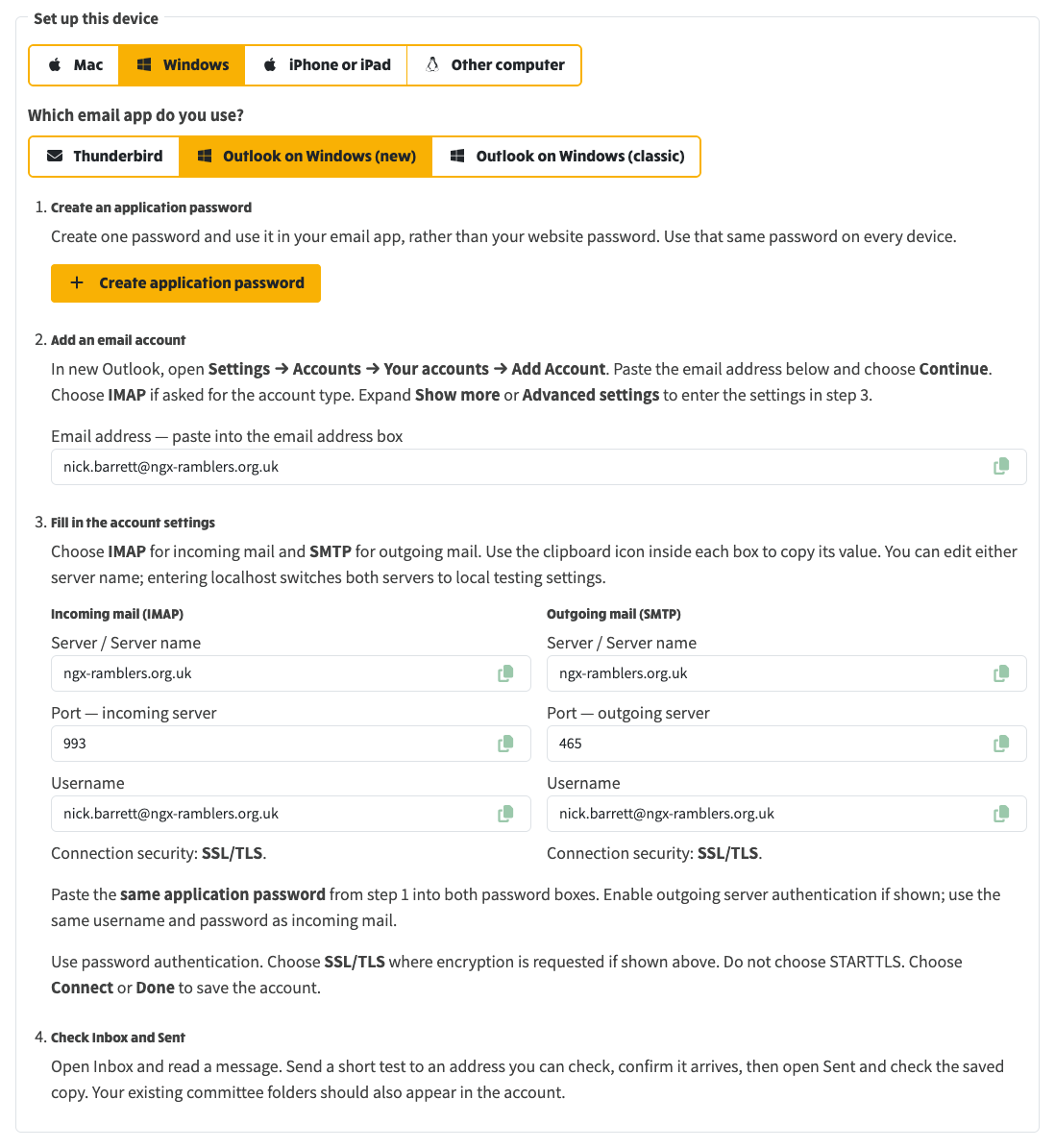
*New Outlook on Windows: add the account as IMAP, paste the same hostname, ports 993 and 465, SSL/TLS, and the application password. Do not choose STARTTLS.*
> **Related**
>
> [External Email](https://ngx-ramblers.org.uk/how-to/committee/email-articles/external-email)
>
> [30 October 2026 release note](https://ngx-ramblers.org.uk/how-to/committee/release-notes/2026-10-30-issue-407)
>
> [Committee role mailboxes and inbox notifications](https://ngx-ramblers.org.uk/how-to/committee/email-articles/committee-role-inbox)
>
> [Admin → Inbox](https://ngx-ramblers.org.uk/admin/inbox "{{siteUrl}}")