Lists Tab
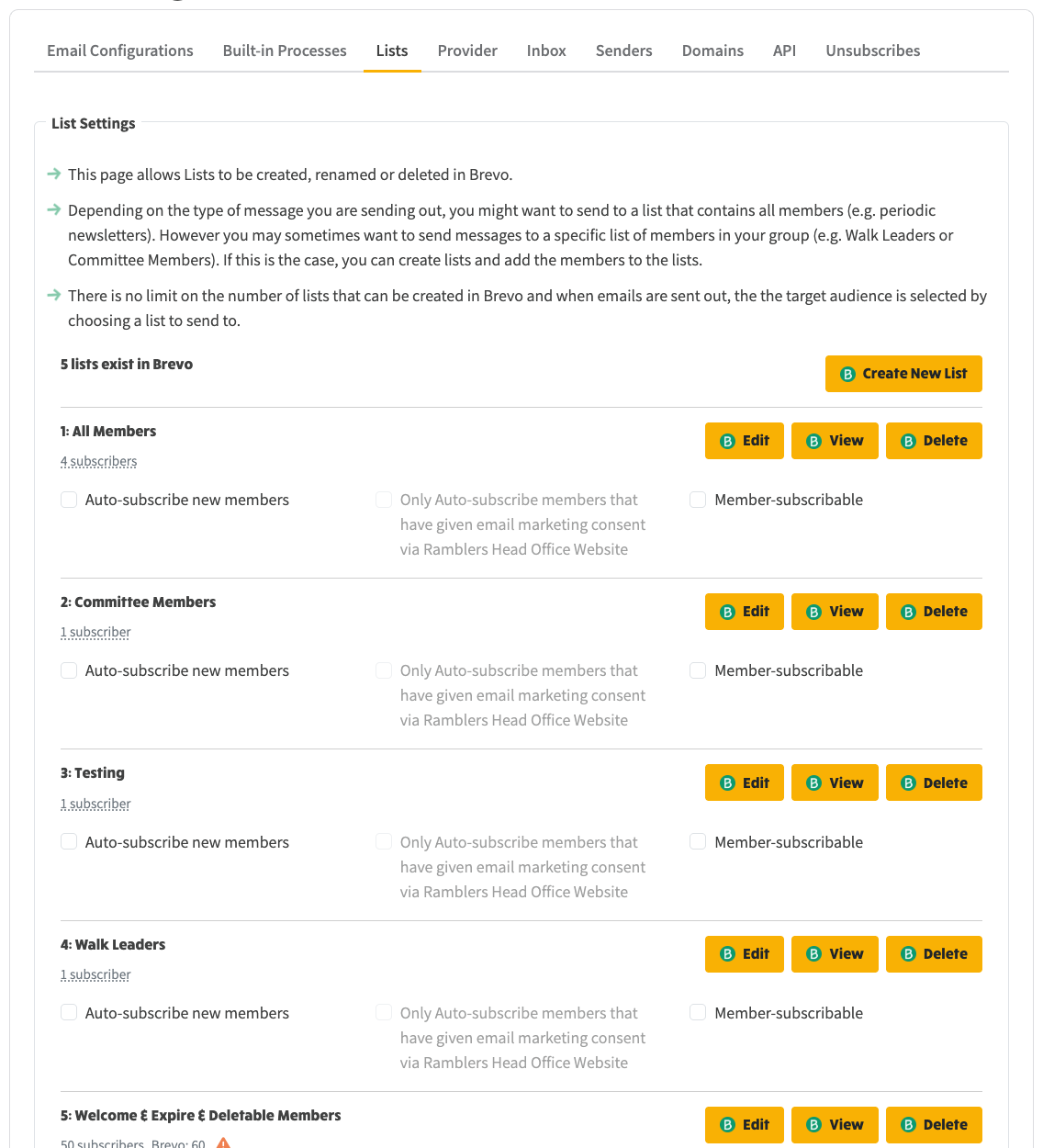
- In the screenshot above, there are 5 lists set up in Brevo, each showing its subscriber count beneath its name.
- There is a general convention within NGX-Ramblers, that if you see yellow button with a green B to the left of the button title, this will either navigate to Brevo (in the case of View), or send a message to Brevo via automation (in the case of Delete).
Viewing a List
- Note that there is never a need to make manual amendments within Brevo to your lists. All list synchronisation is performed automatically by NGX-Ramblers automation. The following instructions are provided for your interest/information.
- Click the View button to the right hand side of the list you want to view.
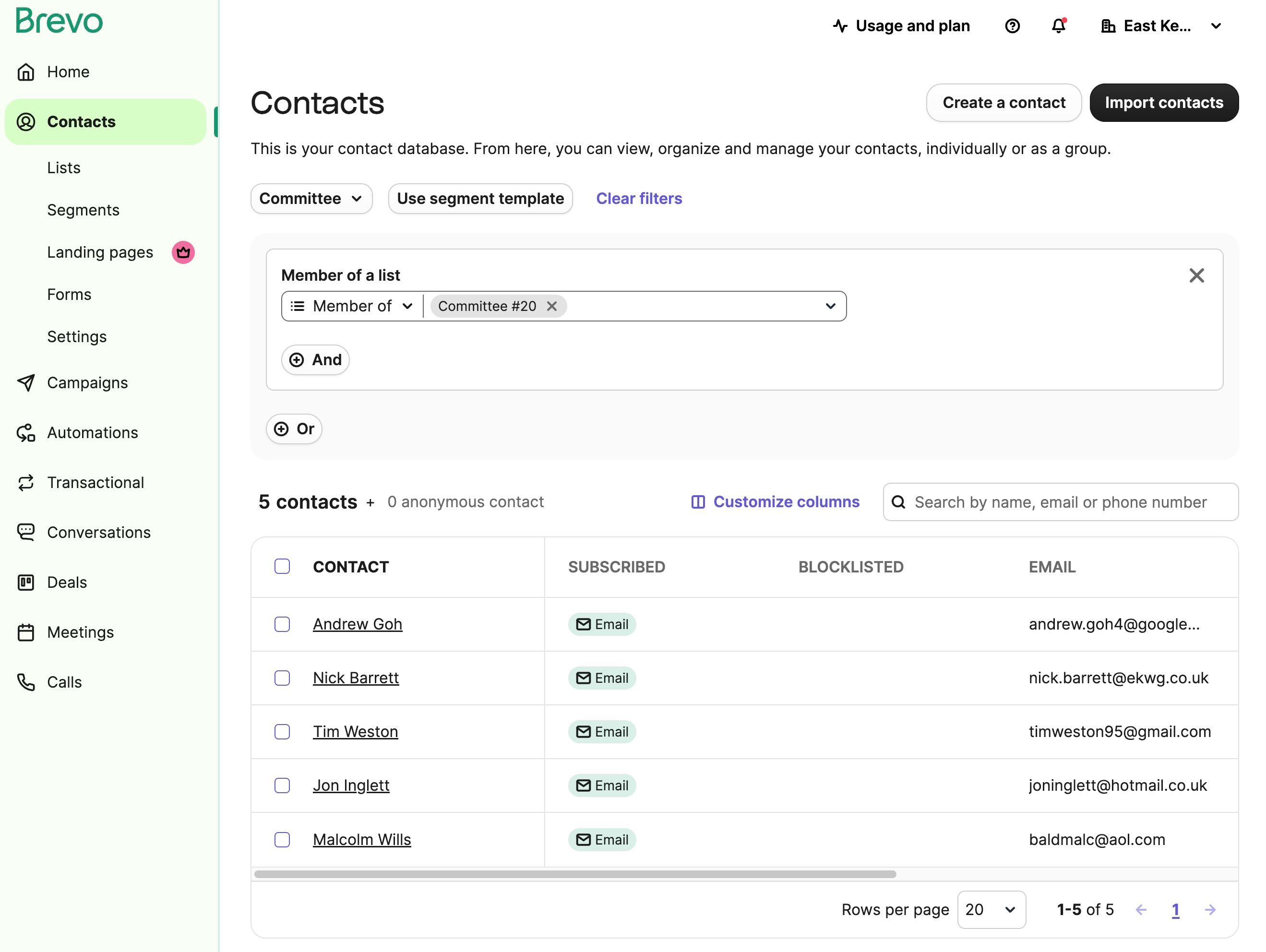
- You will now be navigated to the view in Brevo. If you haven't already logged in, you will be prompted.
- The number of contacts listed should equal the number of subscribers listed in the Mail List view in NGX-Ramblers.
Creating a new List
- Click the Create New List button:

- You will be prompted to Enter the List Name and choose a Folder Name (these are created automatically in Brevo and you can choose the default).
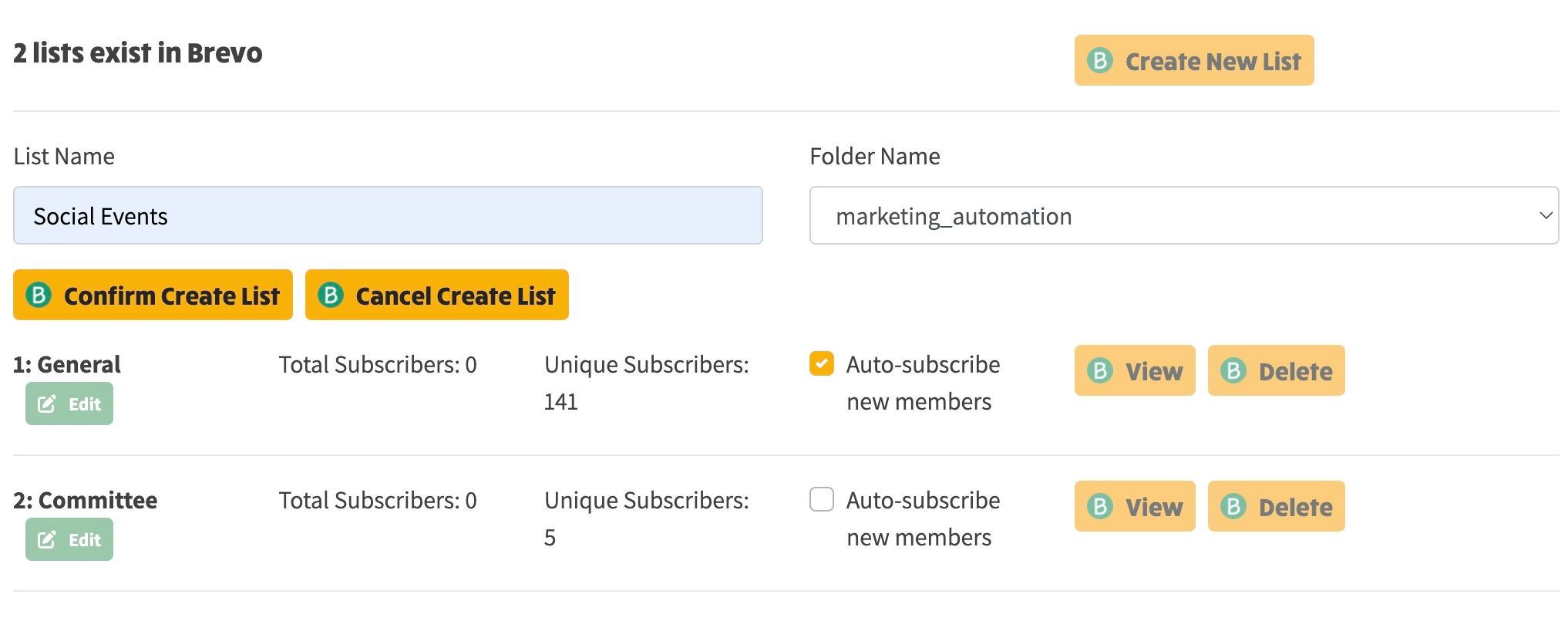
- In the example screenshot above, a new List named Social Events is being added.
- If you don't want to create the list, click Cancel Create List.
- To go ahead, click Confirm Create List and the new list should appear at the bottom:
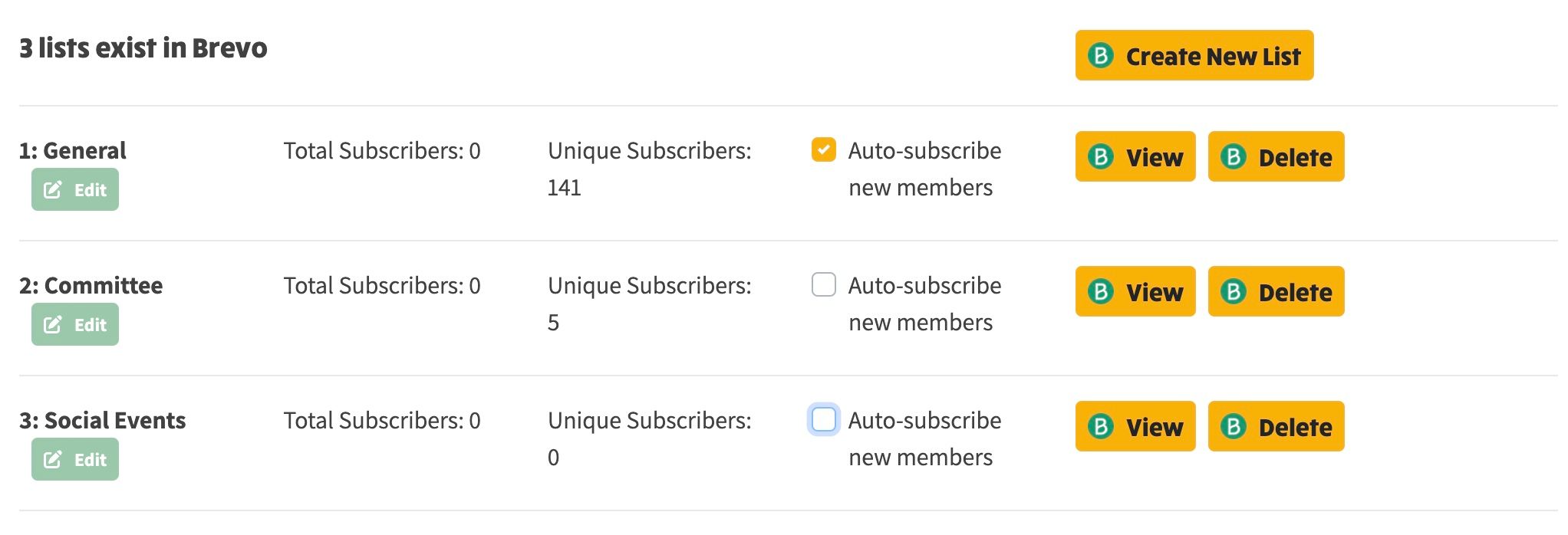
- Note that the Auto-subscribe new members checkbox should be checked for your "All members" list, and unchecked for special lists such as Walk leaders and Committee, which you would manually subscribe members to. See the Subscribing Members section on how to do this.
Deleting a List
- Note that deleting a list does not affect any member data that you have within Member Admin - this function only deletes the list data in Brevo.
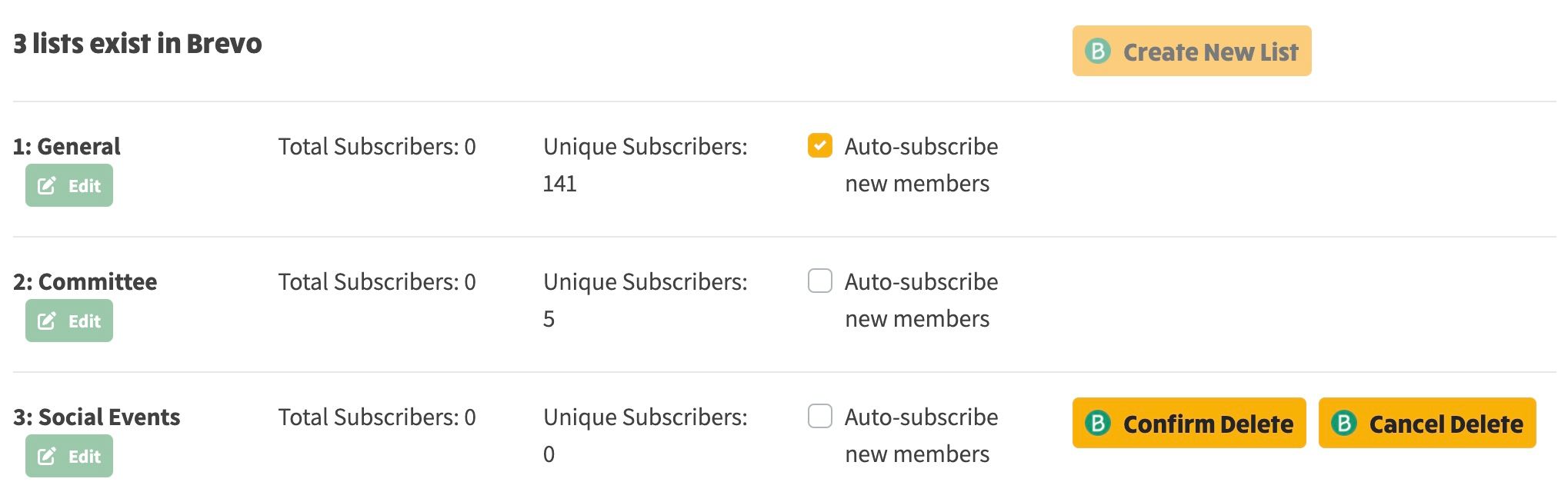
- Click the Delete button to the right hand side of the list you want to delete.
- Click Confirm Delete if this is want you want to do and the list should no longer be displayed.