
There are two ways to create an album. Use the walk or social event button when the photos belong to a particular event. Use a normal CMS page when you want a year gallery, a social collection, or any other photo page that is not tied to one event.
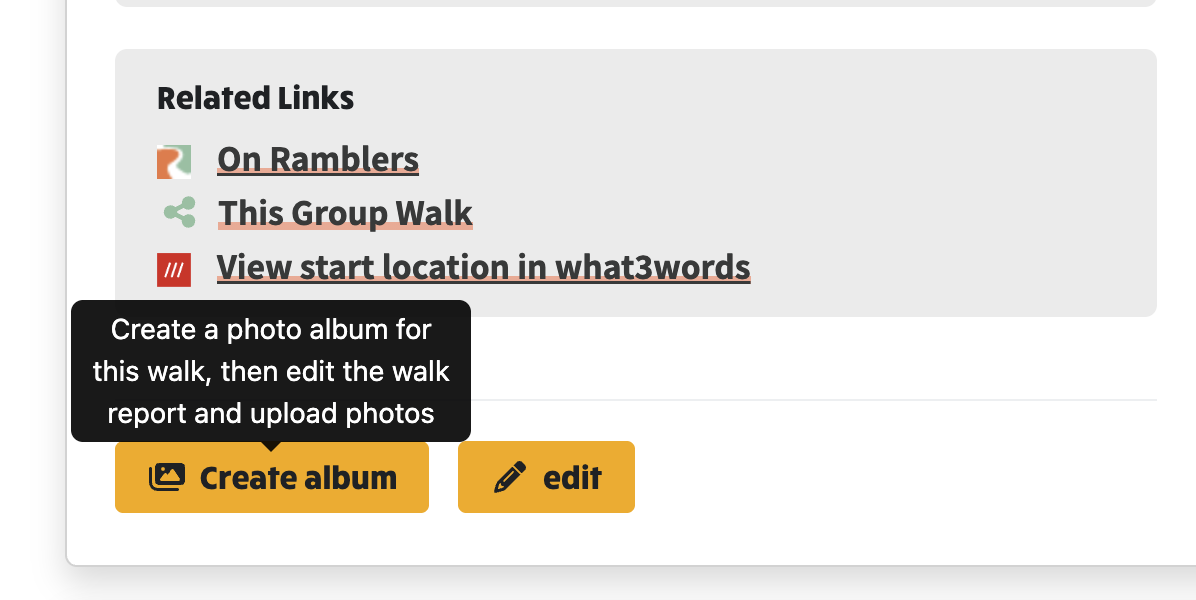
This is the usual path for walk photos. On a walk that has already started, a walk leader or administrator sees Create album. One click:
If the album already exists, the same control reads Edit album and reopens that workflow.
The full walkthrough, with screenshots, is Create a walk photo album from the walk page. Walk leaders can do this without content-admin rights. Other members, and the public if you allow it, can add photos for the leader to approve. That is covered in let walk leaders and members add walk photos.
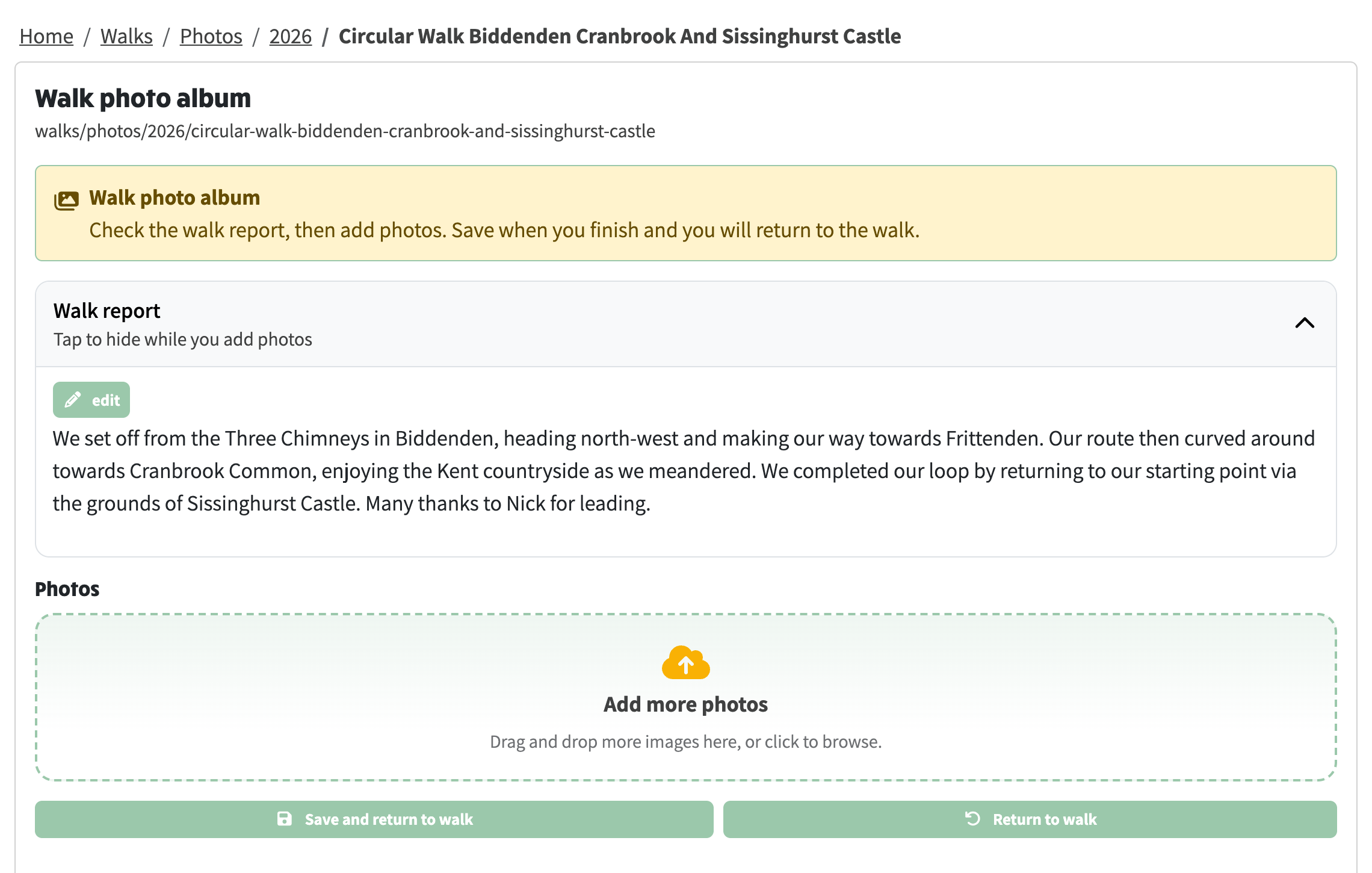
When you create or edit a walk album this way, you do not get the full page editor. You get a focused view for the walk report and the photos:
On any page that already has an album, edit site also offers a switch between Use guided photo workflow and Open full album editor. The guided view is for reviewing the report and adding photos. The full editor is for album settings, cover image, titles, event linking, and the other controls described in Editing Album Elements.
Use this for year galleries (for example /photos/2026), social collections, or any other page that should hold photos without being created from a walk.
photos/2026. Once the page exists, the year URL will show it.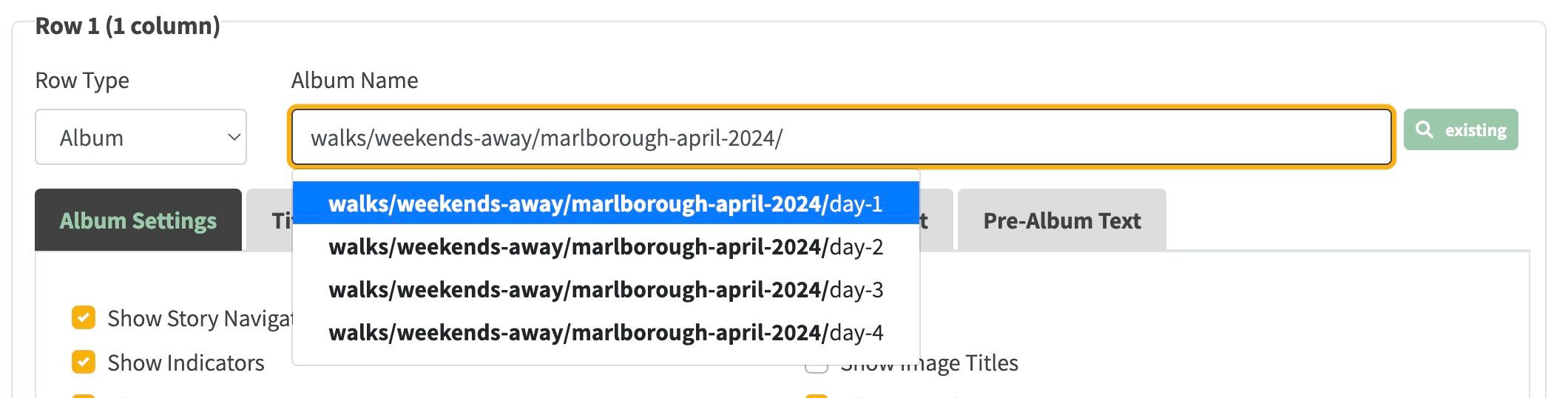
A path such as /photos/2026 is used both for CMS pages and for events. If there is no page at that path yet, NGX looks for an event whose URL contains that last segment. A year such as 2026 or 2027 matches any walk or social event from that year, so you open a walk or a holiday instead of Create Content. A year with no matching event, such as /photos/2028, offers Create Content as expected.
Create the page from the Page Content Navigator, or from the parent Photos page, rather than typing the year into the address bar.
Worked examples of album layouts are in Example album pages.