{"id":"665c5d8a92f59d5c0d3b79a7","title":"Tagging And Event Linking","path":"how-to/committee/images/albums/tagging-and-event-linking","contentMarkdown":"## Tagging and Event Linking\n* This section outlines some useful features that allow links and tags to be added to album images. Note that there is a [separate article that explains how to perform tagging and event linking at the same time as cropping and resizing images](https://ngx-ramblers.org.uk/how-to/committee/images/albums/cropping-and-resizing-images).\n* In order to add edit or delete tags from an album, you need to be logged into the site as an administrator. If you haven't done that yet, [follow this guide](https://ngx-ramblers.org.uk/how-to/committee/logging-in). \n* Go to the album you want to work on, go into the **site edit** mode and move to the image that you'd like to create a link or tag on.\n\n### Event Linking\n* An album image can be linked to a walk or social event, such that when the image is displayed, a link automatically appears under the image title. When the link is clicked, the user will be navigated to the walk or social event. The date that the event happend will also be shown in the link. \n* To link to an existing walk or social event, in the **Date Source** field, choose **Walk**. A Link to walks event dropdown will now appear at the bottom of the image:\n\n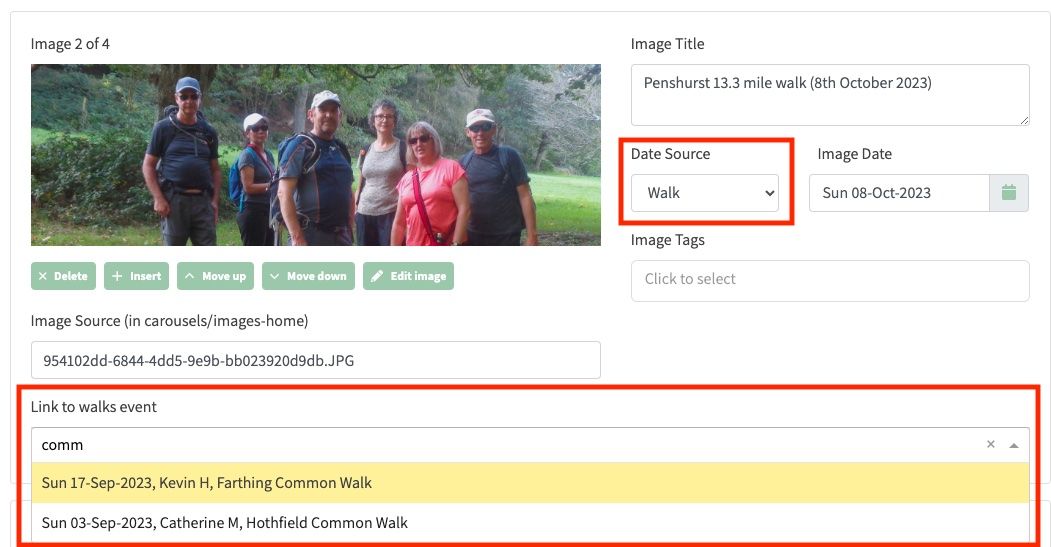","contentHtml":"Tagging and Event Linking
\n\nEvent Linking
\n\n- An album image can be linked to a walk or social event, such that when the image is displayed, a link automatically appears under the image title. When the link is clicked, the user will be navigated to the walk or social event. The date that the event happend will also be shown in the link.
\n- To link to an existing walk or social event, in the Date Source field, choose Walk. A Link to walks event dropdown will now appear at the bottom of the image:
\n
\n
\n"}