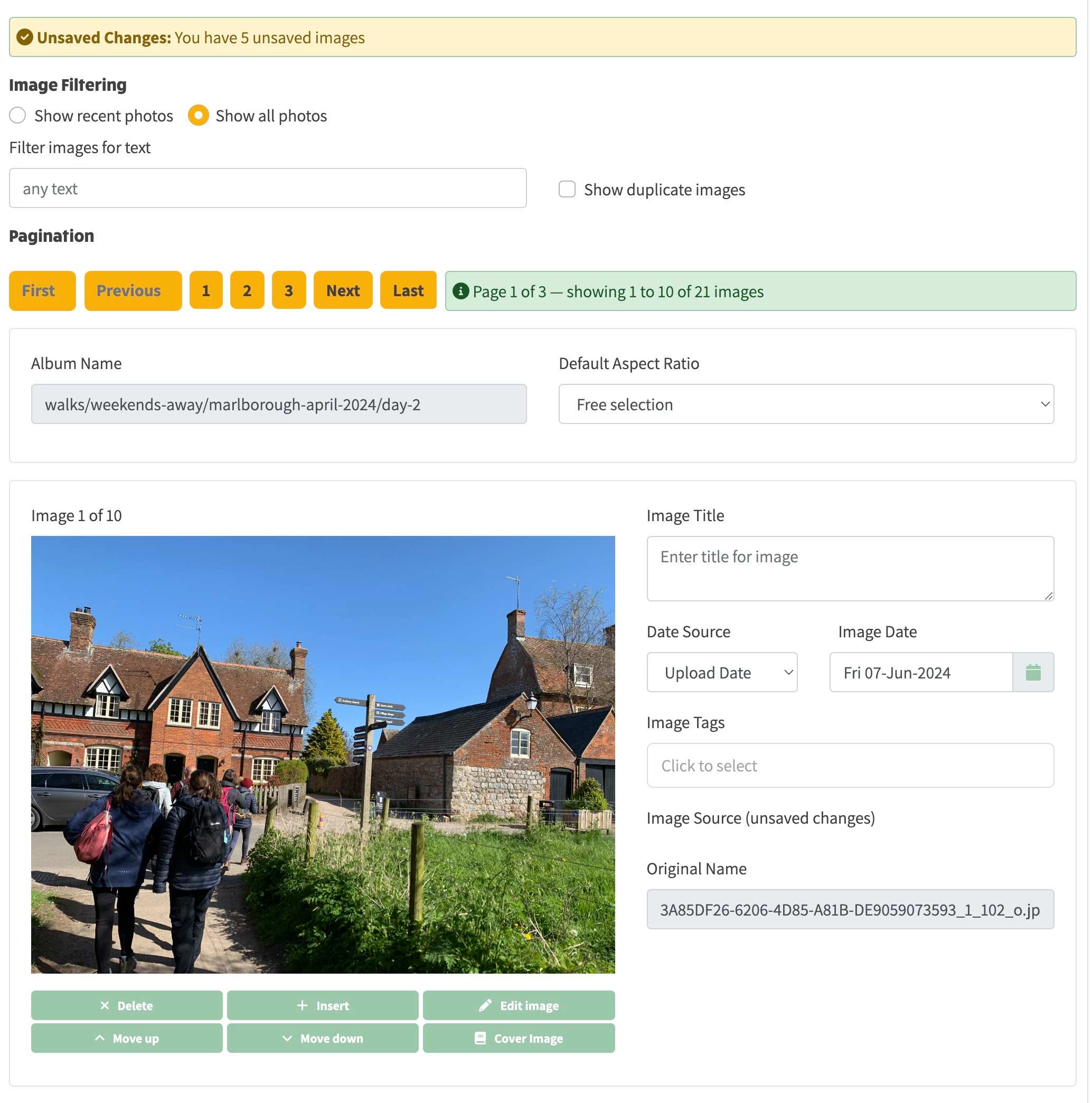
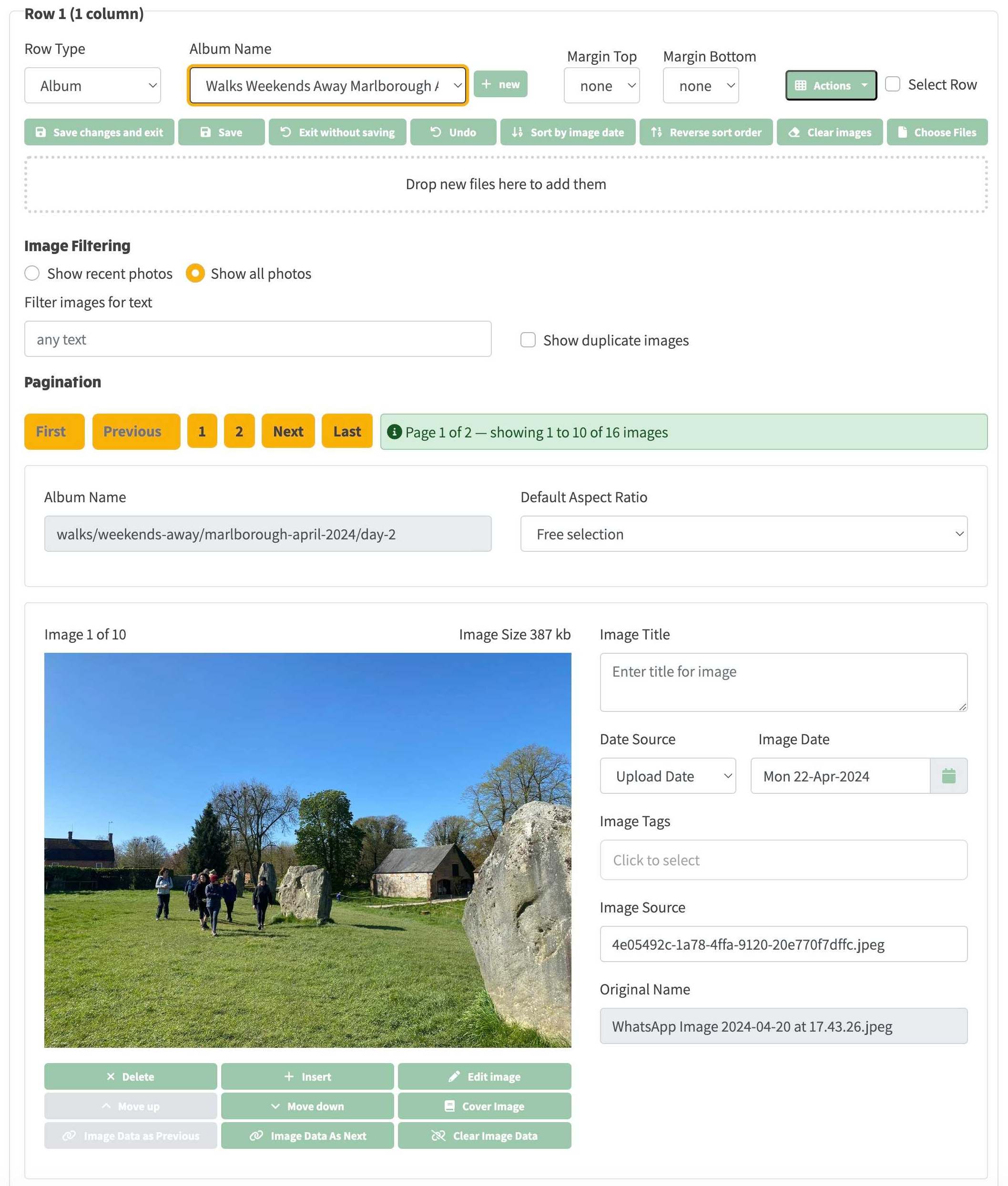
This view is paginated to show a maximum of 10 images at a time.
In the example screenshot above, there are a total of 16 images in the image list. There are yellow buttons that allow you to paginate forwards and backwards (e.g. page 1 shows the first 10, page 2 shows the remaining 6).
Adding new images can be done in 3 ways:
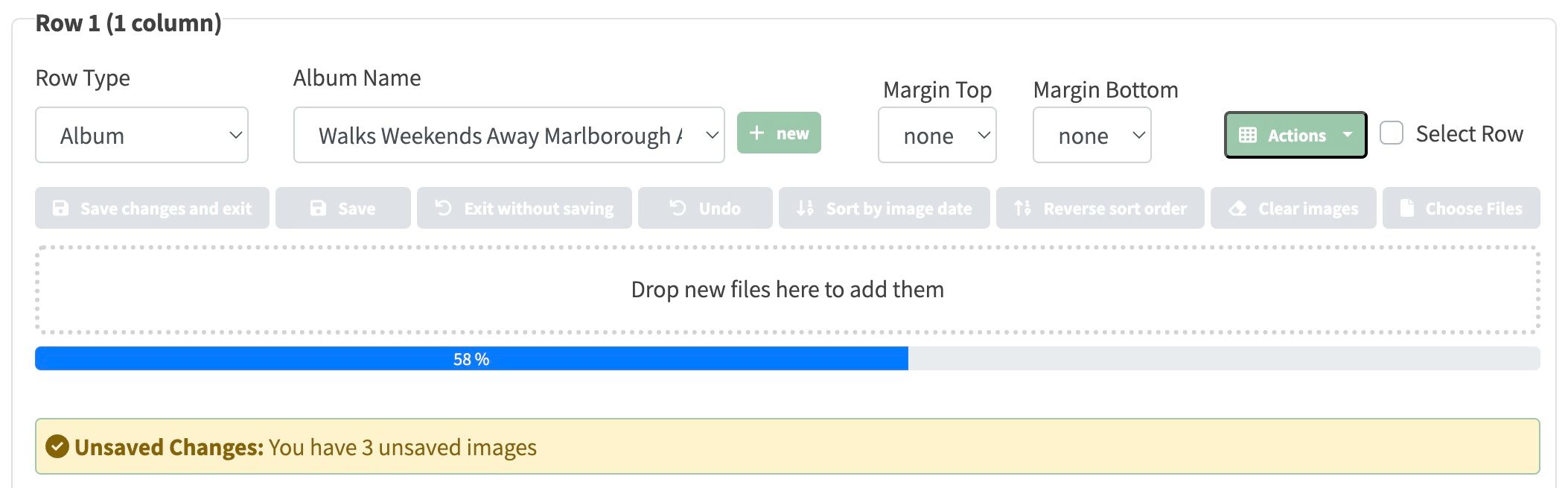
Method 1: Towards the top of the Album Row is a row of green action buttons. Click the rightmost button labelled Choose Files and you will be presented with a file open dialog, which you use to navigate to the folder on your computer containing the images you want to add.
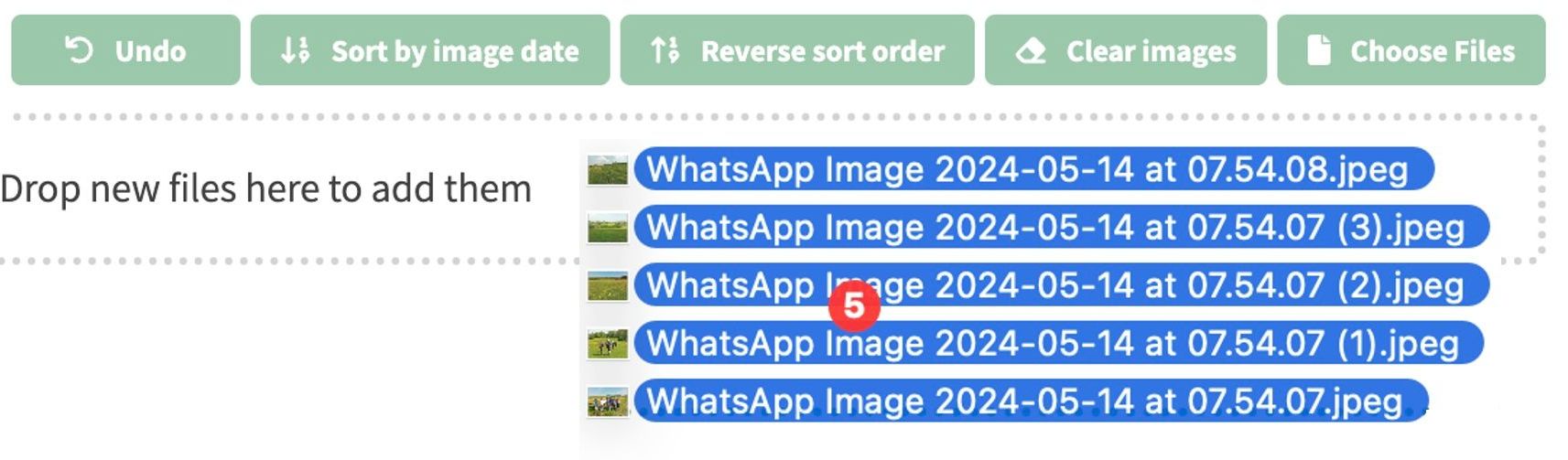
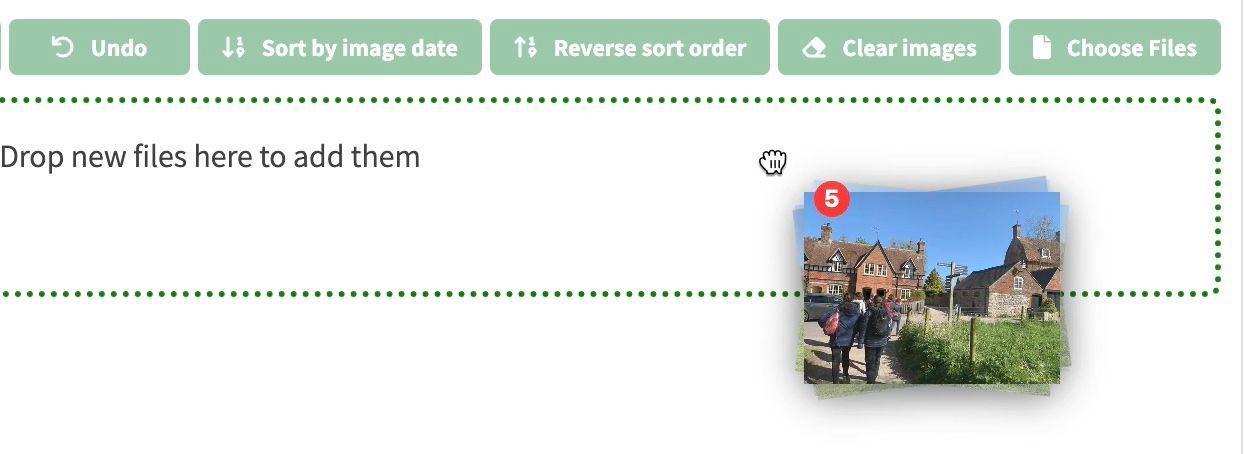
Method 2: You can multi-select files on a folder of your choice and drag them over the Drop new files here to add them zone below the green buttons row.