The text editor has built-in features that make it easy to bring content from other websites into your pages. Rather than rebuilding the page by hand, you can paste content directly into the visual editor and let the system convert it for you.
If you copy content from another website (for example, selecting text and images on a web page and pressing Ctrl+C or Cmd+C), you can paste it directly into the text field in the CMS editor.
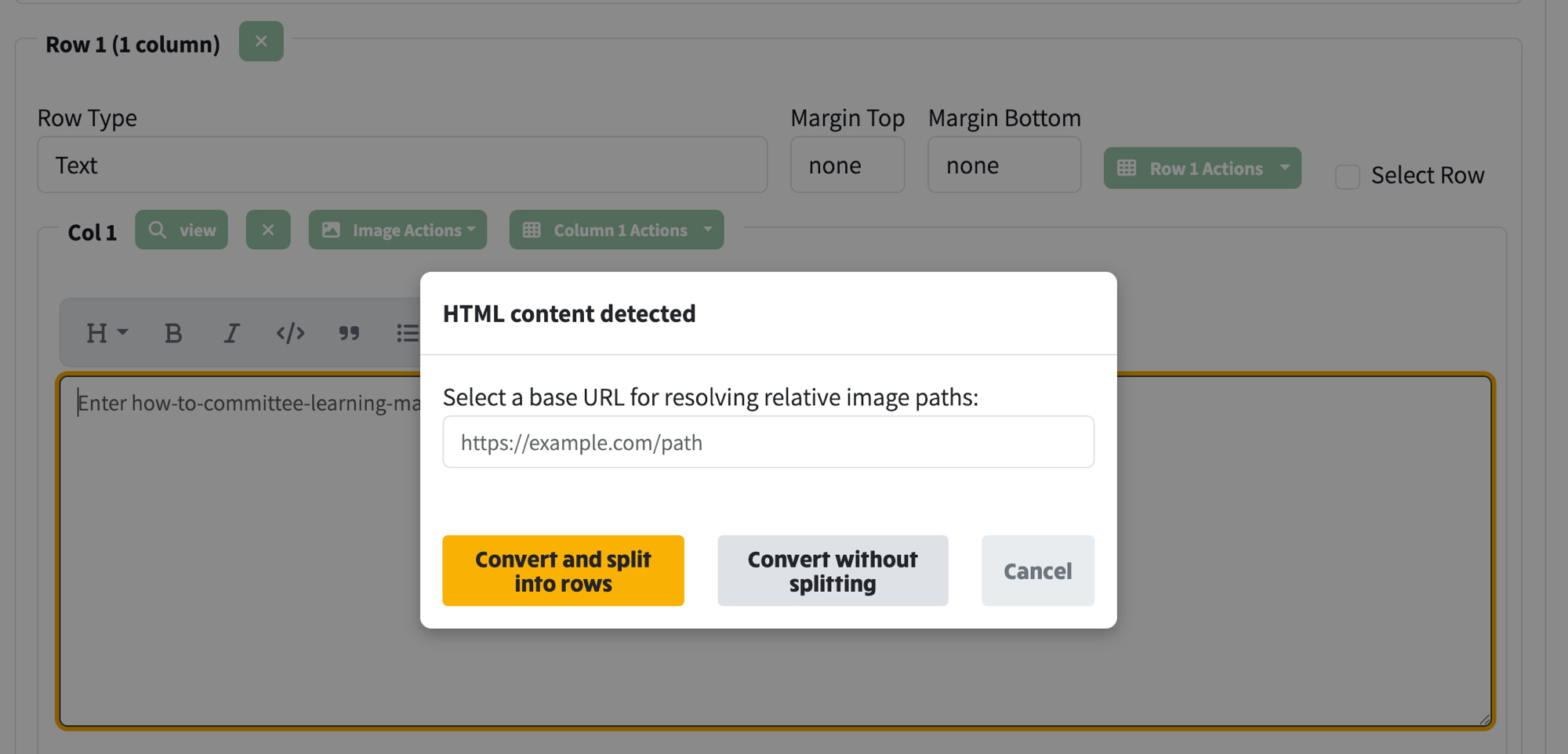
When the system detects that the pasted content contains HTML, it shows a dialog with three options:
The HTML content detected dialog that appears when you paste HTML content into the text field
The dialog also includes a Base URL field. If the source page uses relative image paths (e.g. images/photo.jpg rather than a full URL), enter the base URL of the source website here so that the images resolve correctly. For example, if you copied from https://example.com/walks/, enter that URL and any relative image paths will be prefixed with it.
You can paste a full web page URL directly into the text field and NGX-Ramblers will fetch the page, extract its content, and bring it into the visual editor. Two forms of URL are supported:
A normal URL starting with http:// or https://, for example:
https://example.com/news/article
This is fine for self-contained pages where all links and images already use absolute URLs.
view-source: URL (preferred when the source page uses relative links)In Chrome (and most Chromium-based browsers), right-click anywhere on a web page and choose View page source. A new tab opens with an address that starts with view-source:, for example:
view-source:https://example.com/news/article
Copy that full address from the browser's address bar and paste it straight into the text field. NGX-Ramblers recognises the view-source: prefix, strips it, fetches the target page, and also captures the resolved website base URL returned by the server. That base URL is then used to rewrite any relative links and images (for example /images/photo.jpg or ../page.html) into fully qualified URLs, so nothing ends up broken when the converted markdown lands on your site.
For this reason the view-source: variant is the preferred option whenever the source page has lots of relative links or images — which is most real-world pages. A plain URL will still work, but relative references may not resolve correctly.
While the page is being fetched, you will see a Processing paste... indicator:
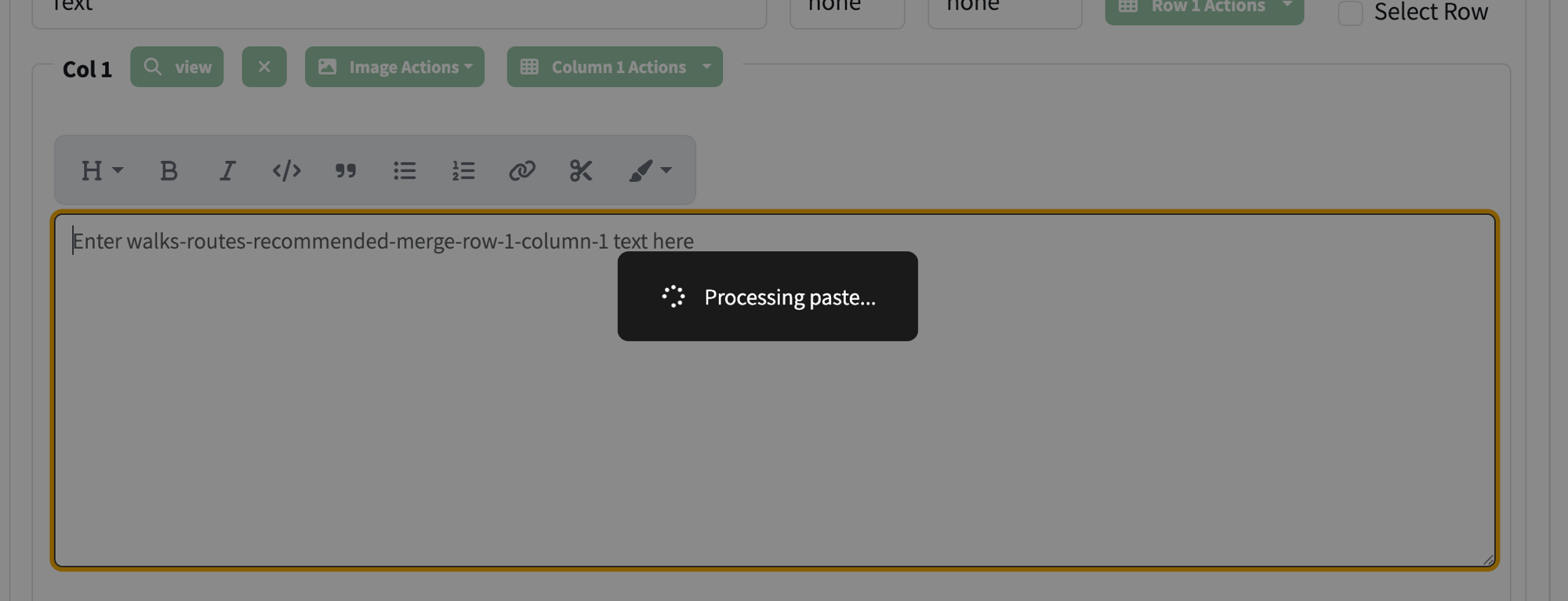
The system fetching and converting a web page from a pasted URL
Once the page has been fetched, you will see the same HTML content detected dialog with options to convert and optionally split into rows.
This is a quick way to import content from an existing website without having to manually copy and paste the HTML — just paste the URL and the system does the rest.