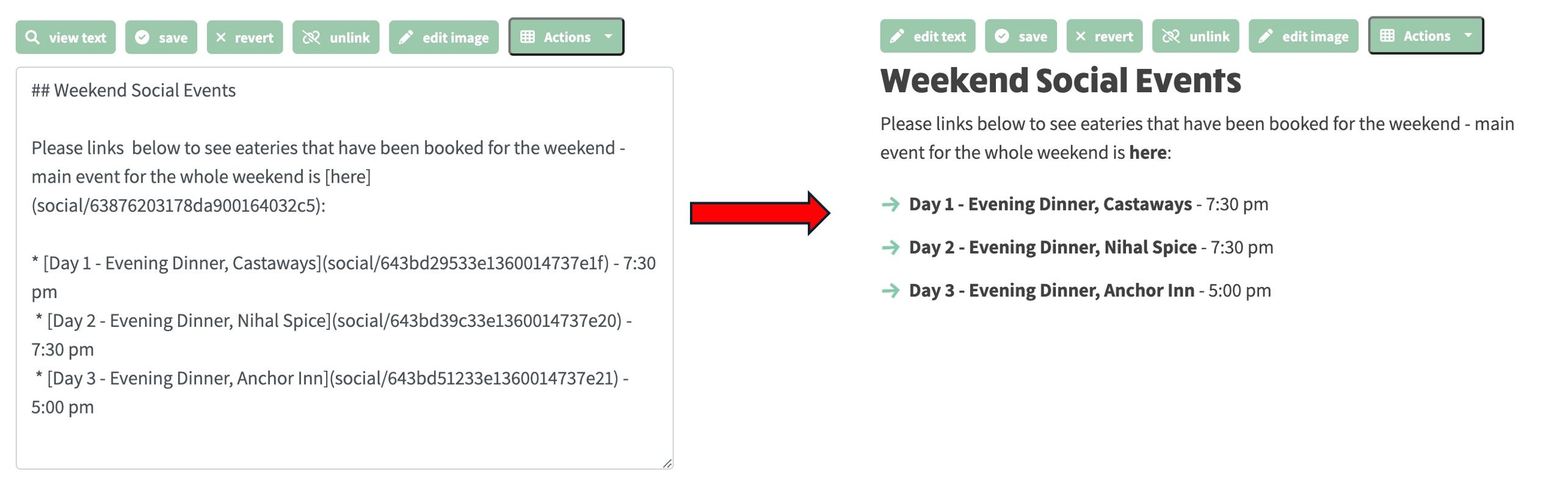
You do not need to learn markdown. When you edit a page, a committee document or album text, you use a visual editor: headings, lists, links, tables and pictures look on the page the way they look while you type, much like Word.
How pages are built from rows and columns is covered in Editing Content.
The easiest way to bring content from another website is to paste it straight into the visual editor. The system automatically detects HTML content and offers to convert it for you — with the option to split it into separate rows for a well-structured page. You can even paste a URL and the system will fetch the page and bring it into the editor.
See the Advanced Content Import guide for full details.
If you have an existing site with html pages and you want to migrate to ngx-ramblers there might be some content that you want to lift from the old site to the new site. In this situation, it can be helpful to use an automated conversion facility. Whether you need to convert a simple snippet quickly or automate the conversion of huge amounts of scraped HTML, there are a number of Markdown conversion tools available.
CodeBeautify's converter stands among the best online tools for HTML to Markdown conversion. This tool is not only convenient but also efficient and reliable, ensuring that users have a smooth conversion experience.
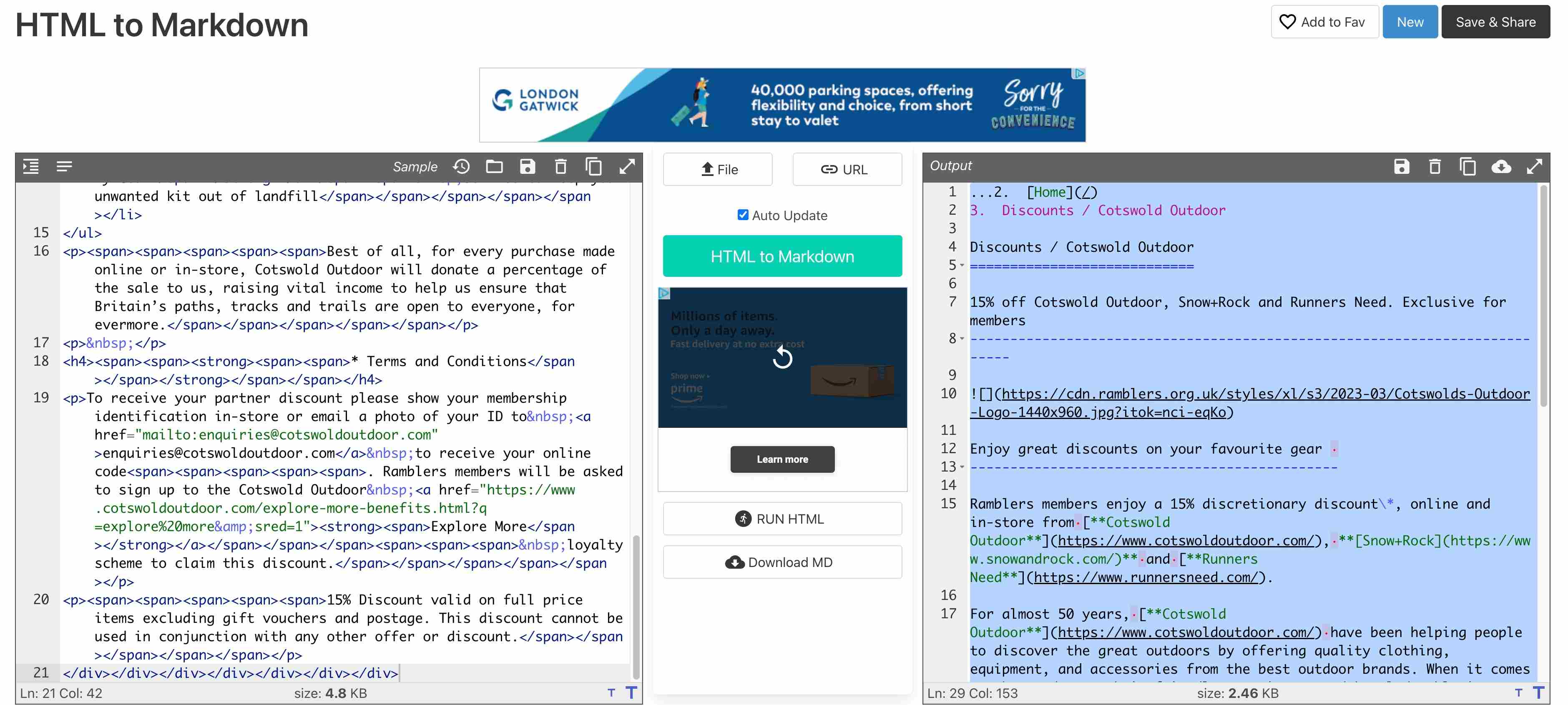
Like most online converters, CodeBeautify lets you directly paste HTML into the tool's text editor. But one key feature of CodeBeautify's tool is support for loading HTML from a URL or file upload.
CodeBeautify uses client-side technology to perform conversions entirely in your browser without sending your code to a server, ensuring data privacy and security.
Copy as Markdown is a practical browser extension for Chrome and Firefox that streamlines the process of converting HTML to Markdown.
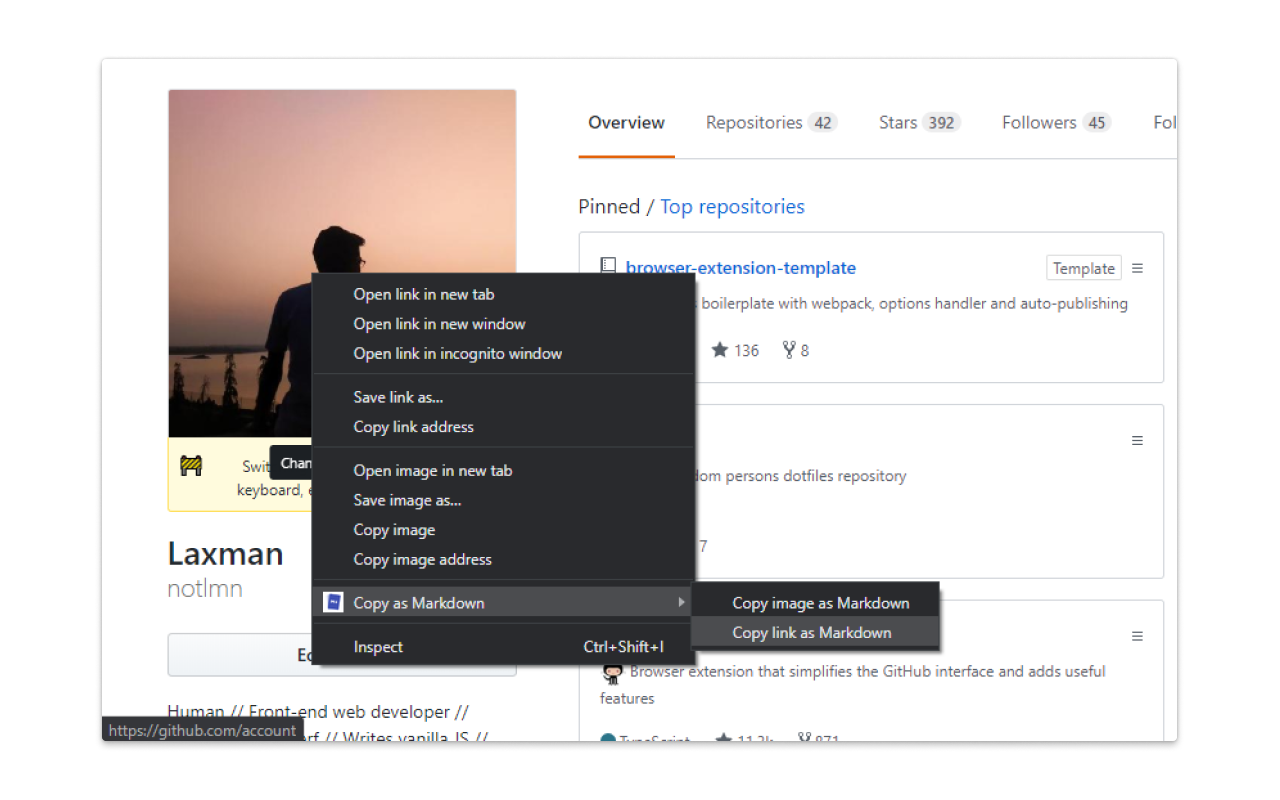
Copy as Markdown provides a convenient, user-friendly interface for converting content to Markdown from the browser. It's available as both a Chrome extension and Firefox add-on.
See buttons below for examples of pages copied from other sites and brought into the editor!
Example of how the Ramblers Cotswold Outdoor discounts page was copied into markdown and added as a new page to this site

Example of how a Ramblers Route page was copied into markdown and added as a new page to this site