Member Privileges
Use this guide to assign the right privileges to members and understand what each checkbox changes in NGX‑Ramblers.
Overview
Member privileges control access to different areas of the system and determine what actions members can perform. Privileges are assigned through the Member Admin interface under the Privileges tab.
Accessing the Privileges Screen
- Navigate to Admin → Member Admin
- Select a member to edit
- Click on the Privileges tab
- Select or deselect privileges using the checkboxes
- Click Save to apply changes
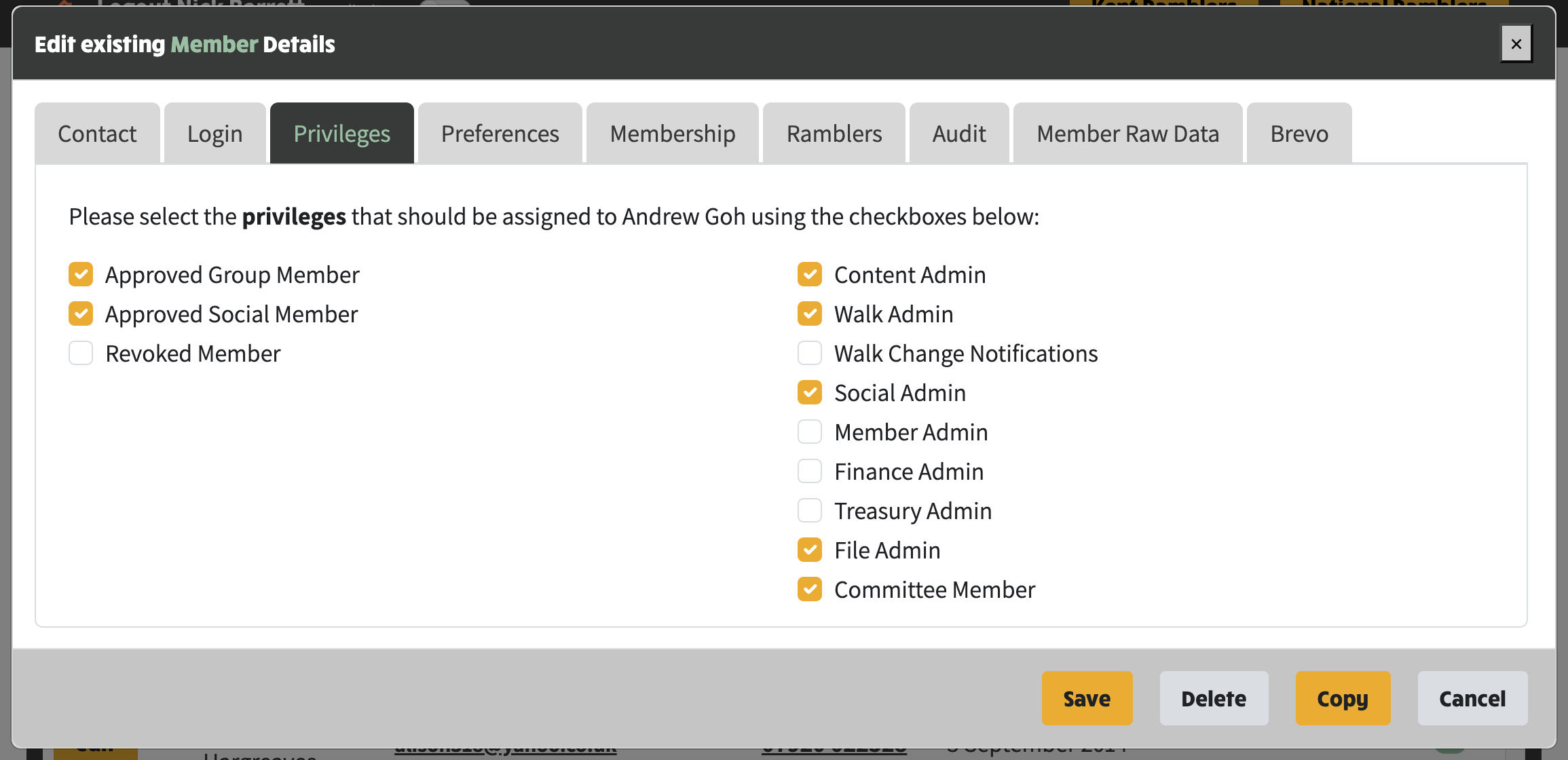
Privilege Descriptions
Core Membership
Approved Social Member
Field: socialMember
Purpose: Allows members to view detailed social event information
Effect:
- Enables Social detail views for logged‑in members
- Social events may have restricted visibility for non-social members
- Used for email audience selection when targeting social members
When to assign:
- Assign to members who participate in social events
- Typically assigned to most active members alongside "Approved Group Member"
Approved Group Member
Field: groupMember
Purpose: Marks the person as an active group member and enables login access
Effect:
- Required for members to log in to the system
- Without this privilege, login attempts will be blocked with the message: "Logins for member [username] have been disabled"
- Included in member lists and email segments that target the full group
- Required for Committee Member and Social Member lists
- This is the foundational privilege that must be set for any active member
When to assign:
- Assign to all active, paid-up members who should have access to the system
- Remove from members who should be denied access (e.g., lapsed membership, suspended accounts)
Revoked Member
Field: revoked
Purpose: Historical/legacy field for marking revoked members
Effect:
- Currently not actively enforced in the current system
- Excludes this person from automated updates and bulk changes (CSV updates skip revoked)
When to assign:
- Not recommended for active use
- Use "Approved Group Member" (unchecked) instead to disable member access
- Use when someone leaves the group or should no longer receive communications
Content Admin
Field: contentAdmin
Purpose: Controls ability to edit website content and pages
Effect:
- Can edit website content (Markdown pages, fragments, site edit modes)
- Enables editing of page content, shared fragments, and site text
- Allows management of carousels, images, and content metadata
- Controls visibility of content editing tools throughout the site
- Grants access to:
- Page editing interface
- Shared fragment management
- Carousel editor
- Image management tools
When to assign:
- Assign to committee members or volunteers responsible for maintaining website content
- Typically assigned to Webmaster, Communications Officer, or similar roles
- Does not grant access to member data or system settings
Walk Admin
Field: walkAdmin
Purpose: Controls ability to create and edit group walks
Effect:
- Can create and manage Walks (group walks, updates)
- Grants access to walk editing features
- Enables creation, modification, and deletion of walks
- Allows uploading of walks to Ramblers Walks Manager
- Provides access to:
- Walk creation/editing interface
- Walk leader assignment
- Walk upload to Ramblers
When to assign:
- Assign to Walk Coordinators and Walk Leaders
- Typically assigned to committee members responsible for walk programme management
- Consider assigning to active walk leaders who need to edit their own walks
Administrative Privileges
Member Admin
Field: memberAdmin
Purpose: Controls access to member administration features
Effect:
- Grants access to the Admin section of the site
- Enables viewing and editing member records
- Can manage members and privileges via Member Admin screens
- Allows access to:
When to assign:
- Assign to committee members responsible for managing memberships
- Typically assigned to Membership Secretary or similar roles
- Exercise caution as this gives broad administrative access
Social Admin
Field: socialAdmin
Purpose: Controls ability to create and edit social events
Effect:
- Can create and manage Social events
- Grants access to social event editing features
- Enables creation, modification, and deletion of social events
- Provides access to:
- Social event creation/editing interface
- Social event attendance management
- Social event notifications
When to assign:
- Assign to Social Secretary or Social Coordinators
- Typically assigned to committee members responsible for organizing social events
- Assign to volunteers who help organize social activities
Walk Change Notifications
Field: walkChangeNotifications
Purpose: Determines who receives email notifications when walks are modified
Effect:
- Receives coordinator emails for walk create/update/cancel events
- Members with this privilege receive automated email notifications when:
- Walks are created, updated, or cancelled
- Walk details are changed (date, time, meeting point, etc.)
- Walk leaders are changed
- Notifications are sent to help coordinators track walk programme changes
- Note: This is a notification privilege only—it does not grant editing rights
When to assign:
- Assign to Walk Coordinators who need to be informed of all walk changes
- Typically assigned to 1-3 key walk coordinators
- Can be assigned independently of Walk Admin privilege
Financial Privileges
Finance Admin
Field: financeAdmin
Purpose: Controls ability to approve expense claims
Effect:
- Receives approval emails for expense claims
- Grants access to expense claim approval features
- Enables viewing and approving/rejecting expense claims submitted by members
- Members with this privilege receive automated email notifications when:
- New expense claims are submitted
- Expense claims require approval
- Works in conjunction with Treasury Admin for complete expense workflow
- Provides access to expense claim management interface
When to assign:
- Assign to Treasurer or committee members authorized to approve expenses
- Typically assigned to 1-2 committee members
- Assign to those with budgetary oversight responsibility
Committee Member
Field: /committee
Purpose: Grants access to committee-only areas, documents, and most admin tools
Effect:
- Shows the person in committee listings
- Used for committee visibility and access
- Enables access to committee pages and private committee files
- Allows viewing of documents marked as "Committee Only"
- Unlocks committee-specific sections of the website
- Grants access to most Admin tools:
- Admin dashboard (/admin)
- System Settings, Mail Settings, Mailchimp Settings, Committee Settings, Migration Settings
- Backup & Restore, Page Content Navigator, Fragment Index, Member Login Audit, Member Bulk Load, Mailing Preferences, AGM Statistics
- Does not grant access to:
When to assign:
- Assign to all elected committee members
- Assign to co‑opted committee members
- May be assigned to other volunteers who need access to committee materials and admin tools, but not member administration
Treasury Admin
Field: treasuryAdmin
Purpose: Controls ability to process approved expense payments
Effect:
- Receives payment emails for expense claims (post‑approval)
- Grants access to payment processing for approved expense claims
- Enables marking expenses as paid and recording payment details
- Members with this privilege receive automated email notifications when:
- Expense claims have been approved and are ready for payment
- Works alongside Finance Admin in the expense approval workflow
- Provides access to payment processing interface
When to assign:
- Assign to Treasurer or authorized payment processors
- Typically assigned to 1-2 committee members
- Should only be assigned to those with access to group bank account
- Often assigned to the same person as Finance Admin, but can be separate
File Admin
Field: fileAdmin
Purpose: Controls ability to upload and manage committee files and member resources
Effect:
- Can upload and manage Committee files (documents, minutes, assets)
- Grants ability to add, edit, and delete committee files (minutes, agendas, policies, etc.)
- Enables management of member resources (guides, forms, how-to documents)
- Allows sending of committee file notifications
- Controls file type configuration
- Provides access to:
- Committee file upload/management
- Member resource management
- File visibility settings
When to assign:
- Assign to Secretary or Webmaster
- Assign to committee members responsible for maintaining documents
- Typically assigned to 1-3 committee members
- Often combined with Committee Member privilege
How Permissions Are Applied
Logged‑in checks
The app reads a logged‑in member profile and gates features accordingly:
- Content Admin → content editing
- Walk Admin → walk editing
- Social Admin → social editing
- Member Admin → member admin edits (Member Admin page and member privileges)
- Finance Admin / Treasury Admin → expense notifications
- File Admin / Committee → committee files and visibility
- Committee Member → admin dashboard and most admin tools (excluding Member Admin page)
- Social Member → view social details
Email notifications
- Walk changes → members with Walk Change Notifications
- Expense approvals → Finance Admin
- Expense payments → Treasury Admin
Lists and filters
- Committee lists → Approved Group Member + Committee Member
- Social lists → Approved Group Member + Approved Social Member
Common Privilege Combinations
Standard Member
- Approved Group Member
- Approved Social Member
Purpose: Regular member with full access to public features
Walk Leader
- Approved Group Member
- Approved Social Member
- Walk Admin
Purpose: Member who can create and edit walks
Walk Coordinator
- Approved Group Member
- Approved Social Member
- Walk Admin
- Walk Change Notifications
Purpose: Coordinates walk programme and receives notifications of all walk changes
Social Secretary
- Approved Group Member
- Approved Social Member
- Social Admin
- Committee Member
Purpose: Manages social events and has access to committee materials
Membership Secretary
- Approved Group Member
- Approved Social Member
- Member Admin
- Committee Member
Purpose: Manages member records and has access to admin features
Treasurer
- Approved Group Member
- Approved Social Member
- Finance Admin
- Treasury Admin
- Committee Member
Purpose: Manages expense claims (approval and payment)
Secretary
- Approved Group Member
- Approved Social Member
- File Admin
- Committee Member
Purpose: Manages committee documents and minutes
Webmaster / Chairman (Full Access)
- Approved Group Member
- Approved Social Member
- Content Admin
- Walk Admin
- Walk Change Notifications
- Social Admin
- Member Admin
- Finance Admin
- Treasury Admin
- File Admin
- Committee Member
Purpose: Full administrative access to all system features
Recommended Patterns
Core membership
Grant Approved Group Member to active members; add Approved Social Member for social communications.
Committee
Add Committee Member; layer File Admin for document maintenance.
Walks
Use Walk Admin for editors; add Walk Change Notifications for coordinators.
Offboarding
Set Revoked Member when a person leaves; remove other privileges if access must be removed. Better still, uncheck "Approved Group Member" to disable login access.
Security Best Practices
Principle of Least Privilege
- Only assign privileges that are necessary for the member's role
- Regularly review member privileges and remove unnecessary access
- When members leave committee roles, update their privileges accordingly
Audit Trail
- All member login activity is recorded in the Member Login Audit
- Member Admin users can view this audit at /admin/members/member-login-audit
- Changes to member records are tracked with timestamps and user identification
Multiple Administrators
- Assign Member Admin to at least 2 people to avoid single points of failure
- Ensure Walk Admin is assigned to multiple walk coordinators
- Consider having backup administrators for critical roles
Regular Reviews
- Review member privileges quarterly or when committee roles change
- Remove "Approved Group Member" from lapsed or resigned members
- Update privileges immediately when committee elections occur
Troubleshooting
Member Cannot Log In
Check: Is "Approved Group Member" selected?
- If unchecked, the member will be denied login access
- This is the most common cause of login issues
Member Cannot See Admin Menu
Check: Does the member have at least one admin privilege?
- Member Admin, Content Admin, Walk Admin, Social Admin, or File Admin
Member Not Receiving Walk Notifications
Check: Is "Walk Change Notifications" selected?
- This must be explicitly enabled to receive walk change emails
- Walk Admin alone does not trigger notifications
Member Cannot Approve Expenses
Check: Is "Finance Admin" selected?
- This privilege is required to approve expense claims
- Treasury Admin is for payment processing, not approval
Member Cannot Access Committee Files
Check: Is "Committee Member" selected?
- Files marked as "Committee Only" require this privilege
- File Admin allows editing but requires Committee Member to view restricted files
Quick Reference
- View social details: Approved Social Member
- Edit content: Content Admin
- Edit walks: Walk Admin
- Edit social events: Social Admin
- Manage members: Member Admin
- Receive walk change emails: Walk Change Notifications
- Expense approvals: Finance Admin
- Expense payments: Treasury Admin
- Manage committee files: File Admin
- Show in committee listings: Committee Member
- Suppress updates: Revoked Member