Send emails Dialog
- The Send Emails Dialog is the entrypoint into various email-based workflows that are associated with sending emails to individual members. This includes - but is not limited to:
- Sending Welcome emails to new members.
- Sending Membership Expiry warning emails to members whose membership has recently expired.
- Sending an Membership Expiry emails to members notifying them that they have been removed from mailing lists and can no longer access the website.
- Sending Password Reset emails to members that are having trouble logging into the website.
- On your website this page can be found at your website/admin/member-admin.
- When you navigate to that page you should see a list of members in your database with some buttons along the top.
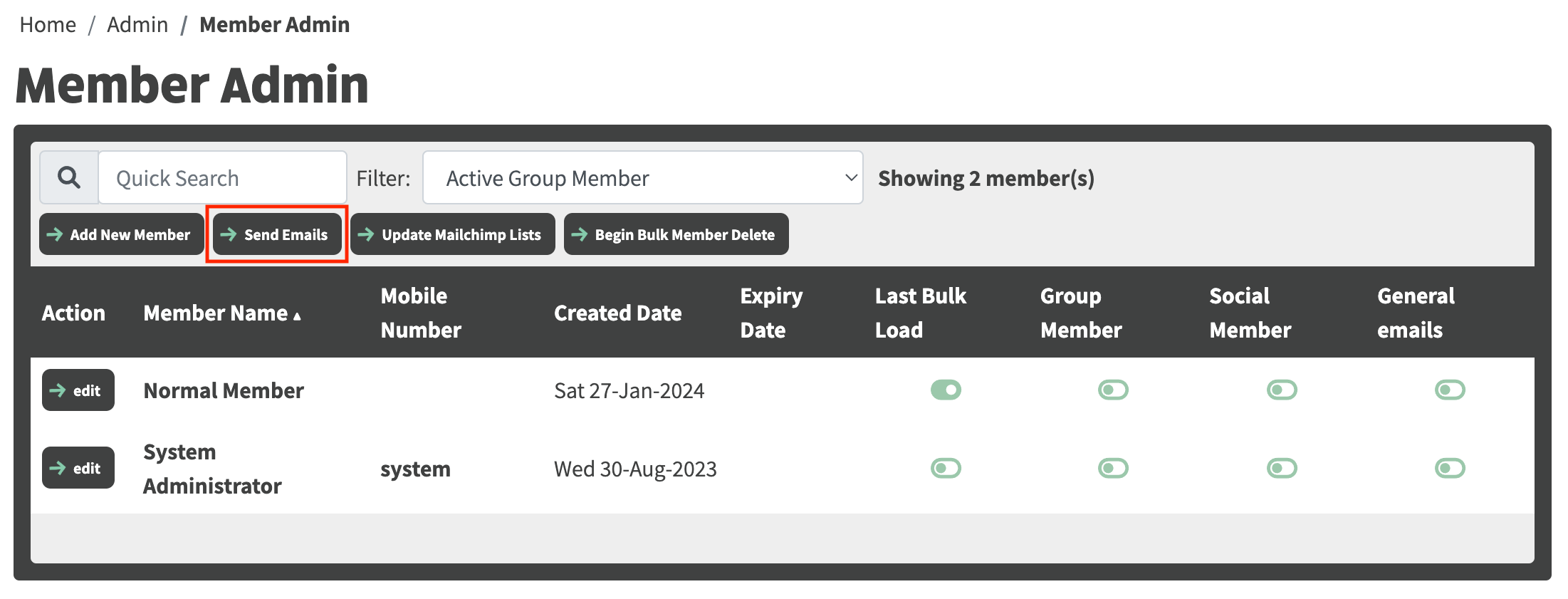
- Clicking Send Emails will get you onto the Send Emails Dialog:
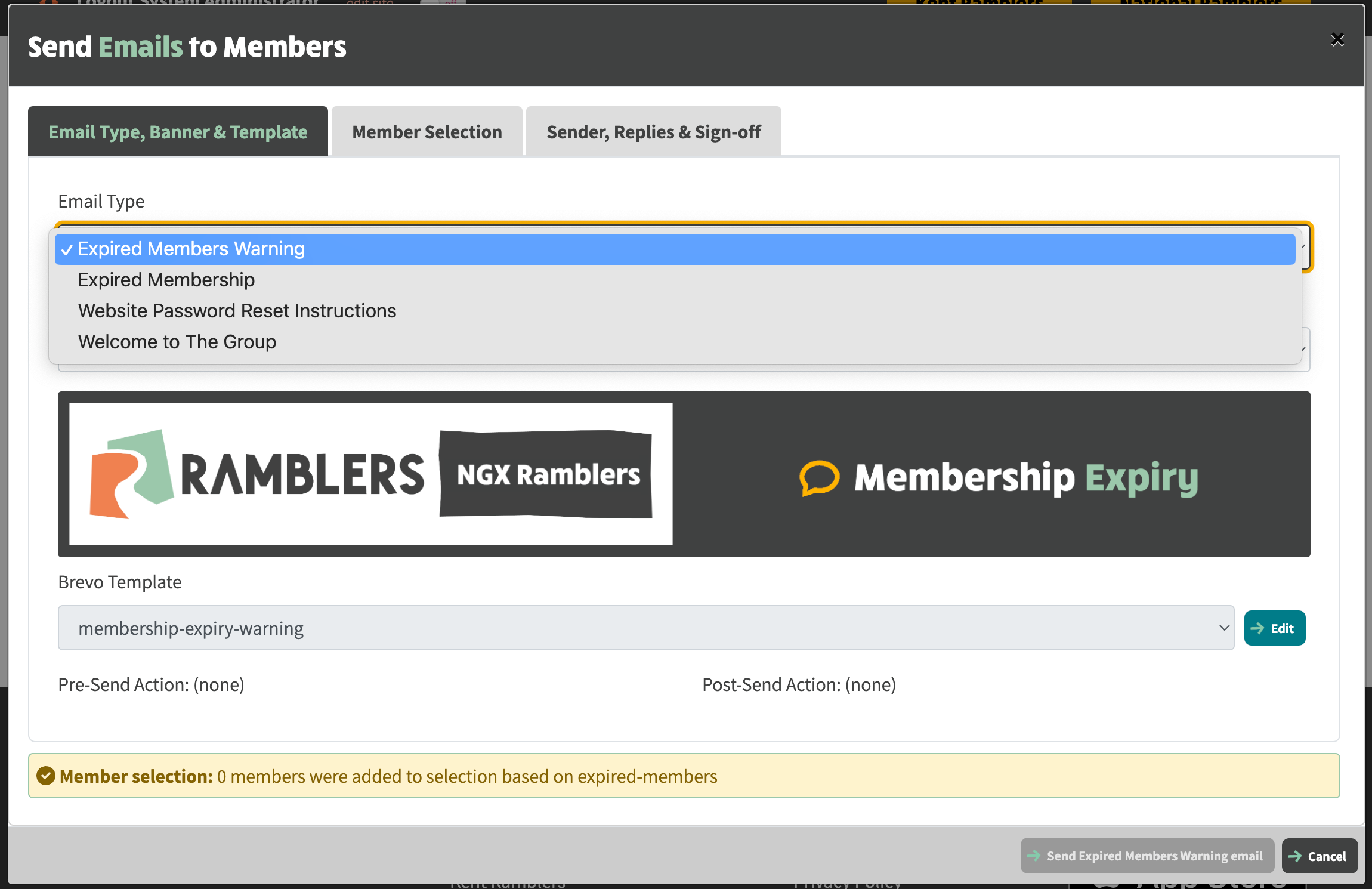
- This dialog has three tabs on it that represent sequentially the three steps that you need to go through in order to send an email:
- Email Type, Banner & Template - choose the type of email you want to send, optionally override the banner to be inserted at the top of the email, and optionally view/edit the email template (this redirects you to the Brevo templates page.
- Member Selection - choose which members you wish to send the email to.
- Sender, Replies & Signoff - choose who the email is from, who replies should be sent to and which members of the committee appear of the email footer.
- Note that most of the settings for each email type is configured in the Mail settings page, so at the point of sending the email, you only really need to choose the members, and even they are automatically defaulted to a filter that suits the email type you've chosen.