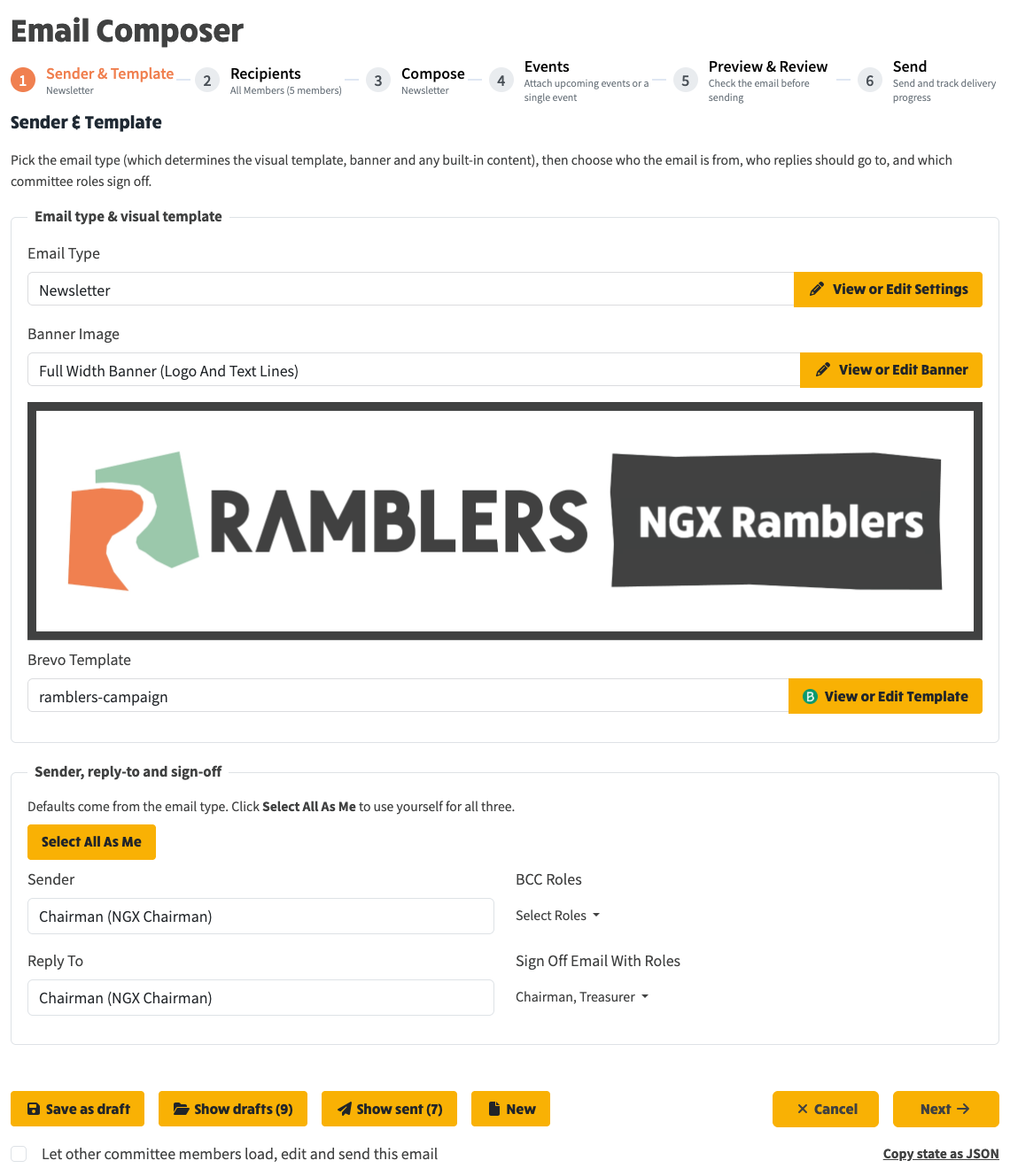
This release tidies up the Email Composer based on early feedback. The big change you'll notice is the order of the first two steps: you now pick the type of email first, and the composer then suggests sensible defaults for the recipients step. Three smaller changes are bundled in too. Here's what to look out for.
The very first step of the composer is now Sender & Template, where you choose what kind of email you're sending - Newsletter, Welcome to the Group, Membership Expiry Warning and so on - along with the sender, reply-to and sign-off roles.
The reason for the swap is that an email's type drives a lot of what comes next, including who the email should go to. By choosing it first, the composer can fill in the right defaults for you on the Recipients step rather than asking you to set them twice.
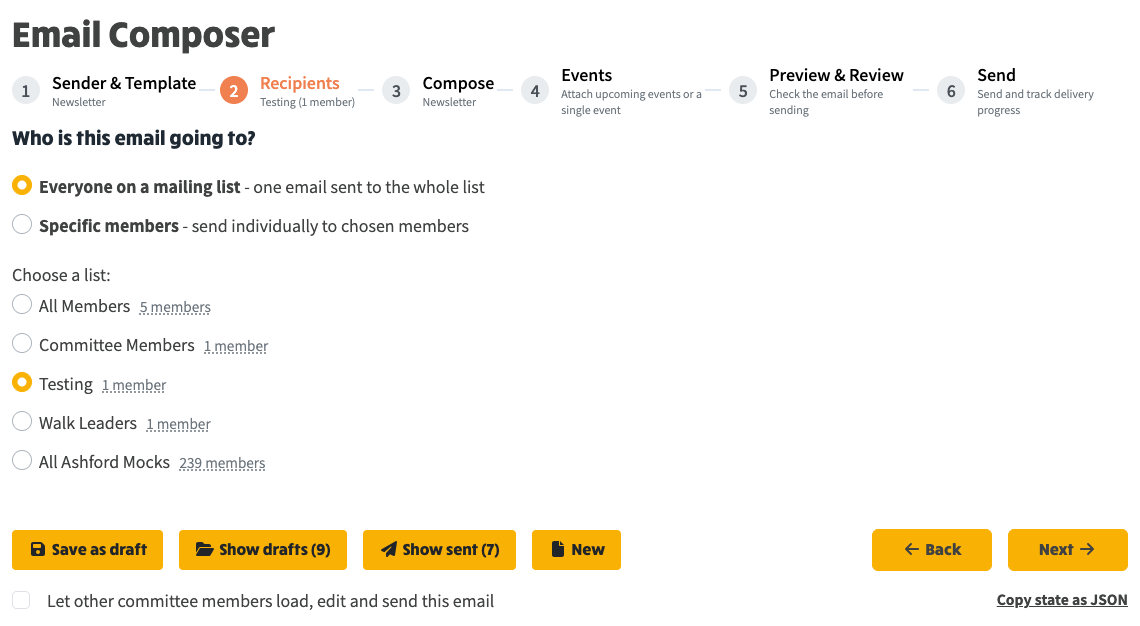
Once you've picked an email type, Recipients takes that choice and runs with it. If the email type is set up to go to a particular mailing list (a Newsletter tied to your All Members list, say), the composer auto-selects that list for you. If the email type expects a member-selection filter (for example Expired Members Warning), the right filter is pre-ticked. You can change anything you want - the defaults are just to save you a click.
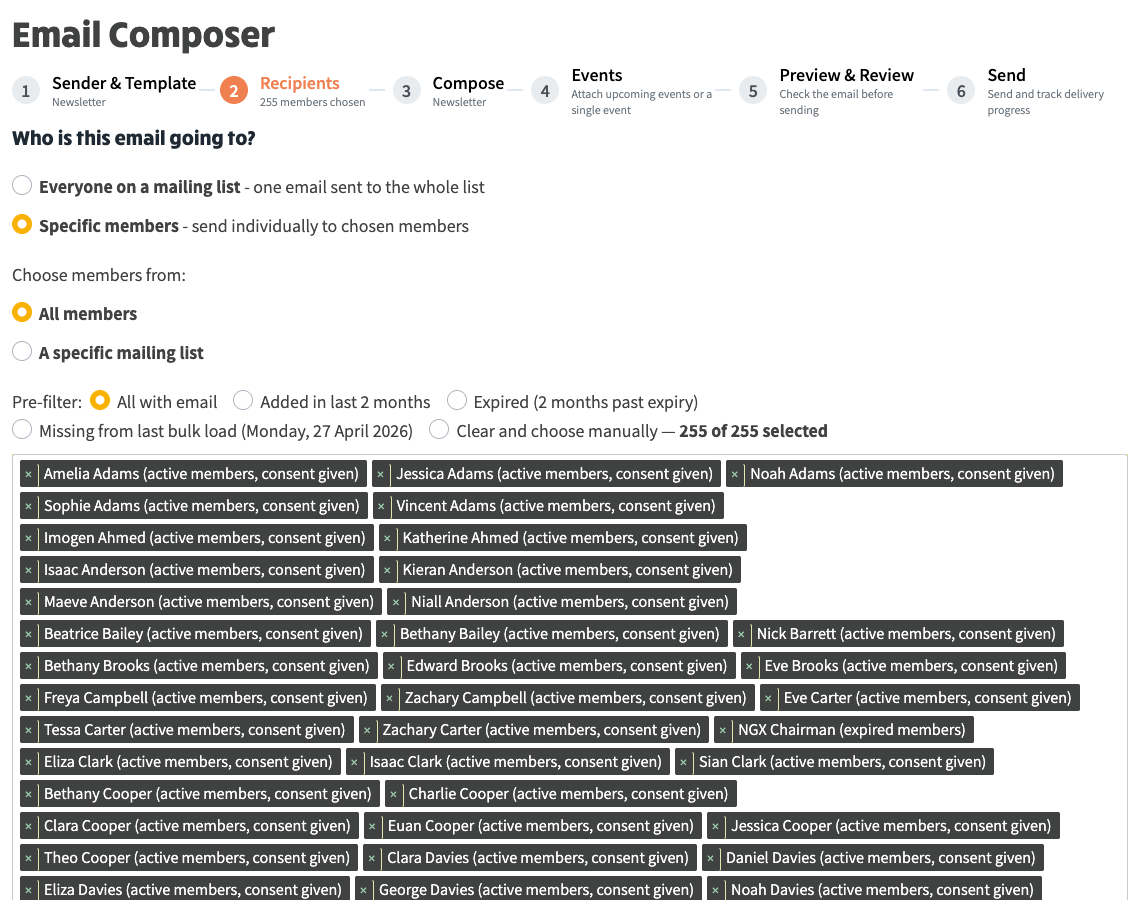
When you switch to Specific members, the row of pre-filter radios under Choose members from has been redesigned. Instead of generic options, you now see shortcuts that match the way email configurations are set up:
The radios and the "X of Y selected" count now sit on the same row so the layout stays tidy on smaller screens.
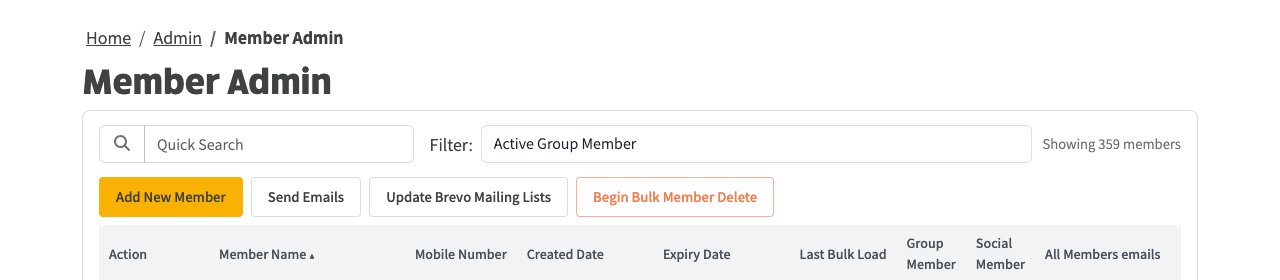
Clicking the Send Emails button at the top of the Member Admin page used to occasionally land on a page not found screen because of how the routing was set up. That's fixed - the button now opens the composer directly, exactly as it does from a group event or a committee file.
If you ever spotted an image on a banner that quietly disappeared after deployment - because its address still pointed at a developer's machine rather than the live site - that's been put right too. Re-saving the affected image writes the right address back, and the next page load shows it correctly.
If you only ever use the composer from end to end, you don't need to do anything: open it, fill it in, send. The pre-filled defaults are designed to fade into the background. The walkthrough at Sending Emails has been updated to match the new step order if you want a refresher.