This release adds three things to every NGX-Ramblers site: a search you can reach from anywhere in the header, a browsable site map, and the ability to turn any content image into a clickable link.
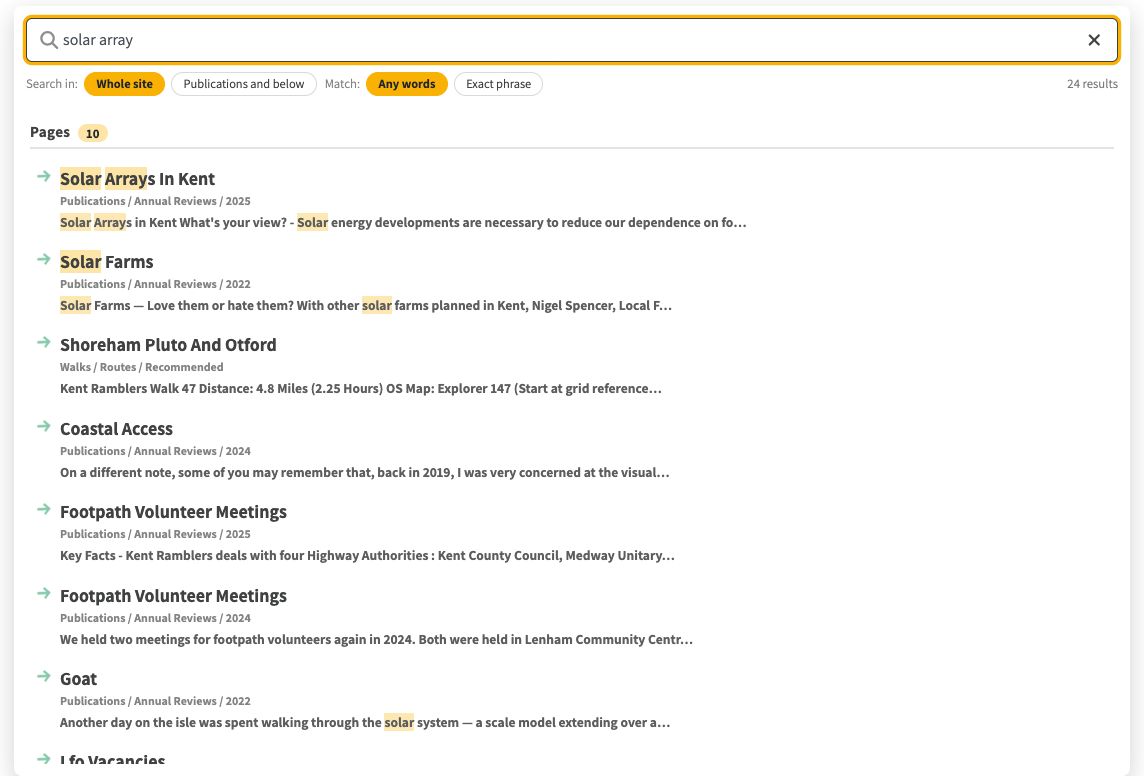
Click the magnifying glass in the header, next to the group logo, and a search panel opens across the width of the page. Start typing and results appear as you go, grouped under Pages, Walks and Events with a count beside each heading. Every result shows its title, where it sits in the site and a short snippet with your words highlighted; click one to go straight there, or step through them with the arrow keys and press Enter.
Search covers the whole site by default. When you open it while reading a particular section, a second choice appears under "Search in:" offering that section and everything below it, so you can narrow down to the part of the site you are in. As soon as you type more than one word a "Match" choice also appears: "Any words" finds anything containing at least one of your words and ranks the fullest matches first, while "Exact phrase" finds only the pages where your words appear together. You can force an exact phrase at any time by wrapping it in double quotes. When the box is empty your last few searches are offered, so you can repeat one with a single click.
Choosing "View all results", or pressing Enter, opens the full search page with everything grouped by type and the same choices along the top. The page records your search in its web address, so a search can be bookmarked or sent to another committee member and it reopens exactly as you left it. Throughout, the access levels set on the content are respected: people who are not logged in only find public content, and members only find what their login allows.
Want to try this yourself? The examples below were all run from the Kent group's Publications page at www.kent.ngx-ramblers.org.uk/publications. Open that page, click the magnifying glass in the header, and run the same searches: because you start inside Publications, you can compare searching the whole site against just that section.
Searching "solar array" across the Whole site with Any words: 24 matches, Annual Review articles and walks alike.
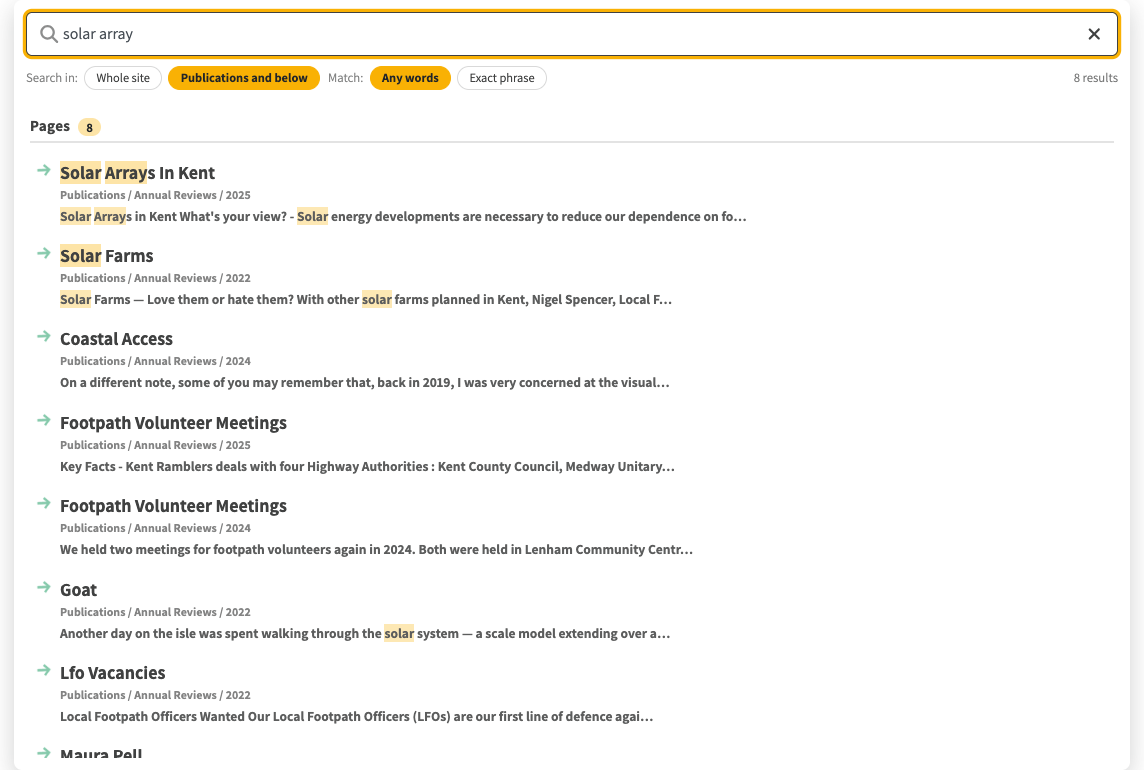
The same search switched to "Publications and below": narrowed to the 8 results within that section.
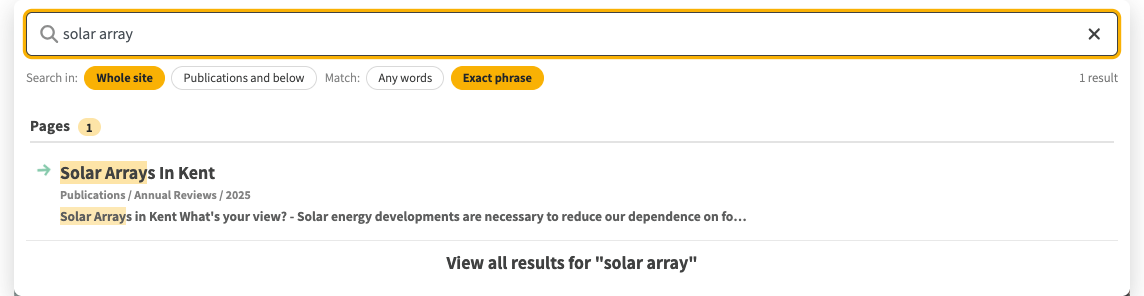
"solar array" as an Exact phrase: just the single page where the two words sit together.
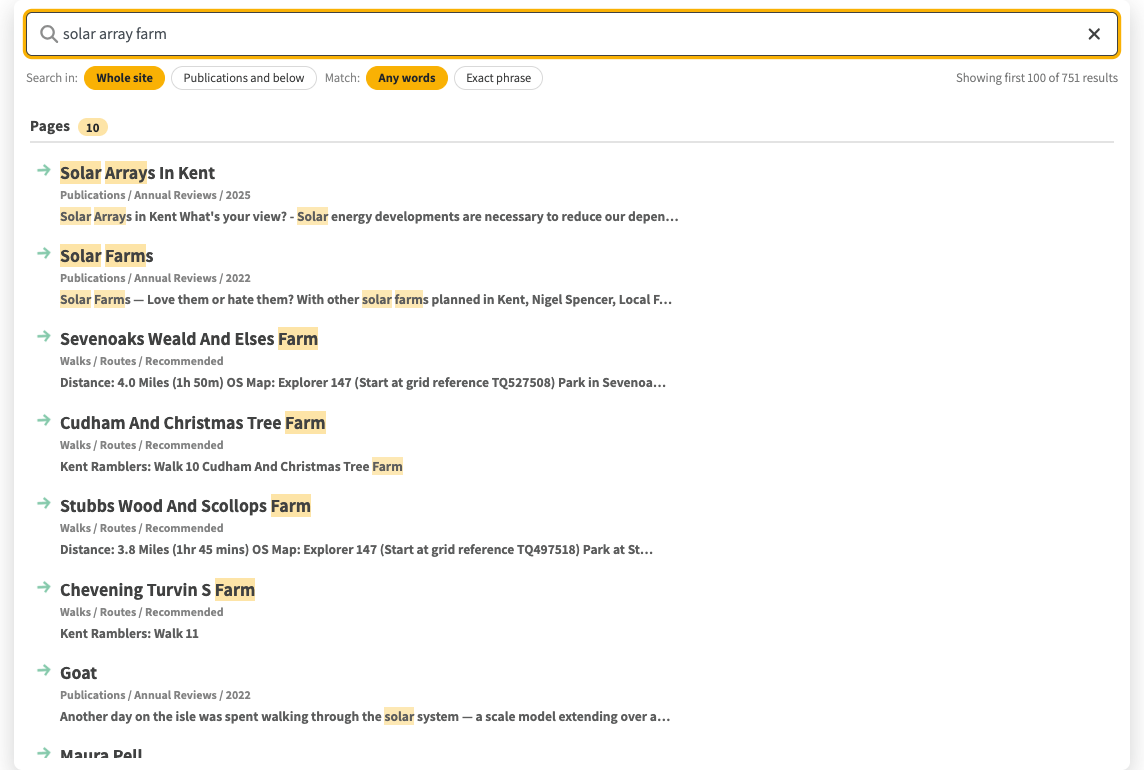
Adding a word widens an Any-words search: "solar array farm" matches 751 pages because "farm" is common.

The same words as an Exact phrase: nothing uses that exact wording, so no results.
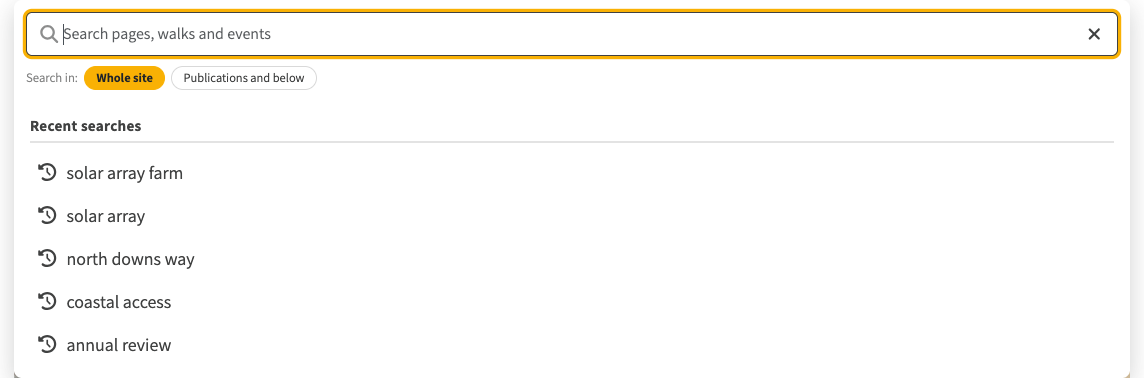
When the search box is empty, your recent searches are listed so you can pick one up again with a single click.
A new Site map page gives a bird's-eye view of the whole site. Each top-level section appears as a card showing how many pages it holds and a short preview of what is inside; expand a card to open a tree of every page beneath it, right down to the deepest level, and use the filter box to jump to a page by name. It is reached from the "Site map" link in the footer, or directly at /site-map, and like search it only shows the pages a visitor is allowed to see.
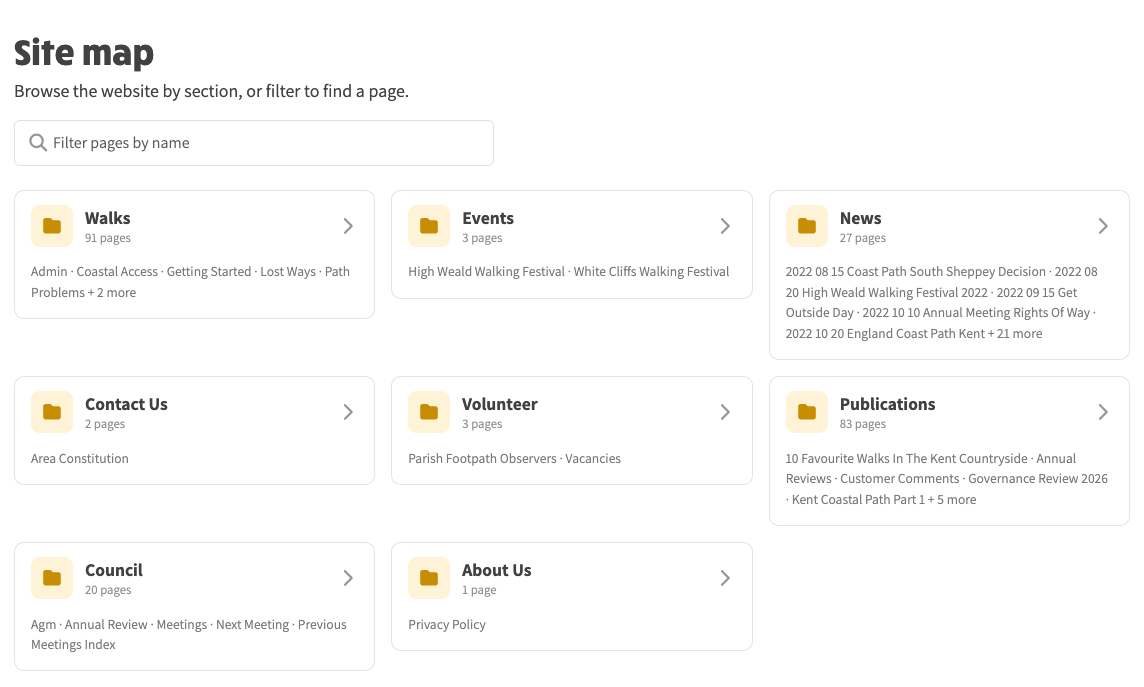
The Site map page lists every section as a card, with its page count and a preview of what is inside.
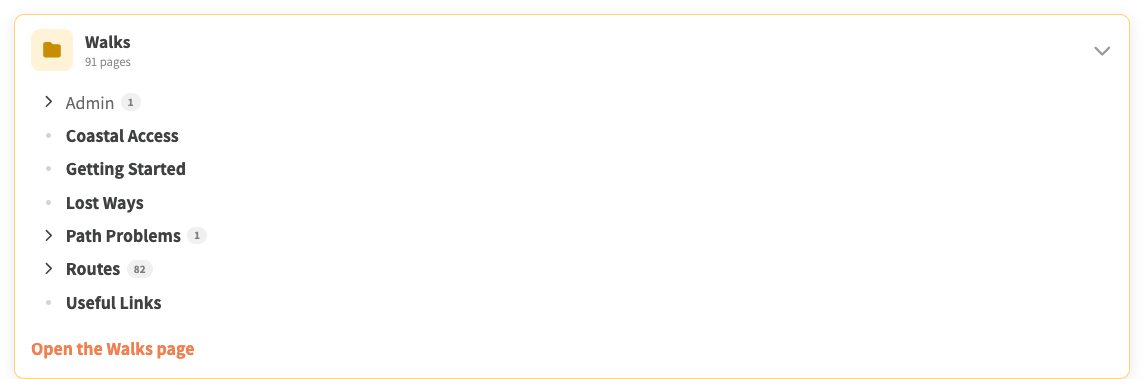
Expand a card to drill down through the full tree of pages, right to the deepest level, and open any of them.
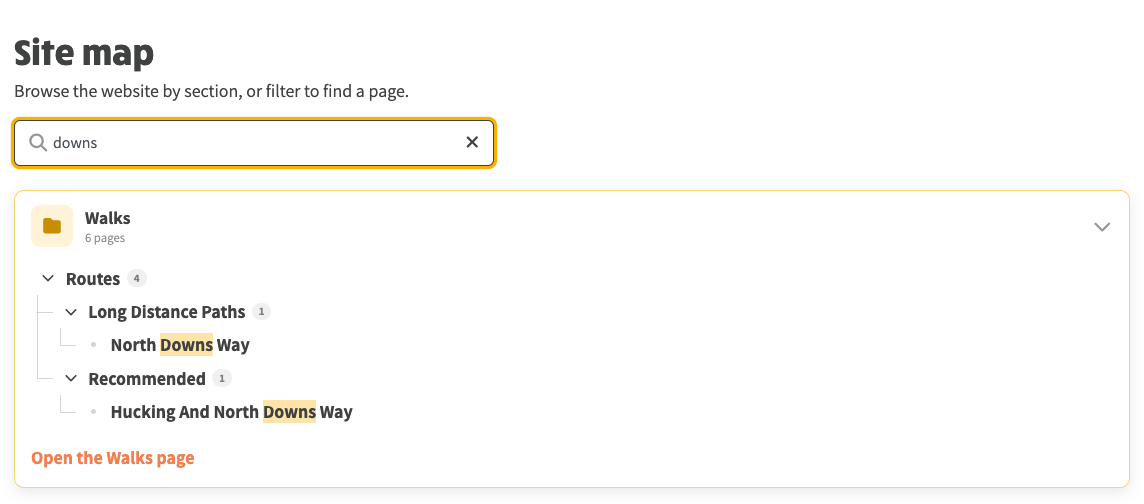
Type in the filter box to jump straight to a page by name; matches are highlighted wherever they sit in the tree.
Any image in a content column can now act as a link, so a book cover, a poster or a thumbnail can take the reader straight to the relevant page.
To set one up, edit the page, click Edit on the column with the image and fill in the new "Link when clicked" box with either a page on this site, written as its path such as publications/the-wealdway, or a full web address. Fill in Alt Text with a short description of the image; this is read aloud by screen readers and shown if the image ever fails to load. If you want the image on its own as a clickable tile with no caption underneath, simply leave the text box empty.
Pages that already hold the link inside the column's caption text keep working without any change: the image uses the first link in the text and takes its alt text from the wording of that link. Moving the link into the "Link when clicked" box and clearing the text just gives the tidier image-only tile. Image links are switched off while you are editing, so clicking an image still selects it for editing rather than navigating away.
You can try this on the Kent group's website. At the foot of the Saxon Shore Way walk sit the four walking-guide covers shown below, each one a link straight to its guide. Give one a click.
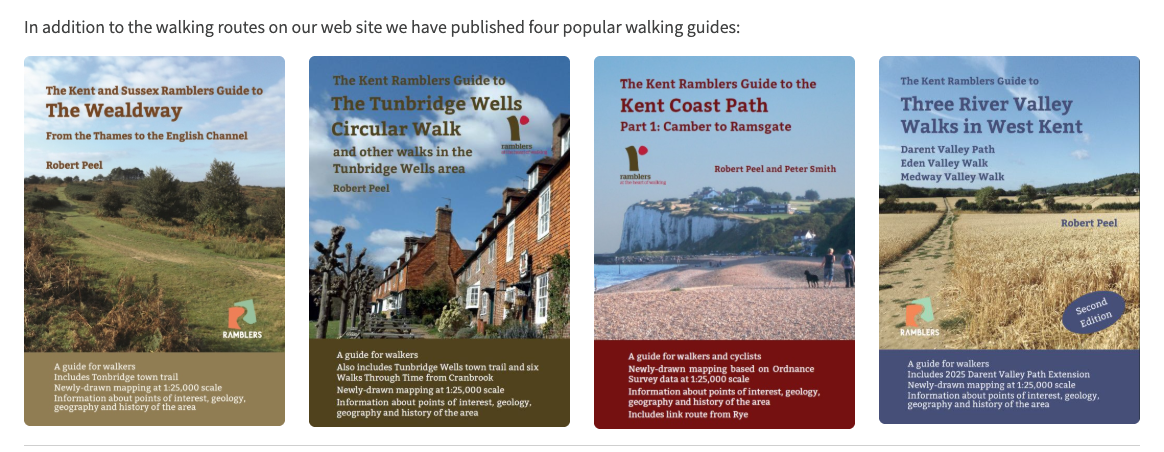
The four guide covers at the foot of a Kent walk page. They come from the shared "four popular walking guides" fragment, and each cover is a clickable link to its guide.
Search needs no configuration. The first time anyone searches, the site builds a search index in memory and later searches are instant; the index refreshes itself within thirty minutes of a change, on the next search, so new and edited content becomes findable with no manual step. The "Site map" link in the footer is added automatically by a database migration when this release is deployed to an environment.
The search index covers pages, walks and events with relevance ranking, exact-phrase support and markdown-aware snippets, served through the public /api/database/search endpoints, alongside a /site-map endpoint and the footer-link migration. The client adds a header search component, a /search results page, a /site-map page, a "Link when clicked" field on the image column editor and clickable images in dynamic content. Shared, dependency-free string helpers (plainText, isQuoted, unquote, firstLinkHref, firstLinkText) are used by both client and server and covered by unit tests, and the search matching logic lives in its own tested module.