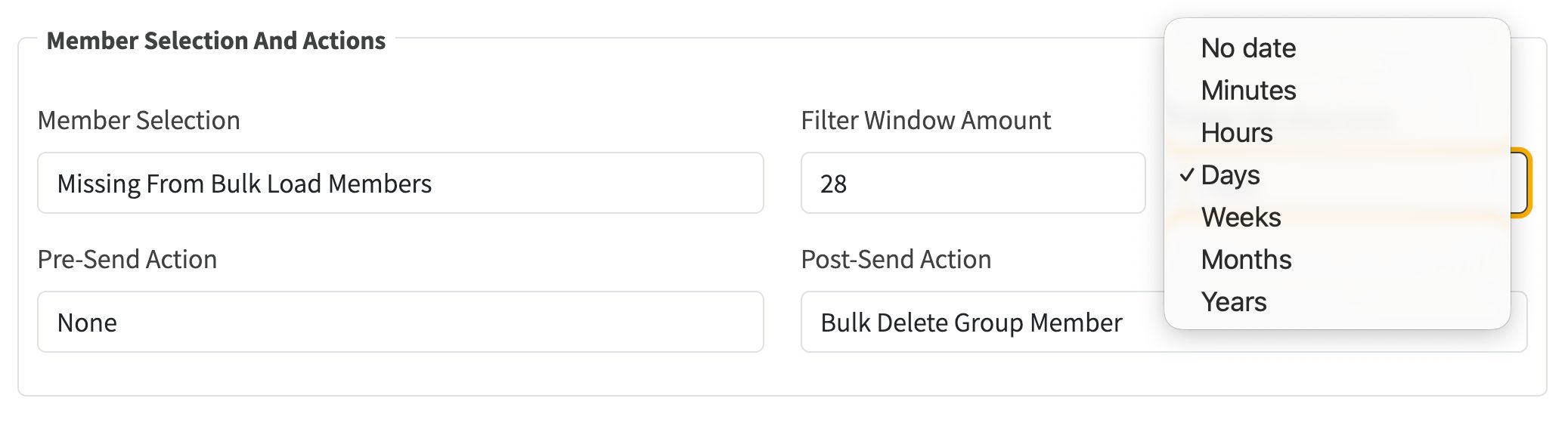
Notification member filters can now use minutes, hours, days, weeks, months or years instead of being limited to month-based windows. Admins can also choose No date when they want the filter to ignore the date window entirely.
Open Admin -> Mail Settings, edit a notification configuration, and use the Member Selection plus Filter Window controls.
The unit dropdown appears for date-windowed member selections. Mailing List and Added in last bulk load do not show the window controls because those selections are not driven by a configurable date window.
The existing amount is still used, but the selected unit decides how far back the member filter looks. No date removes the date window entirely and hides the amount field.
A zero amount keeps date filtering behaviour but simplifies recipient labels to Added recently, Expired, and Missing from bulk load. Existing stored configs default to months so their behaviour stays unchanged until edited.
Set a notification config to Recently added or Expired members, choose a small unit such as minutes, and preview recipients in the email composer.
Use No date to remove the date window, or choose Added in last bulk load to target members created by the most recent bulk load.