14-Aug-2026 — share menu on every walk, safer walk creation, and social publishing refinements #356
What's new
Sharing a walk is now handled from one place. A Share menu on the walk page brings together viewing, sharing and copying the link alongside posting to social media, and it turns into a Publish button when a walk still needs sending to Ramblers, so the highlighted colour once again means "there is something to do here". Copying a link now confirms with a brief "Link copied" message that clears itself. The social media window can be dragged and resized, and where an event has no photo you can add one from the window itself, which then appears on the walk and unlocks Instagram. Separately, starting a new walk no longer creates it the moment you click "add" - the walk is only saved when you press Save, so abandoning a half-started walk leaves nothing behind.
At a glance
- One Share menu on a walk covering View, Share, Copy link and Share on social media, and it is now the only place sharing lives - the older "Sharing" panel and the related-links "Share this walk" entry have been removed
- The walk title is a link that opens the walk's own page in a new tab, matching the walk list
- The social media post can be edited before it goes out, with an optional different caption for Facebook and Instagram
- Social event posts no longer show a walk distance or grade, which never applied to them
- Each event type now has its own sensible default wording, so a walk reads like a walk and a social event like a social event
- Every post keeps a link back to the event on the website, even after the wording is edited
- The Facebook and Instagram marks now show in their real brand colours wherever they appear
- The button reads "Publish" and is highlighted only when a walk actually needs sending to Ramblers, otherwise it is a quiet "Share"
- "View this walk" opens in a new tab
- Copying a link shows a brief "Link copied" confirmation that disappears on its own
- The social media window can be moved and resized to see the walk behind it
- Add a photo from the social media window when an event has none, which then shows on the walk and makes Instagram available
- Cancelling the image picker no longer leaves the button stuck on "Uploading"
- Adding a new walk only creates it when you press Save, so a cancelled walk is never left behind
Screenshots
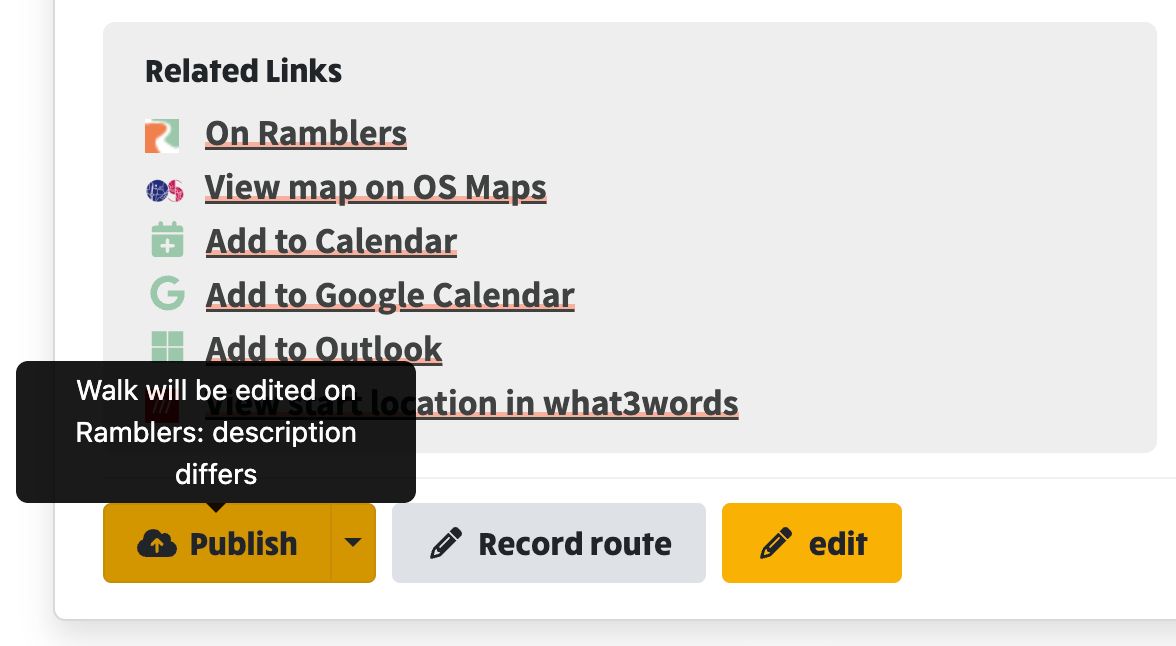
Example of when publish is needed on a walk. The reason is calculated and shown as a tooltip. Clicking straight takes you straight to the Walk Export page.
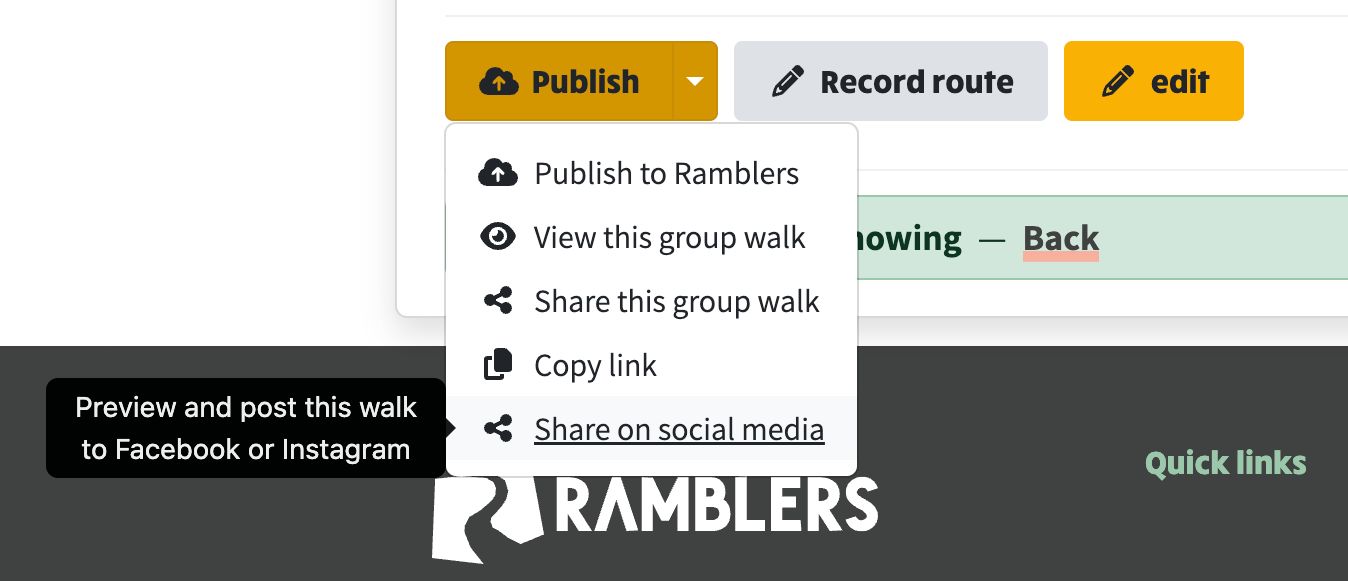
Example of Publish button drop-down items. These are shown based on what's available to the user. So an administrator will have more options than someone that's not logged in.