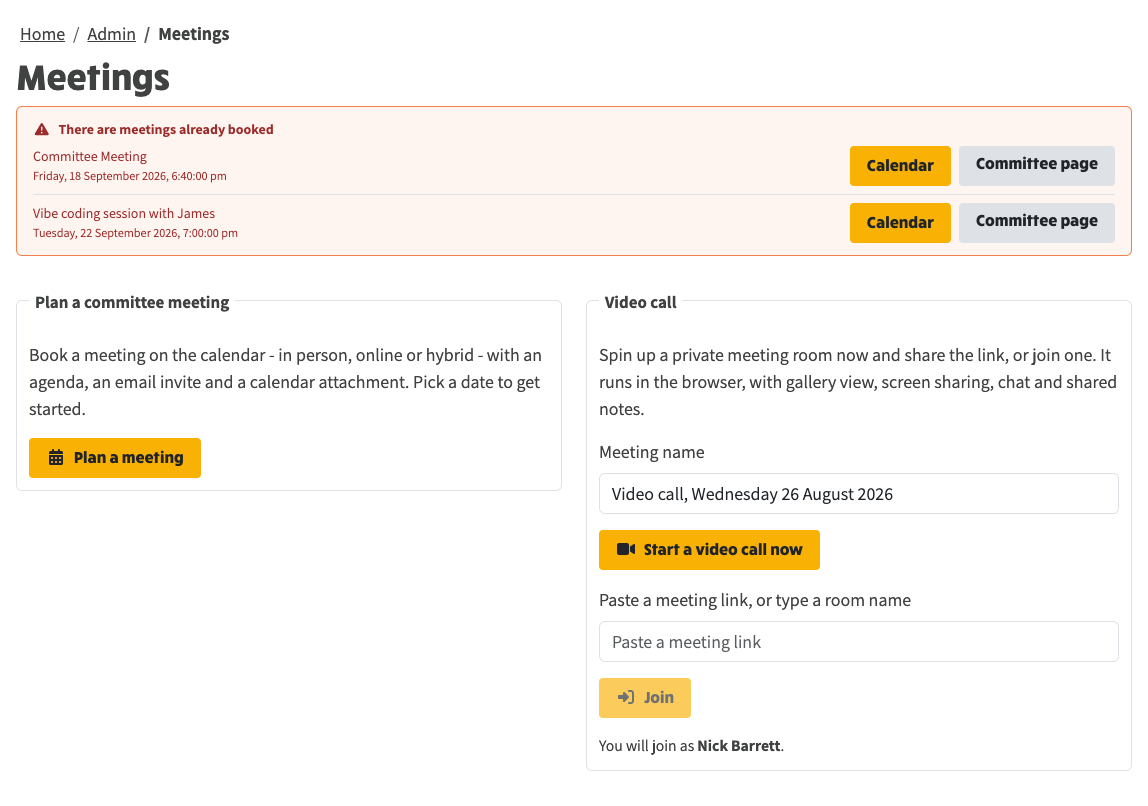
Groups can plan and run committee meetings from the site, end to end. This note brings together the whole video meetings feature as delivered across builds 838 to 851.
The Meetings page: booked meetings at the top, plan a committee meeting on the left, start or join a video call on the right
Plan a committee meeting on the walks calendar: pick a date, choose in person, online or hybrid, draft an agenda, and invite guests and lists by email with a calendar attachment. Open an existing meeting from the calendar or the booked-meeting banner to edit it, or cancel it and notify everyone who was invited. In-person and hybrid meetings show a venue on the agenda and invite; online and hybrid get a join link. The banner lists the next AGM and committee meeting when those types exist, and clicking one opens the calendar on that date with the invite already up. The calendar shows only committee meeting file types, so financial statements and the like stay off it.
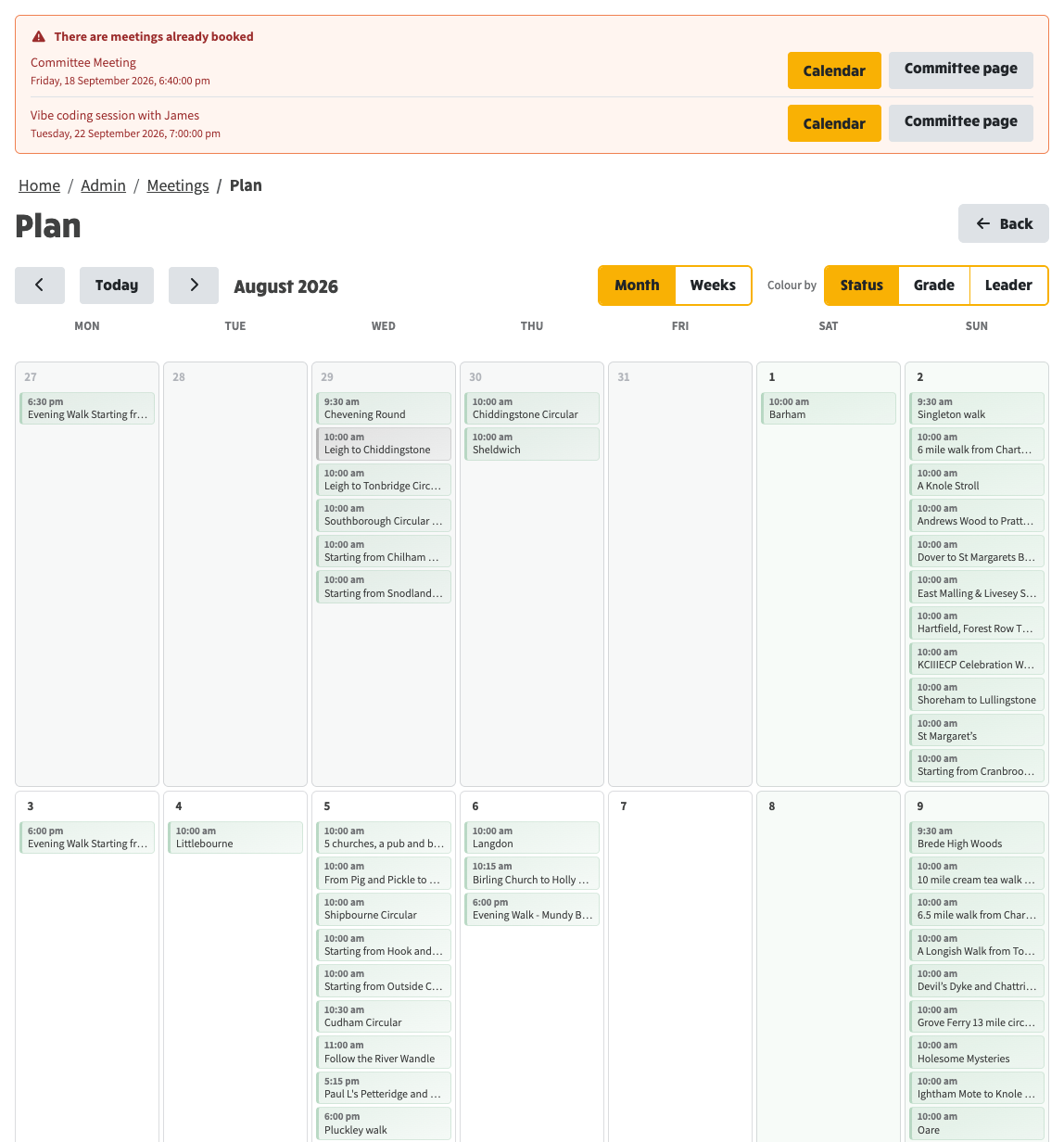
Planning a meeting: pick a date on the plan calendar, with booked meetings kept in view
Calendar files preview as events in the inbox and composer rather than just downloading, and PDFs can be previewed too. Meeting invites include Accept, Tentative and Decline, and the organiser is told your reply. Walks in Related Links offer the same calendar choices - Calendar, Google Calendar or Outlook - ordered for the device you are on, and Add to Calendar opens the calendar on the machine instead of saving a file to Downloads.
Meetings let you straight in as yourself - no unexpected sign-in box - and starting a meeting gives immediate feedback: the button shows it is working, and a spinner with a short message stays up while the meeting server wakes. Meetings usually open faster because the site quietly warms the meeting server while you are still typing. The on-screen meeting name is the meeting title, not a random room slug, and members skip the Jitsi prejoin page.
On the free public Jitsi service, Jitsi itself asks the first person to sign in with Google or GitHub before a room will start - that is Jitsi's login, not NGX - and the video meetings page says so while a site is still on the public host. Public-host meetings open on Jitsi's own page, so the call is not cut off after five minutes.
A single self-hosted Jitsi server can run the whole estate's meetings, with member identity, committee moderators, shared notes and AI minutes - the write-up runs on the integration worker, and automatic notes stay as one updating AI entry. Self-hosting is one container, deployed once from admin to its own Fly app; the host and identity are set once in a global Video Meetings config and carried to every site, with only the brand name set per site. The deploy sets the internal service passwords automatically, so the server starts first time. No calls are recorded or stored, and video meetings stay off unless the estate turns them on.
Groups can set their own guest joining instructions under System Settings, Video tab; the same wording is used in guest invite emails and meeting invitations. System Settings controls match the rest of that screen, and every notice on Video meetings uses the standard alert panel.
Booking a meeting end to end: pick a date on the plan calendar and the meeting invite opens for that day, with the meeting type, a generated title and a draft agenda ready to adjust. Choose in person, online or hybrid - an online meeting notes that a video link is created and added to the agenda and invite. Pick a list to invite (each shows its subscriber count), add any external guests, and Send now. The invite email goes out with a calendar attachment, and the booked meeting then appears on the Meetings page banner and on the calendar.
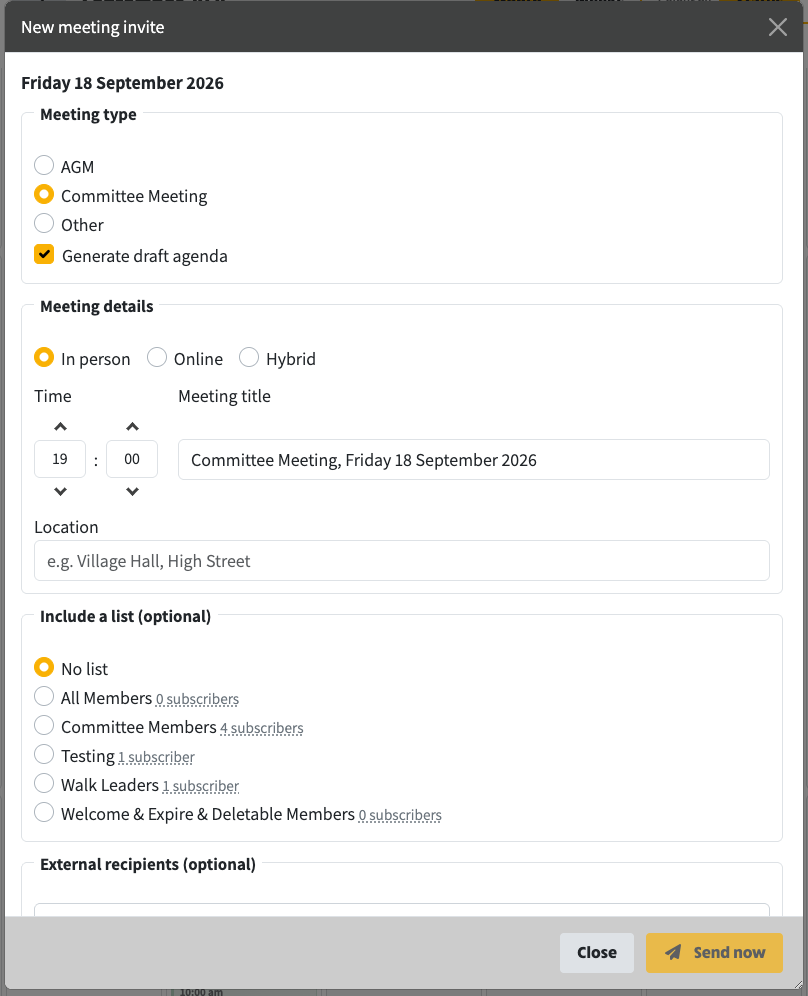
Pick a date and the meeting invite opens: type, draft agenda, time and title ready to adjust
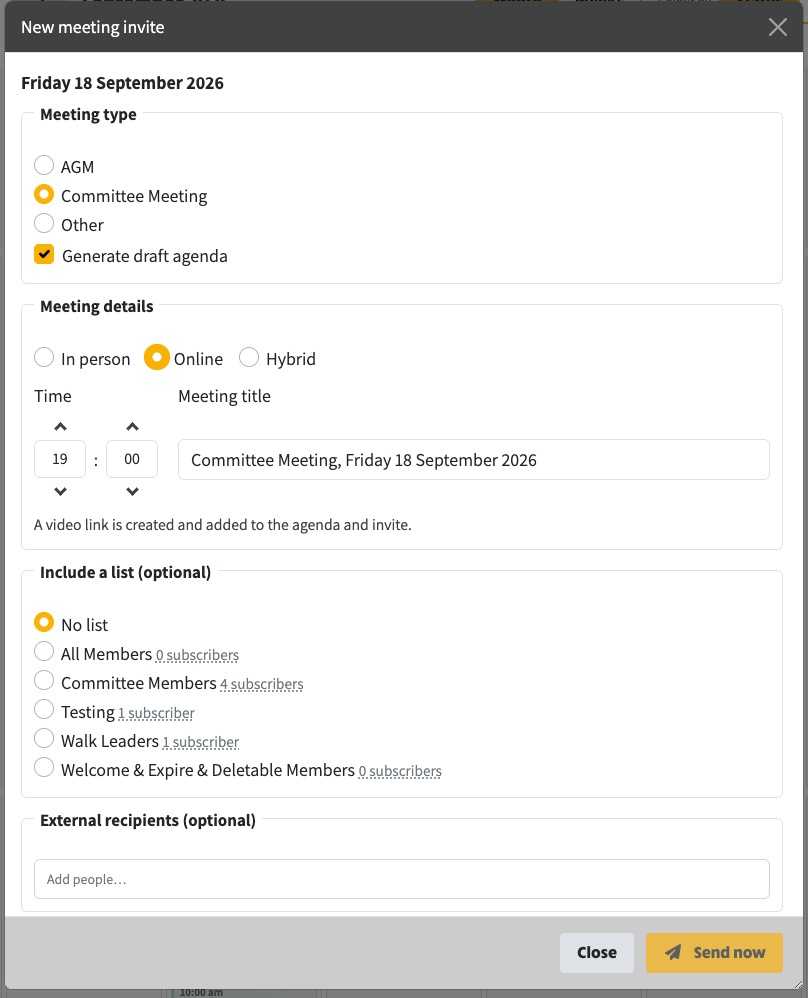
Choose online and a video link is created and added to the agenda and invite
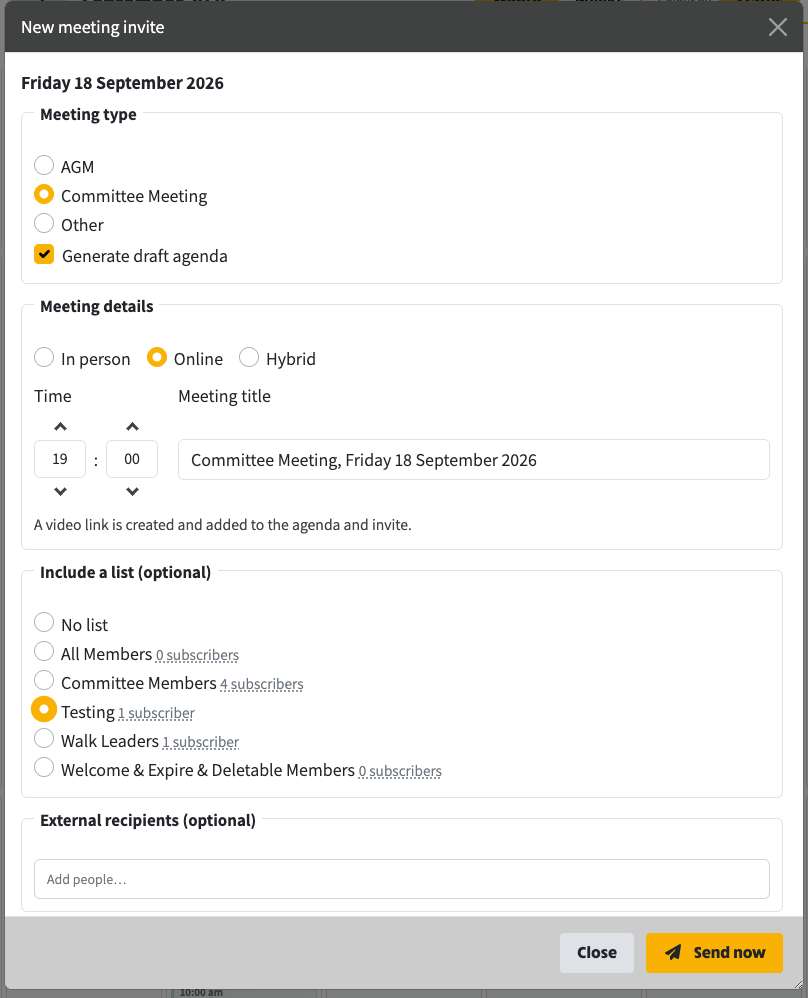
Choose a list to invite - each shows its subscriber count
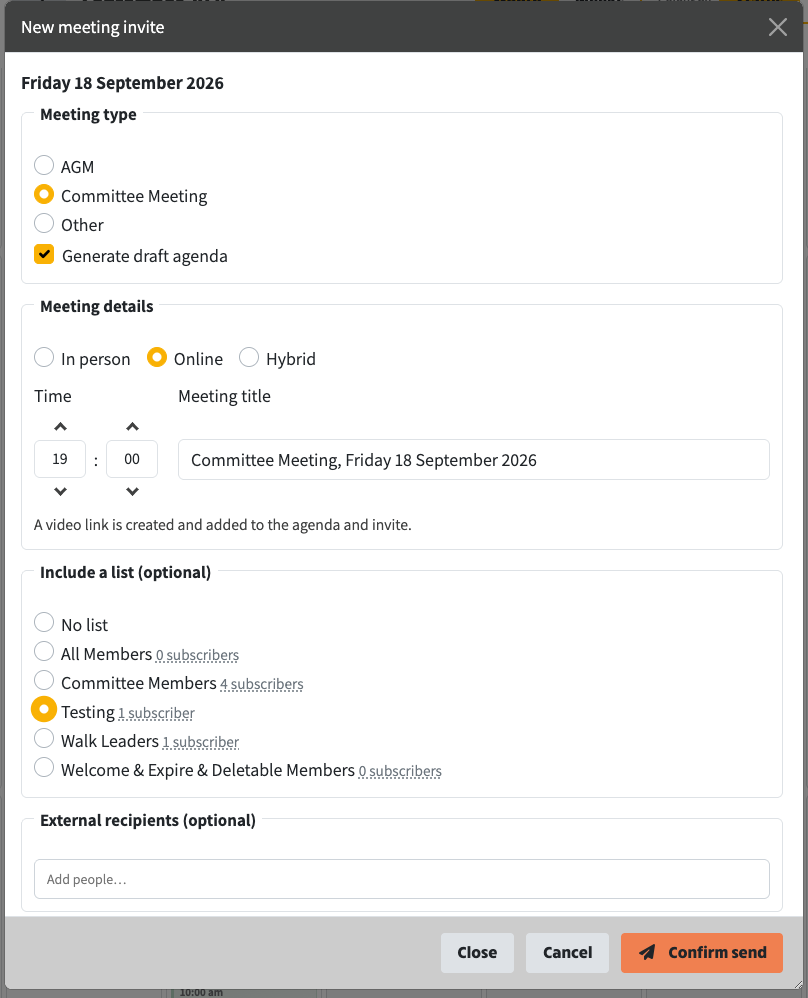
Send now asks for confirmation before anything goes out
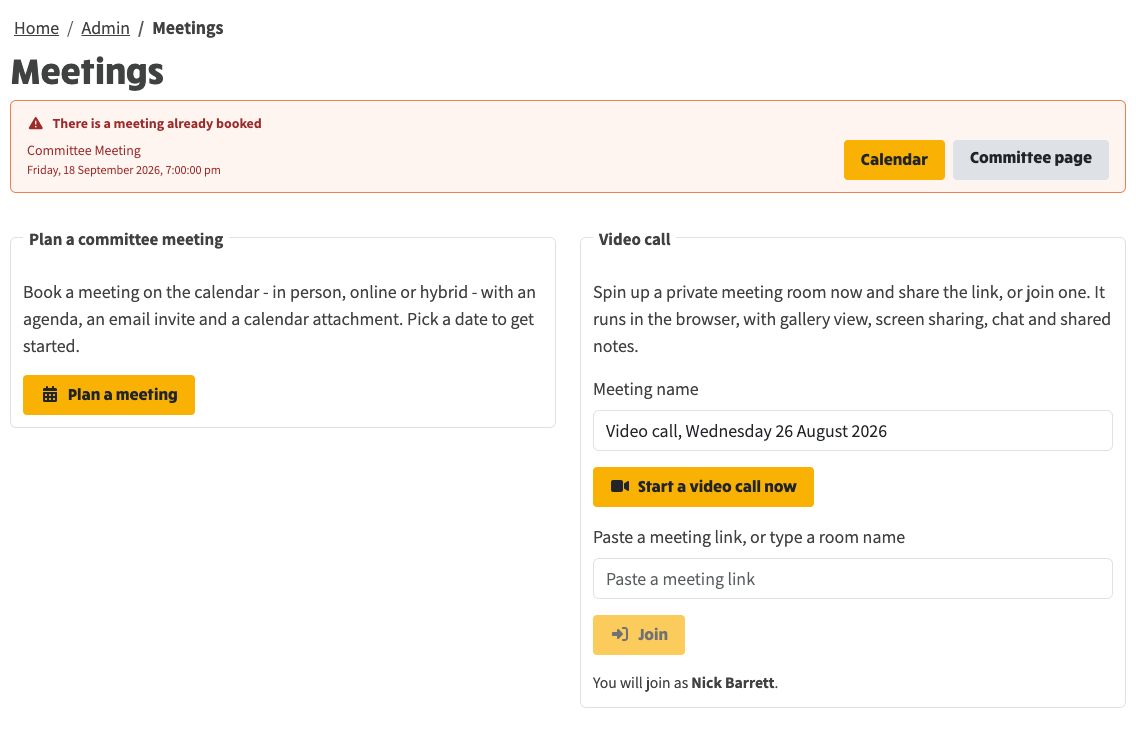
After sending: the Meetings page shows the booked meeting, with Calendar and Committee page shortcuts
A booked meeting appears on the plan calendar as a committee event chip. Opening it shows the invite with its details, and More actions offers Join, the Committee page, and Delete meeting. The chip also carries its own delete control. Deleting asks for confirmation first - this cannot be undone - and when people were invited, an option to email the cancellation to them.
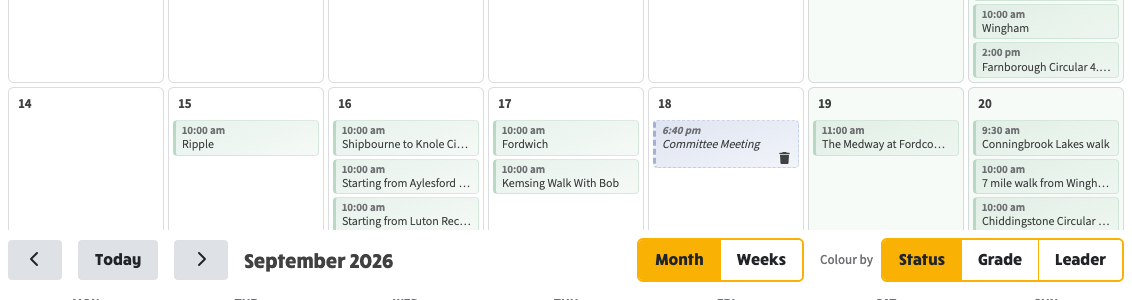
The booked meeting on the plan calendar, with its own delete control on the chip
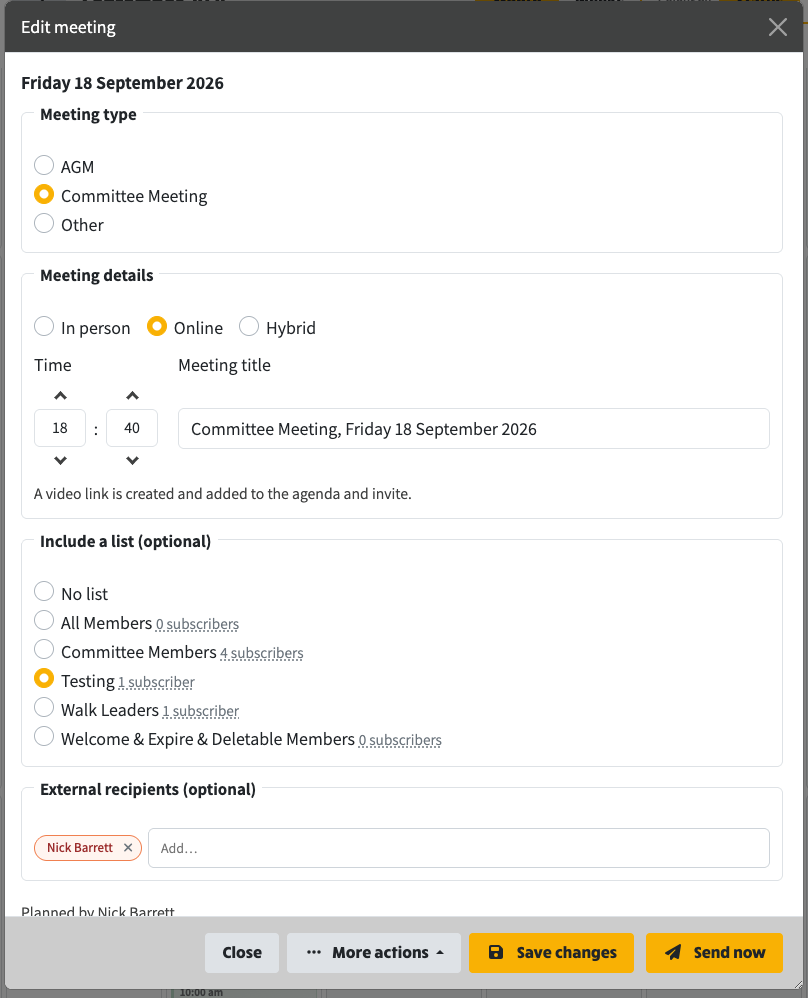
Opening a booked meeting shows the invite and its details
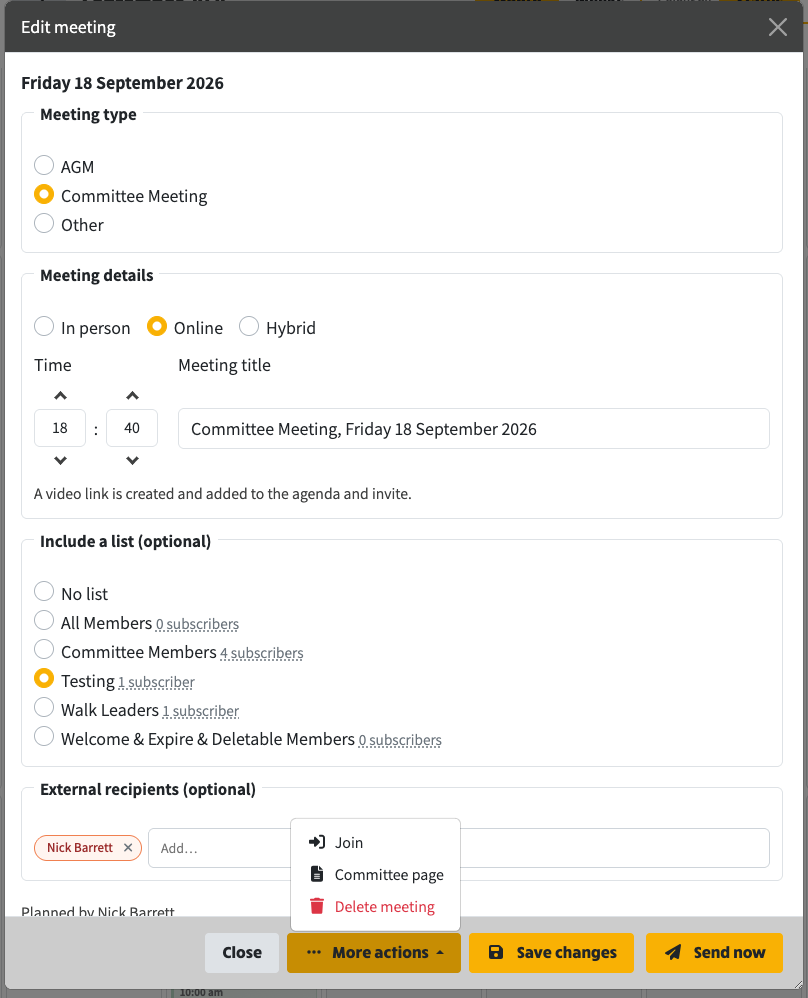
More actions: Join, Committee page, or Delete meeting
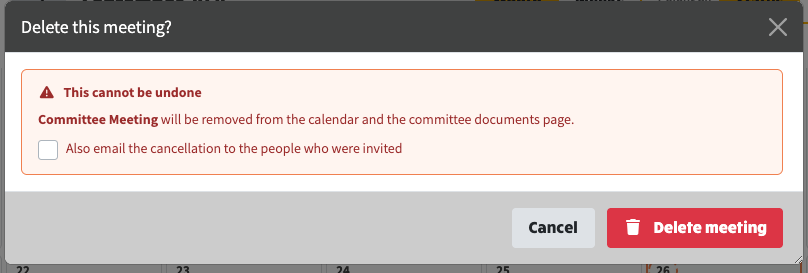
Deleting asks for confirmation, with the option to email the cancellation to anyone who was invited
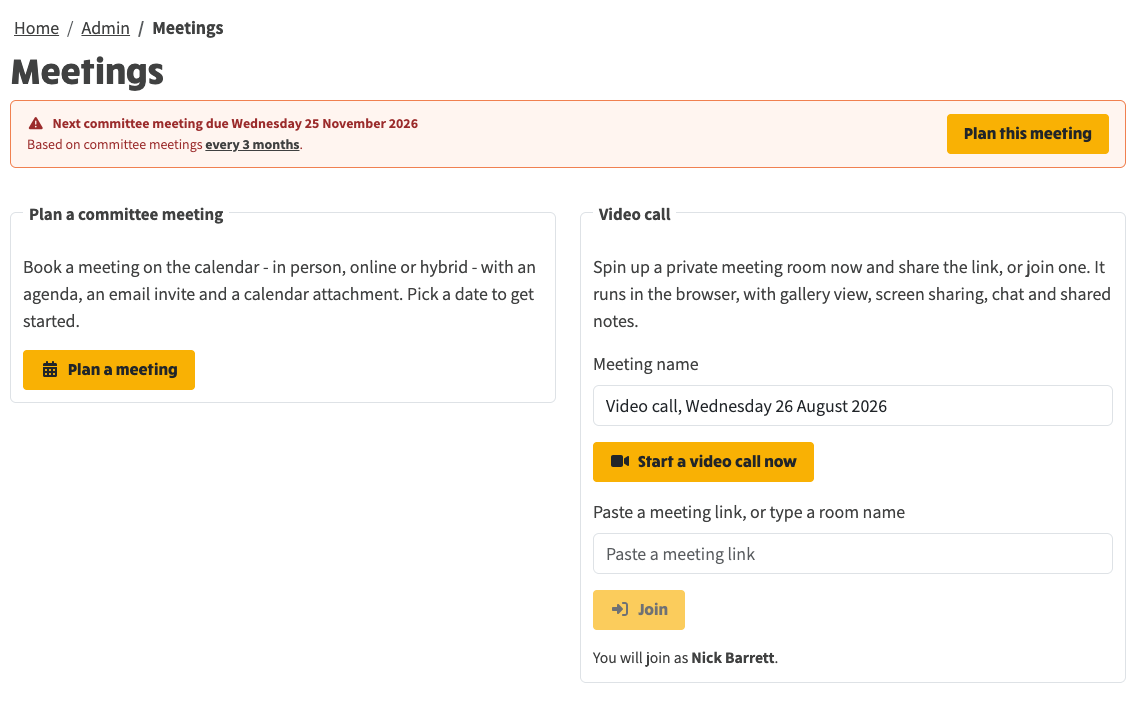
After cancelling: a clean slate, ready to plan the next meeting
The Jitsi token helpers were renamed for clarity and gained unit tests, along with tests for the meeting-invite calendar file builder.
A full architecture write-up — where calls run, how identity and moderation work, and how one container serves the whole estate — is in the technical article: Video Meetings: One Jitsi Server for the Whole Estate.
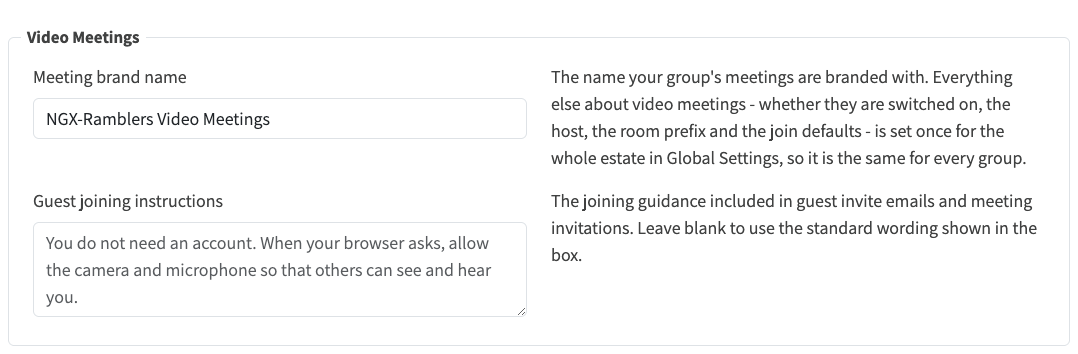
System Settings, Video tab: the group's meeting brand name and guest joining instructions