Walk Details has a new Directions tab, and the step-by-step guide that the route pages use is now shared with the walk editor. This note follows the order you would work in: fill the walk's details from its GPX file, generate and edit the directions, then follow them.
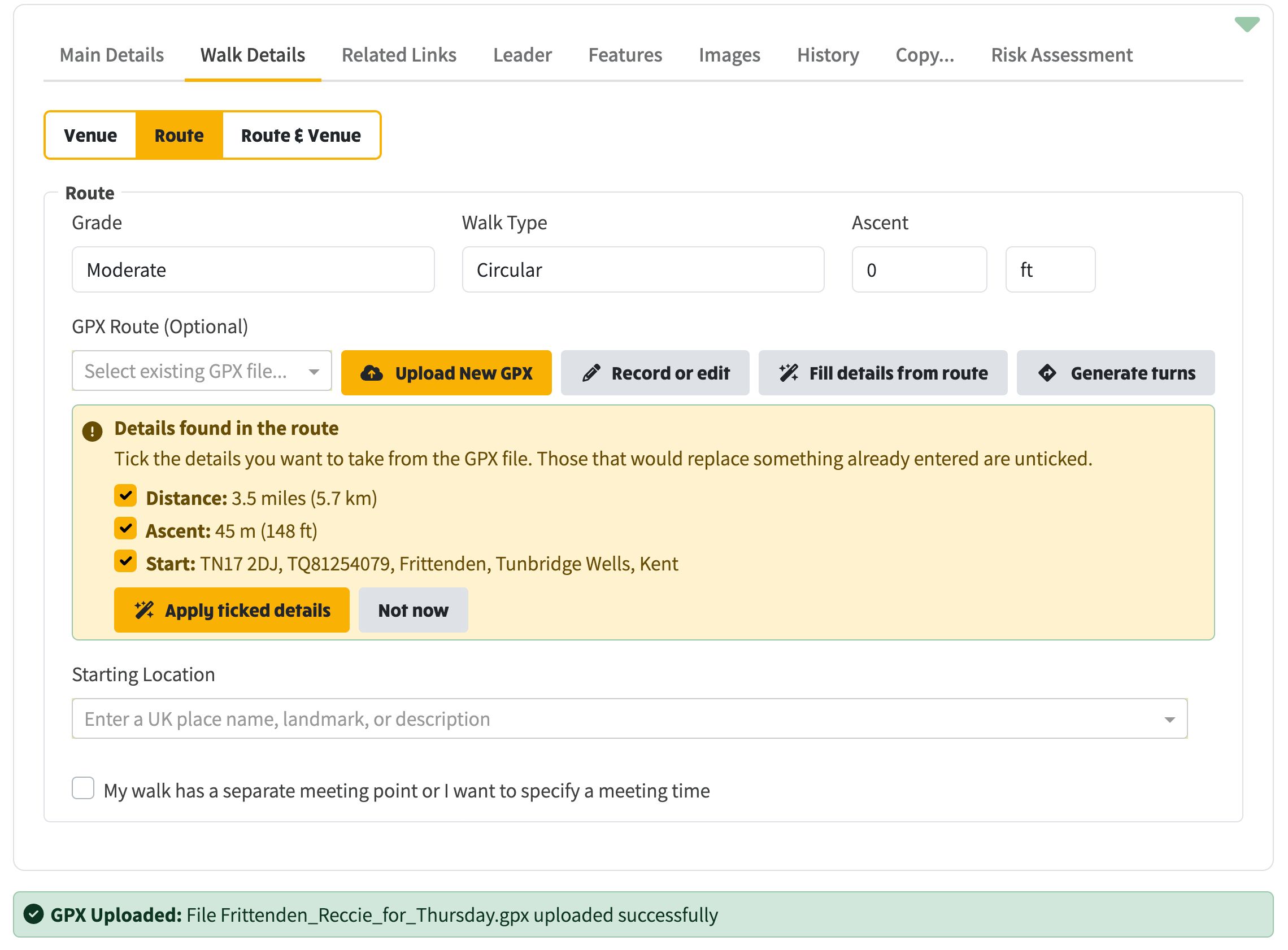
On the Route sub-tab, Fill details from route reads the GPX file and offers the distance, ascent and start it finds there. Tick the details you want and apply them; anything that would replace something already entered is left unticked. The same tick-and-apply list is now on the guided route editor, which offers the distance and the start read from the GPX file. The postcode, grid reference, lat/long and pin map are back under Starting Location in both the walk editor and the route editor; they had been silently missing since the grid reference tooltip was reworded.
Details found in the route, ready to tick and apply.
Open a walk, choose Walk Details and then Directions. Until anything has been generated, the tab explains what Generate directions will do.
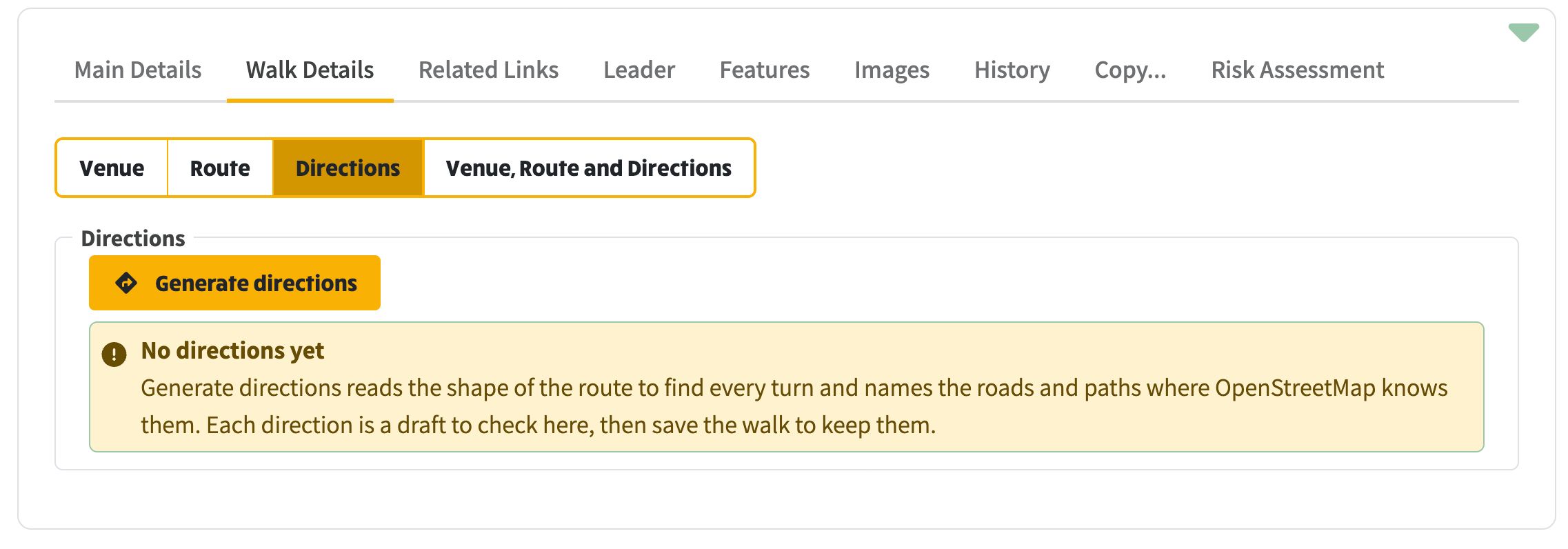
The Directions tab before anything has been generated.
Generate directions reads the walk's GPX file, finds every turn and names the roads and paths where OpenStreetMap knows them. The results appear beside the map in the same How to follow this route frame the route pages use, with a numbered pin for every step. Each direction is a draft to check, then save the walk to keep them. Generate directions now works on walks: it had been reading the GPX file from the wrong folder.
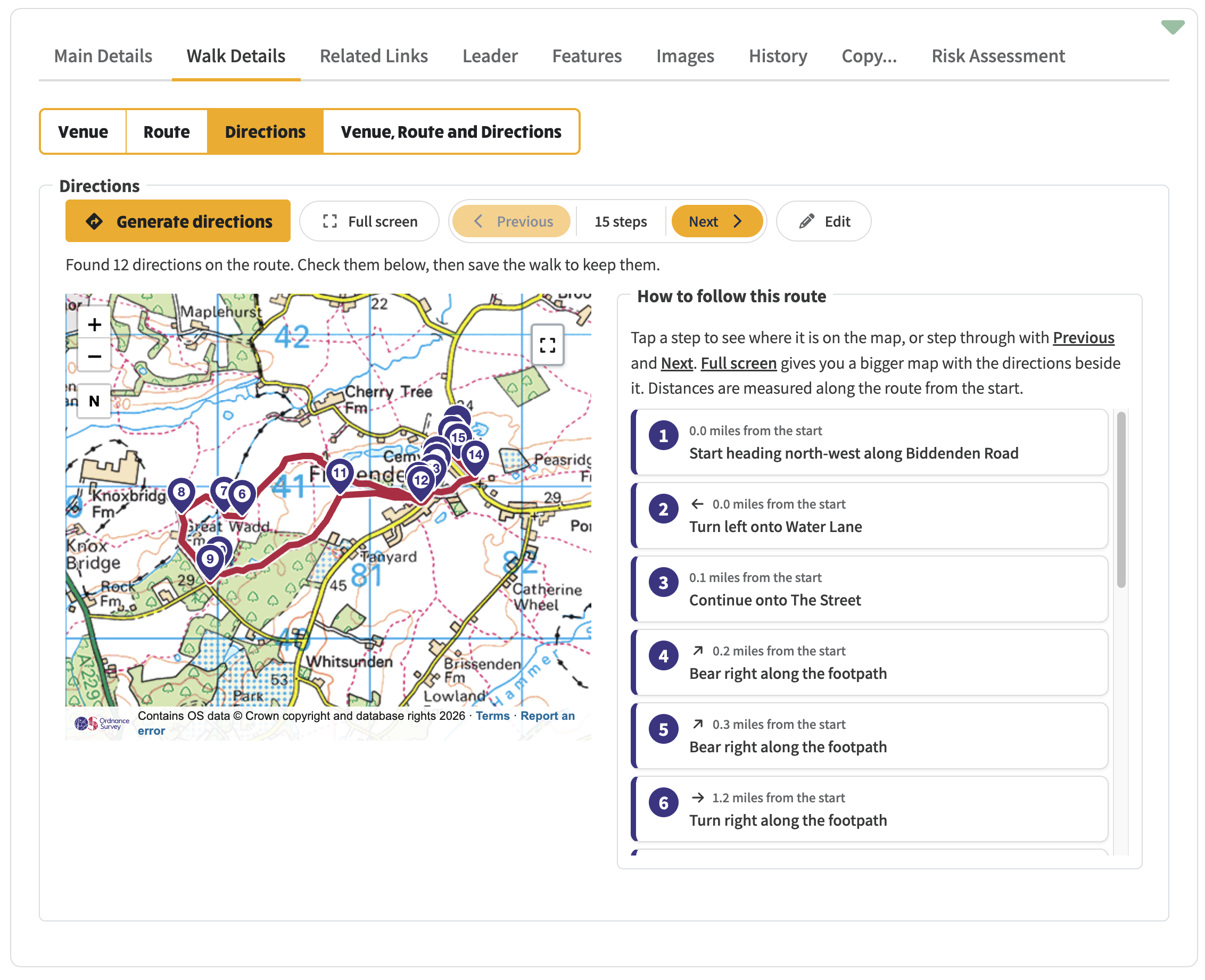
Generated directions beside the map, with a numbered pin for every step.
Full screen is the best place to work on directions: a bigger map with each step beside it. Press Edit to reword steps, drag the pins along the route, add a step after another or remove one, with Undo and Discard. A note under a direction is for the things a leader knows and the map does not. Generating or editing directions marks the walk as changed so Save appears, and the change email lists Route directions. Maximising the map is kept in the page address, so a reload or a shared link comes back maximised.
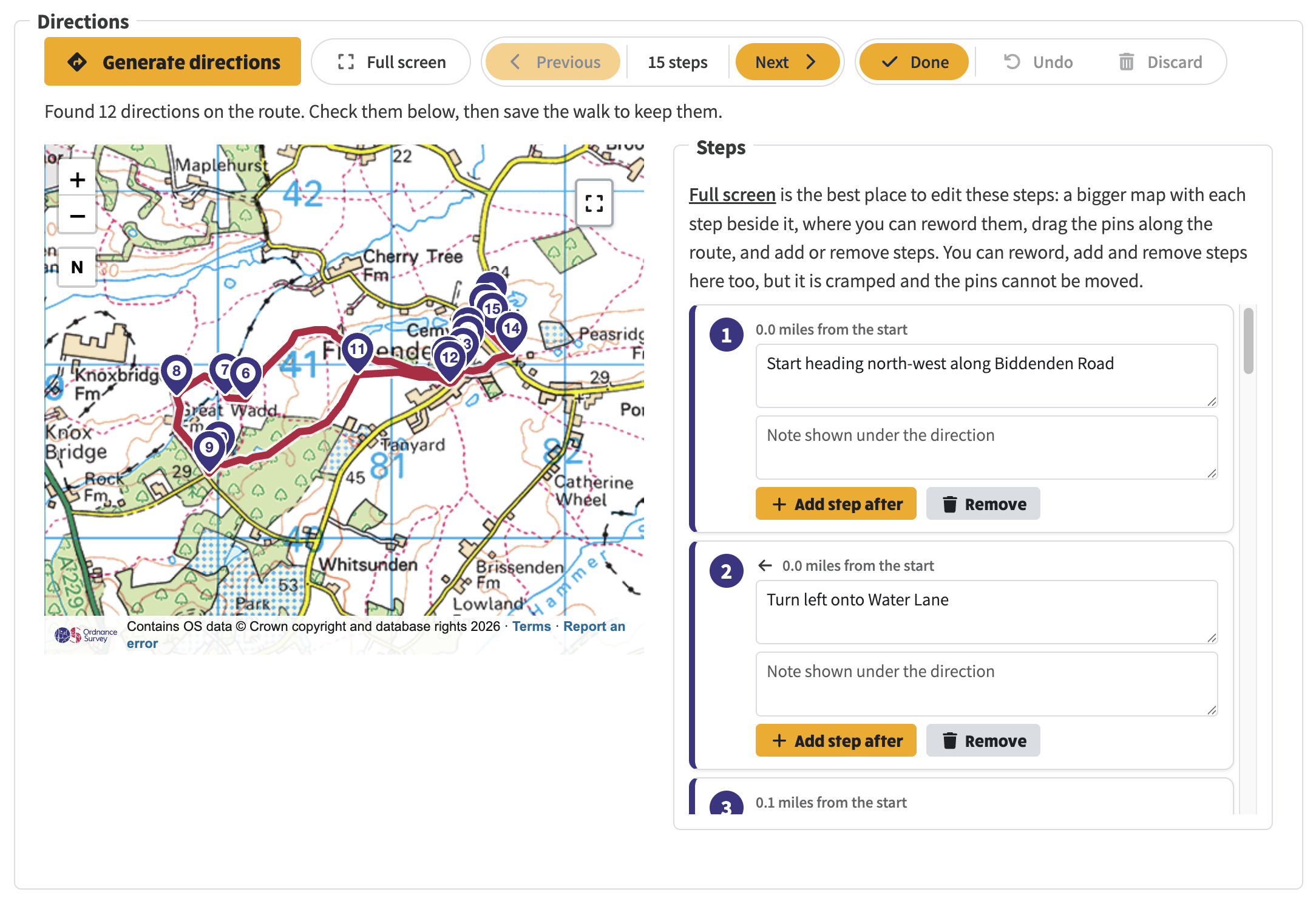
Full screen, with every step beside the map and a note field under each direction.
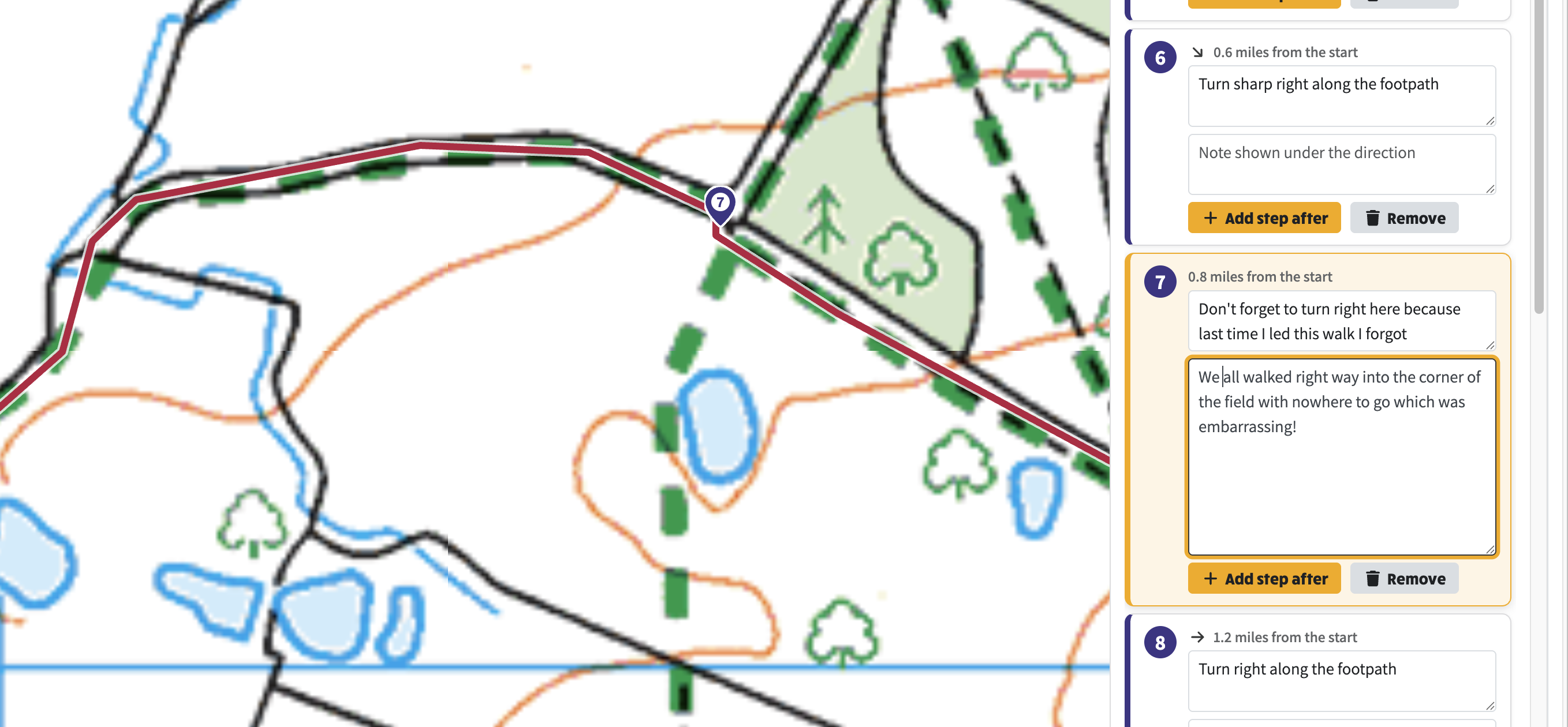
Typing a note against a step in full screen; the selected step is highlighted on the map.
Back on the Directions tab, tap a step to select it and see where it is on the map, or step through with Previous and Next. The note appears beneath the direction.
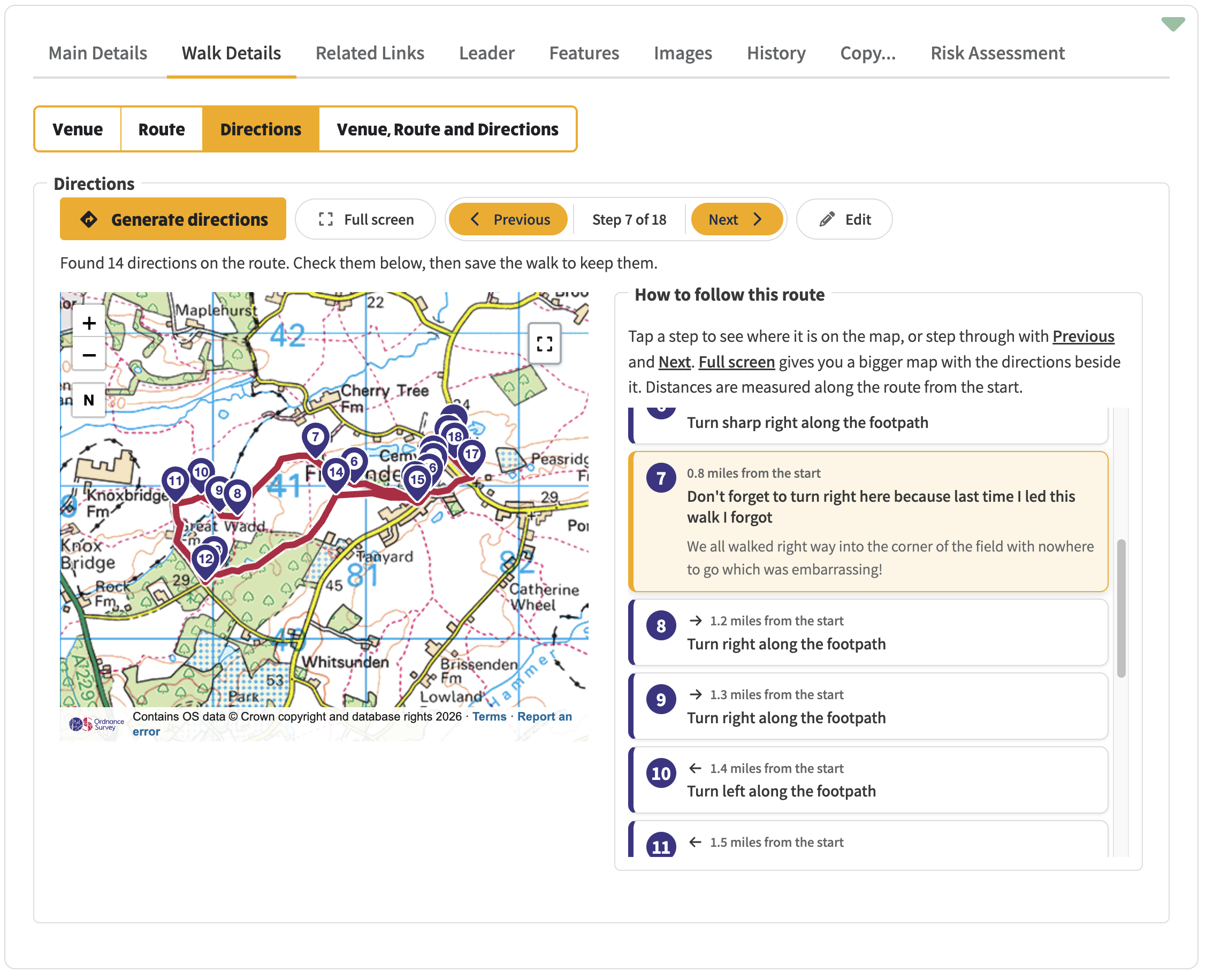
A selected step, with its note shown beneath the direction.
On the map, a step pin opens the same styled card as on the route pages, with the number, distance from the start, turn arrow, instruction and note, instead of a plain line of text.
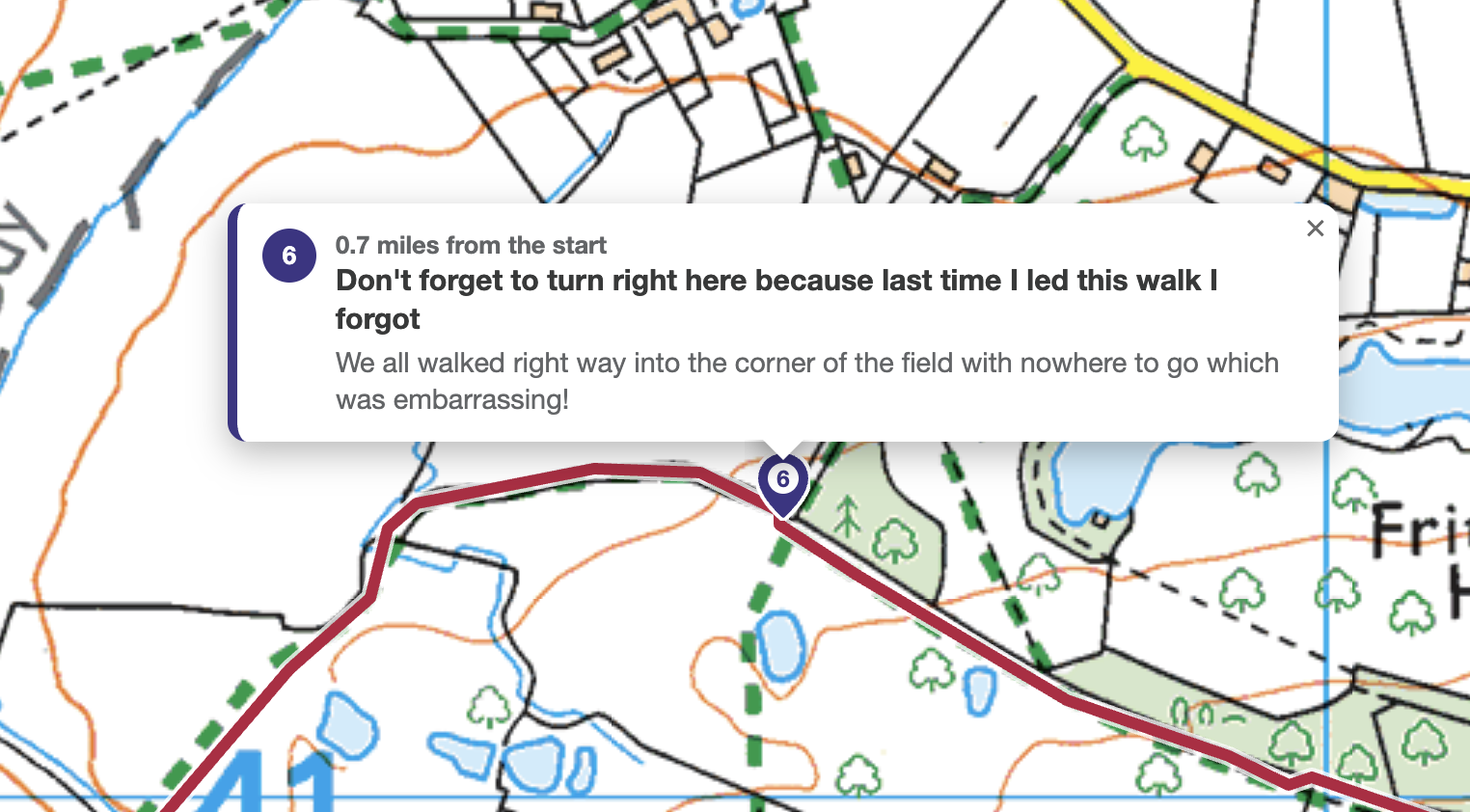
Tapping a pin on the map opens the step card.
See also: Planning and following walk routes in the how-to guides, which walks through drawing a route, generating and editing its directions, importing from OS Maps and following a walk on a phone.