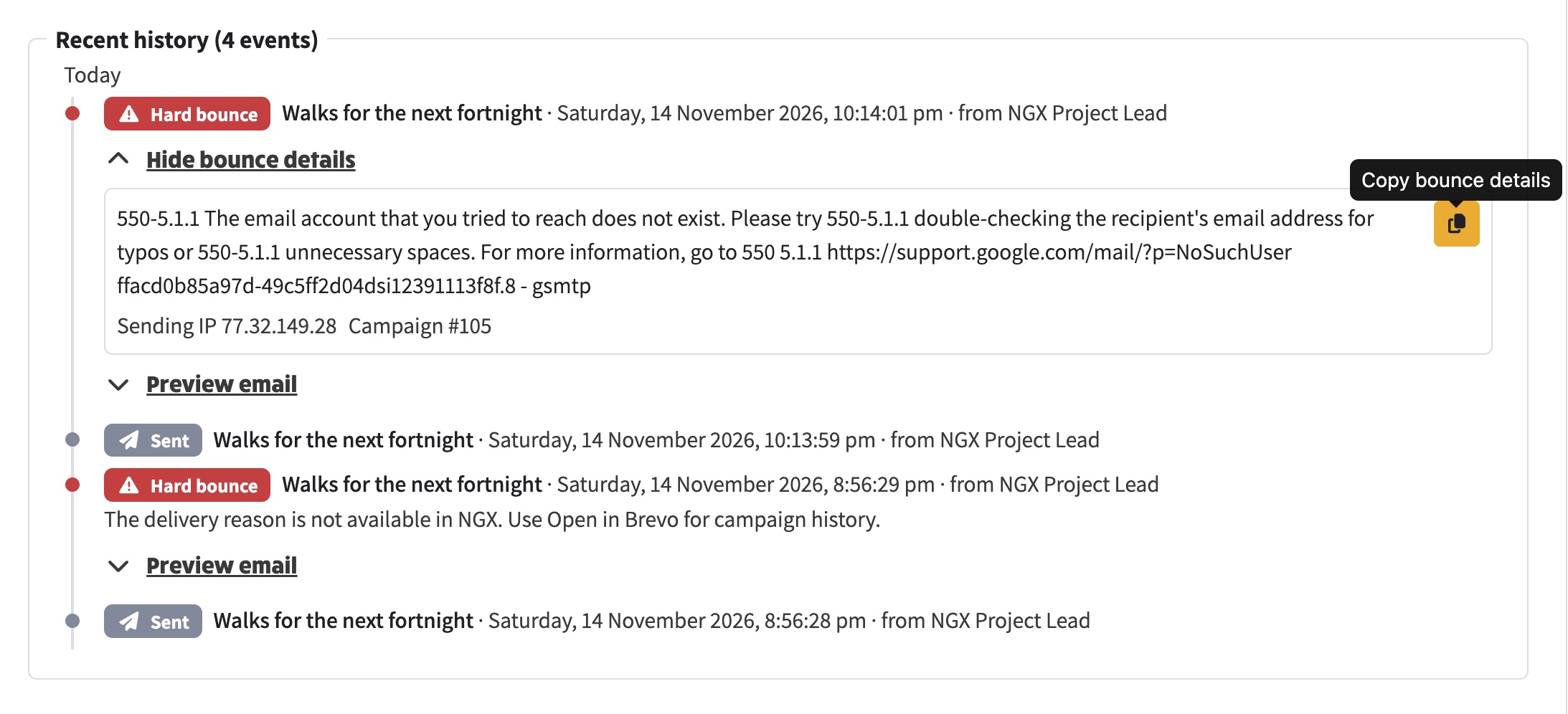
Open Members, select the member, then open Email & subscriptions → Brevo activity and find the campaign’s hard or soft bounce in Recent history. Select Bounce details to see the receiving mail server’s full response, the sending IP and the campaign number when Brevo supplies them. Use the copy icon to include the diagnostic in a support enquiry. The timeline shows Brevo’s classification as Hard bounce or Soft bounce. If the reason is unavailable in NGX, select Open in Brevo and check the contact’s campaign history.
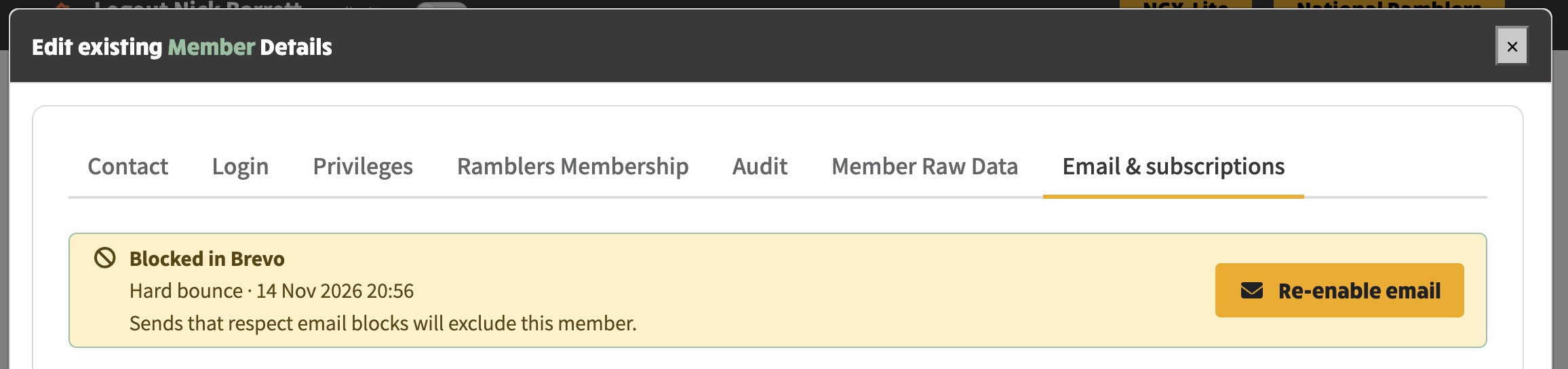
After checking the address, open Members, select the member, then open Email & subscriptions. Select Re-enable email in the block notice and confirm.
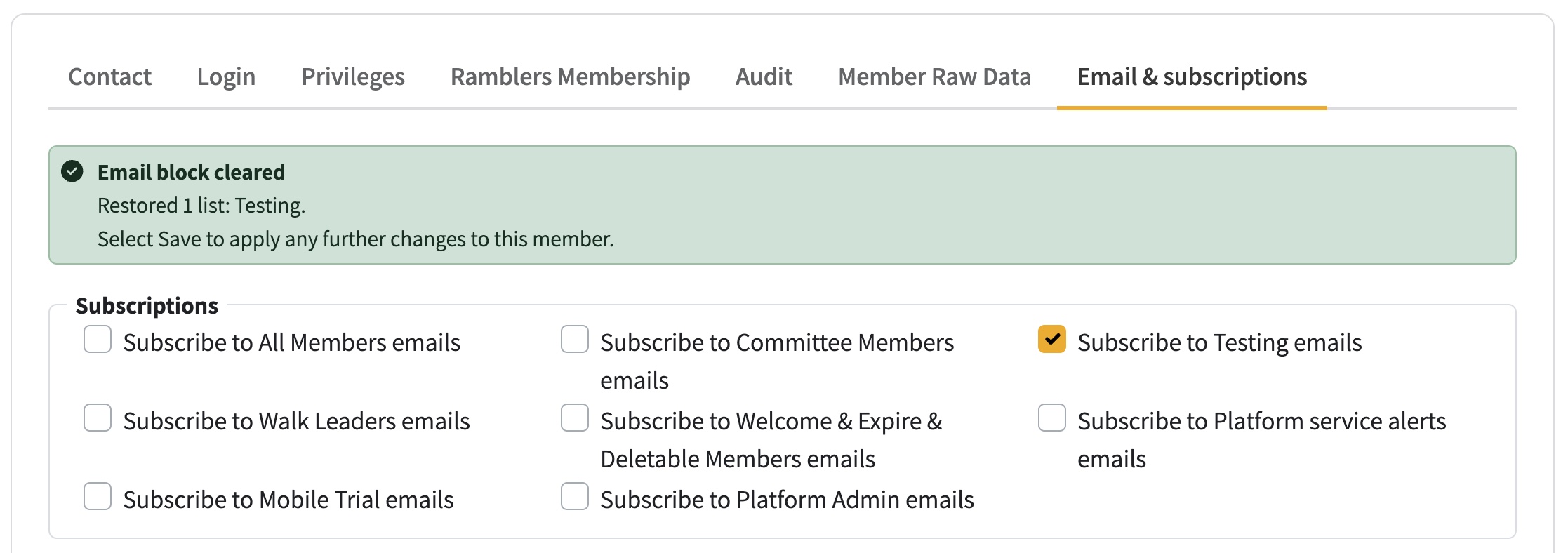
Clearing a hard-bounce block automatically puts the member back on any group mailing lists they were subscribed to just before the bounce, where NGX can identify that the bounce switched those subscriptions off and marketing consent allows restoration. Earlier and later opt-outs stay in place. The confirmation names the restored lists. These subscriptions are saved automatically. Select Save if you make any further changes to the member.
In Mail Reports → Campaigns, the Completed column shows the date and time. Use it to distinguish campaigns sent on the same day.
In About this version → Where it runs, select the GitHub icon or repository name in the Source row to open the repository.