Cloudflare Web Analytics gives your group a simple, private picture of who visits your website: how many page views and visits you get, which pages are most popular, where visitors come from, and how quickly your pages load.
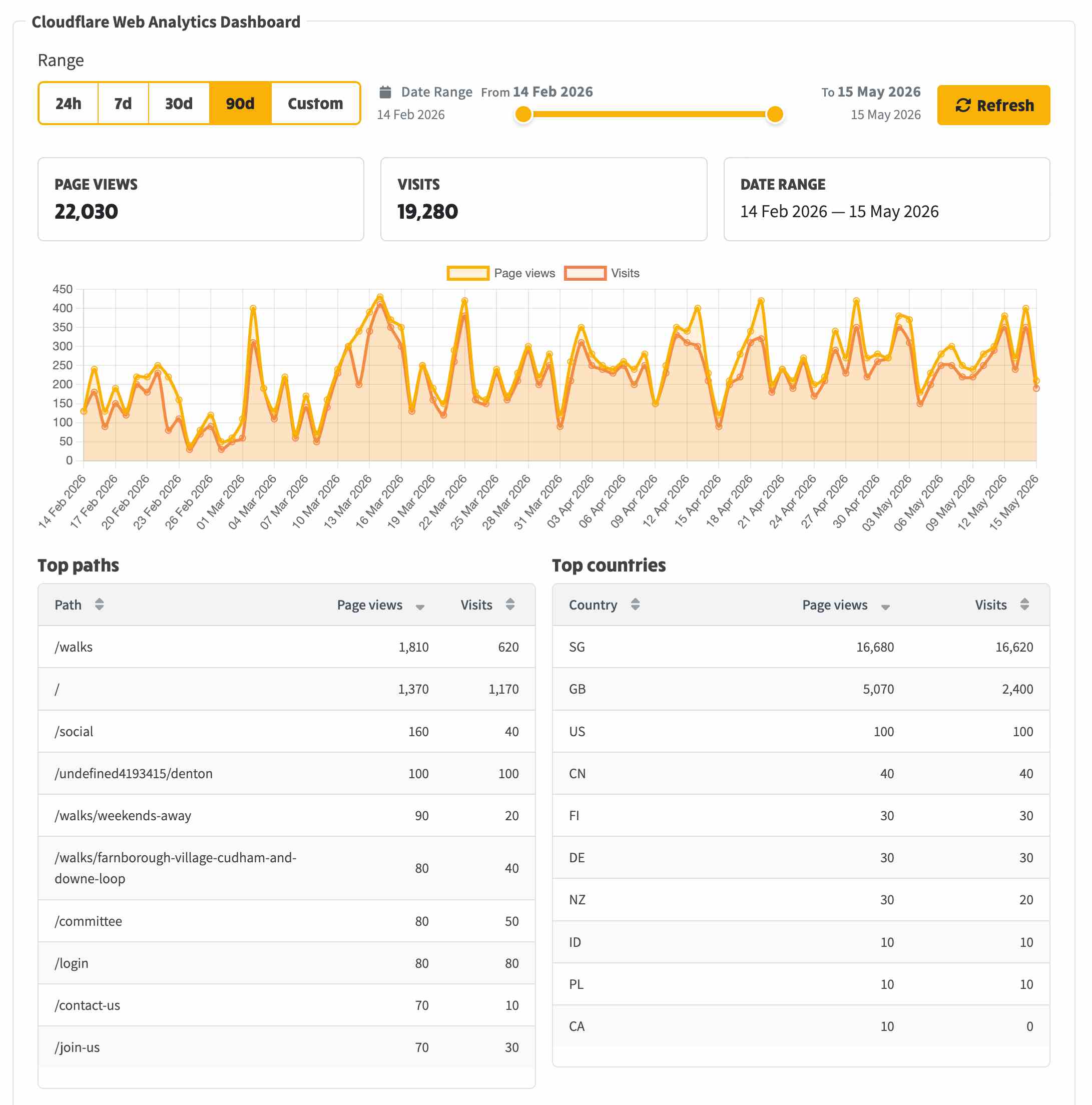
It is cookieless. It sets no cookies and tracks no individuals, so it is compliant with PECR and UK GDPR, and your site does not need a cookie-consent banner for it. The analytics is viewable from /admin/settings/system-settings?tab=external-systems&sub-tab=cloudflare&analytics-range=30-d. Screenshot of the view after some history has built up is as follows:
Cloudflare Web Analytics relies on a Cloudflare account, and that account is managed centrally for all groups. Your NGX administrator sets up the central Cloudflare connection once.
After that, you can create your group's analytics site yourself, from your NGX System Settings. You do not need a Cloudflare login, and you no longer have to wait for anyone to send you values by hand.
This guide covers that everyday case first - a group administrator setting up one group. It then notes how an NGX administrator can prepare sites for several groups at once.
winchester.org.uk.Once saved, your website starts measuring visits automatically. Every page that loads quietly tells Cloudflare it was viewed. No further action is needed.
If your group already has a site, the panel arrives with the Beacon Token and Site Tag filled in and the Create site button switched off. A Manage site button appears instead, opening that site in the Cloudflare dashboard.
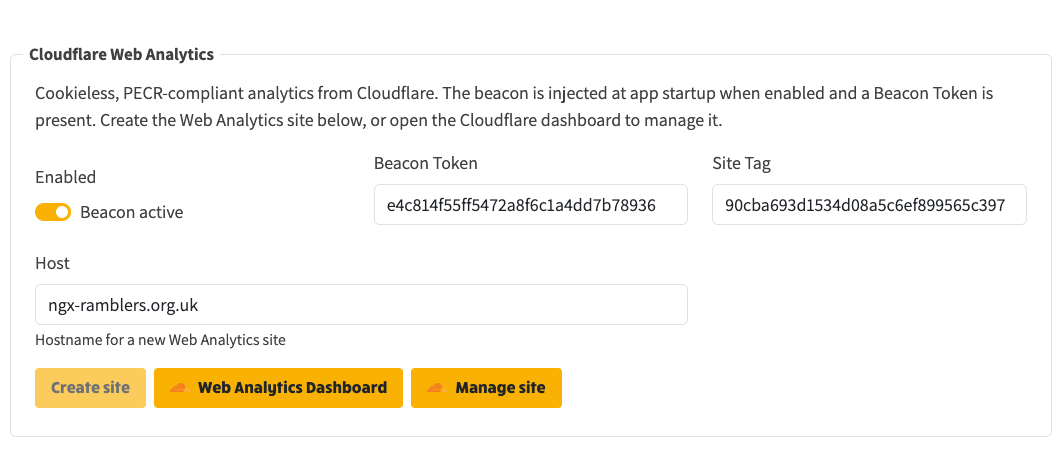
NGX uses two separate values for Web Analytics, and Create site fills both in for you:
The only time you enter these by hand is when you are connecting a site that was created outside NGX. Your NGX administrator can read both values from Cloudflare and pass them to you for that case.
In the same place - System Settings, External Systems, Cloudflare - below the settings is the Cloudflare Web Analytics Dashboard. It shows your group's own traffic and nobody else's.
You will see:
To change the period, pick one of the quick ranges (24h, 7d, 30d, 90d) or drag the date range slider for a custom window, then press Refresh.
If the dashboard shows this message, it is normal for a site that has only just been set up. Figures appear once both of these are true:
Cloudflare also waits until it has collected a reasonable amount of data before it shows anything, so a brand-new site can look empty for a short while. Give it a day or two of normal traffic and the figures will fill in.
If the dashboard is still empty after that, the next check is in Cloudflare itself. Ask your NGX administrator to open the Web Analytics page for your site in the Cloudflare dashboard:
The central Cloudflare connection - the account and its single API token - is set up once, in the global Cloudflare settings.
To create analytics sites for several groups, the Environment Management area has a Cloudflare Web Analytics Sites panel on its Settings tab. Choosing an environment and clicking Create site creates the Cloudflare site for that group, working out its website address automatically, and shows the Site Tag and Beacon Token to copy into that group's System Settings.
We do not have access to Cloudflare. Is that a problem?
No. You do not need Cloudflare access. The Cloudflare account is managed centrally, and NGX creates your analytics site for you when you click Create site.
Do we need a cookie-consent banner for this?
No. Cloudflare Web Analytics sets no cookies and does not identify individual people, so it does not require consent under PECR or UK GDPR.
Why are there two values?
Cloudflare uses one value, the Beacon Token, to record visits, and a different value, the Site Tag, to look the figures back up. NGX needs both, and fills both in for you when you click Create site.
Can NGX create the Cloudflare site automatically?
Yes. The Create site button in the Cloudflare Web Analytics panel creates the site for you. Earlier versions could not do this, and the site had to be made by hand in the Cloudflare dashboard - that is no longer the case.
Who can see these figures?
Only people with admin access to your group's NGX website. The dashboard shows your group's traffic only.