Part of Moving existing NGX groups and areas onto Ramblers-held infrastructure.
This procedure uses the Platform Management UI on NGX staging, not the group website being moved. It moves the running Fly app; MongoDB, S3 and Brevo remain where they are. Check their placement separately if the whole environment must move to different accounts.
The examples below are fictional: environment example-group, destination organisation example-org, preferred app ngx-example-group, and public website https://group.example.org.uk. Use the actual values from the selected environment. The environment name, Fly app name and public hostname can be different.
Screenshots below were captured during an end-to-end move. Environment names, hostnames and account labels have been replaced with fictional examples; token fields remain masked.
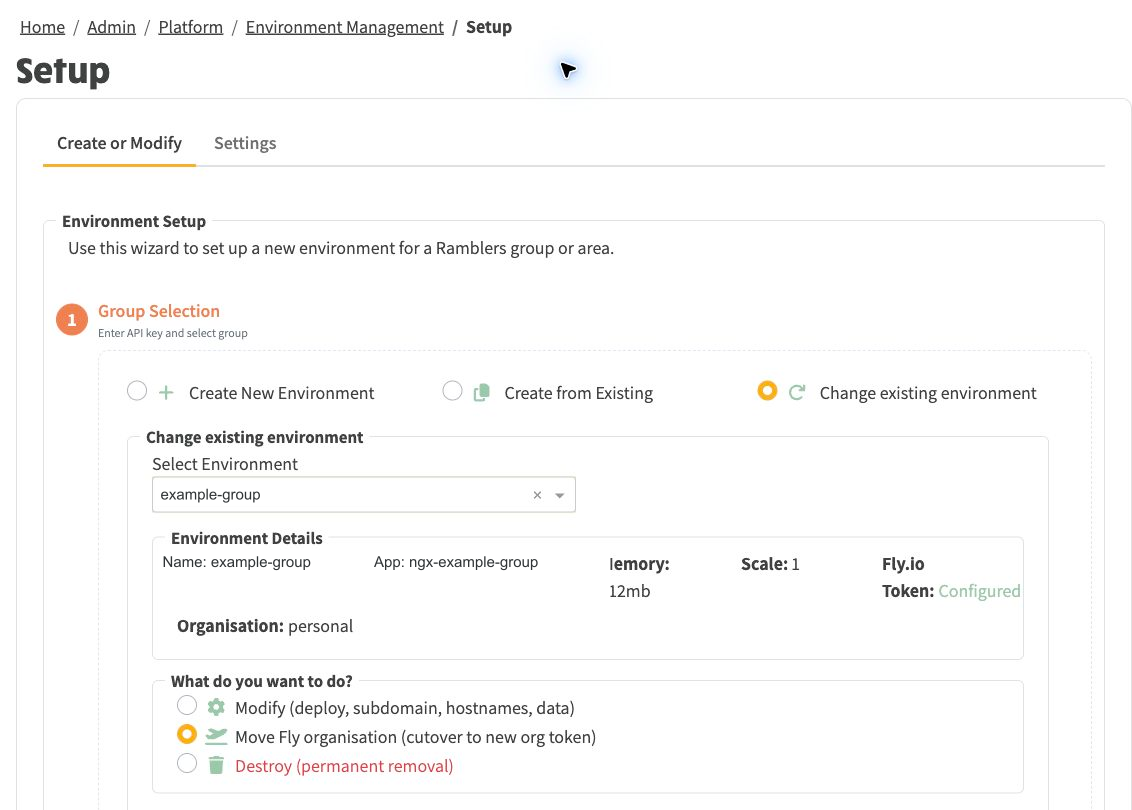
Select the environment and the organisation move action.
NGX Platform Management. Choose an expiry that fits your operating policy; an empty expiry currently creates a token that never expires.FlyV1 prefix. Display wrapping is harmless; inserted line breaks, missing characters and a literal <redacted> placeholder are not usable credentials.Do not put tokens in documentation, source control, screenshots or correspondence. A locally saved copy containing secrets should be outside the repository and readable only by its intended owner.
Select Move Fly organisation (cutover to new org token) for the chosen environment.
| Form field | Value to use |
|---|---|
| Old API token | The token that can operate the source app. Existing stored credentials may populate this. |
| Old organisation | The source organisation shown for that app. |
| Old app name | The existing source app name. |
| New API token | The destination organisation token created above. |
| New organisation | The destination organisation slug, for example example-org. |
| New app name | The preferred final app name, for example ngx-example-group. Keep it separate from the environment name and website address. |
For an initial trial, clear Destroy previous Fly app after the new app is healthy. This retains the source app and its credentials while the destination is tested. The control can default to selected when reopening the form, so check it on every run.
If the site uses its free NGX hostname, select Re-attach free NGX subdomain. Leave it off for a site using only a custom domain. The workflow also attempts to re-point configured custom hostnames; verify every hostname that visitors use.
Select Detect cutover state after entering both tokens and the organisation and app names. Do not rely on status badges calculated with an empty destination token or before editing the fields. Resolve authentication or configuration errors before starting.
Trial settings retain the source app while the destination is tested.
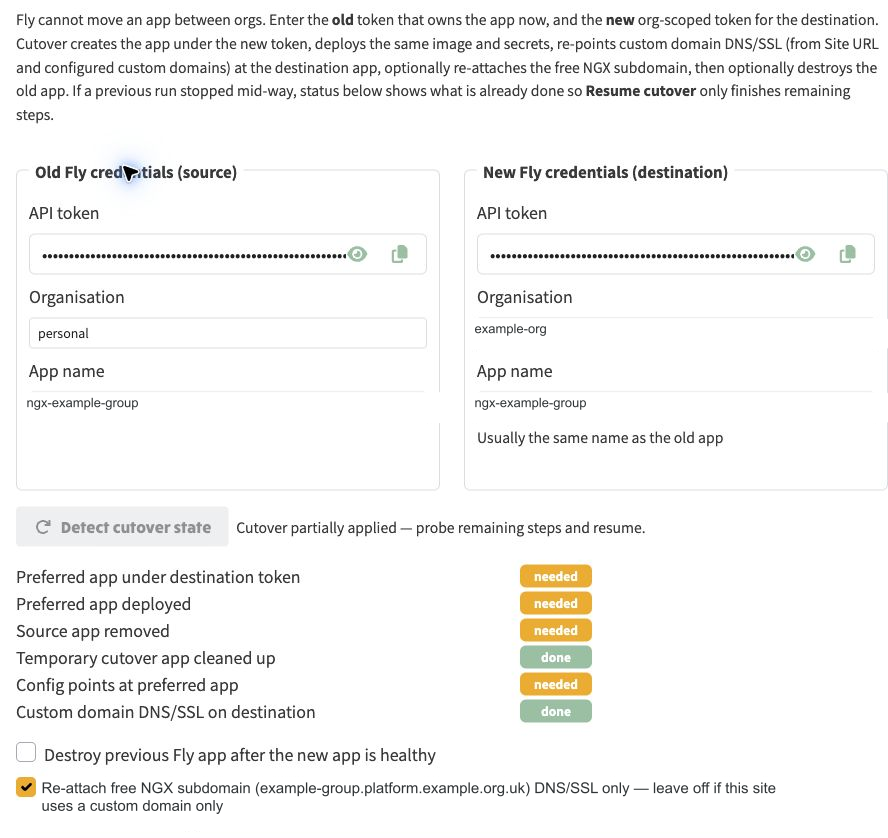
latest, the move can also upgrade the application. Record the intended build and verify it afterwards.ngx-example-group-cutover. With source deletion disabled, this is the expected trial state.A trial can finish with the temporary cutover app still serving the site.

A successful deployment message, or Deploy Complete, does not prove that the public hostname is ready.
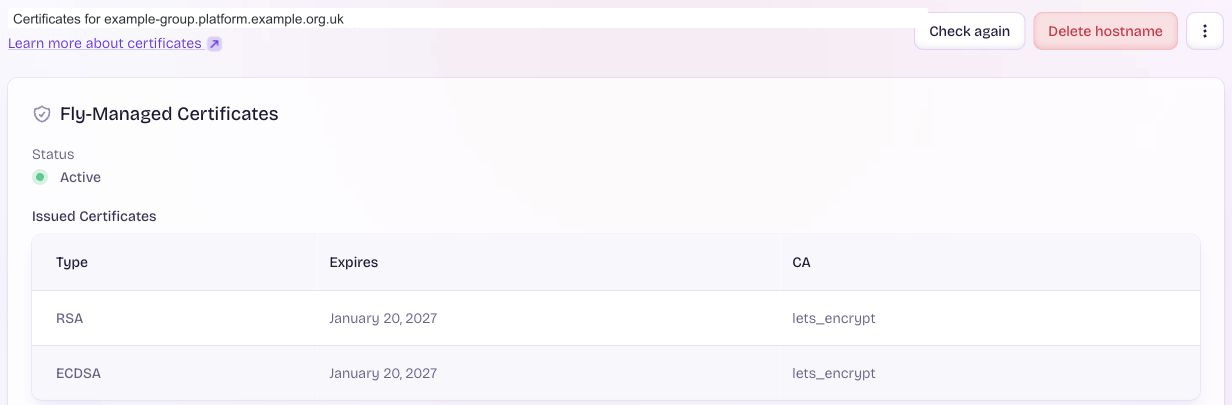
Treat a failed public HTTPS check as unfinished work, even if the app's Fly hostname works. Check this after the trial move and again after the final name is restored.
Confirm that the public hostname certificate is Active.
Only do this once the trial has passed and the operator has explicitly approved deleting the source app. Source removal ends that rollback option. Review the old app name and organisation before continuing.
-cutover name.If interrupted, inspect Detect cutover state and use Resume cutover to finish the remaining steps. Do not manually delete apps or revoke the source token while the run still depends on them.
After approval, select source removal and retain the preferred final name.
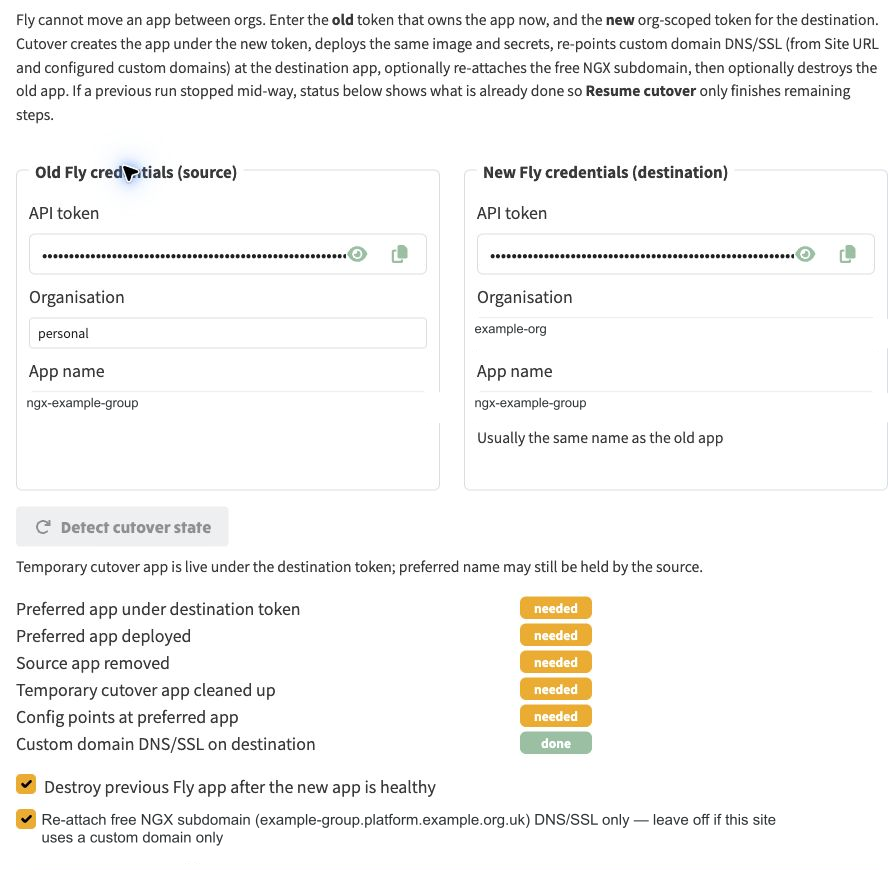
Completion shows the final app name without the cutover suffix.

Open Platform Configuration Values → Configuration inventory → Site values, choose Fly.io and filter to the environment. Refresh the inventory after migration. Confirm the organisation and app name match the destination and Fly API token is present.
This inventory is read-only. The migration saves the environment's runtime token; the inventory displays that saved value. Use Show secret values only when the actual token is needed, or use Offline export with Include secrets in pack for an approved private copy. A presence-only export containing SET is not a token backup.
System Logins holds human vendor logins, not deployment API tokens. Do not put an organisation token in a website password field. Saving a token for this environment also does not, by itself, select a new default organisation for all future registrations.
The move is complete when the preferred app is healthy in the destination organisation, the temporary app is gone, the public site has active HTTPS and reports the expected final app and build, the inventory matches, and the operator has a usable private credential copy.