Editing Images as a Backgrounds Slideshow
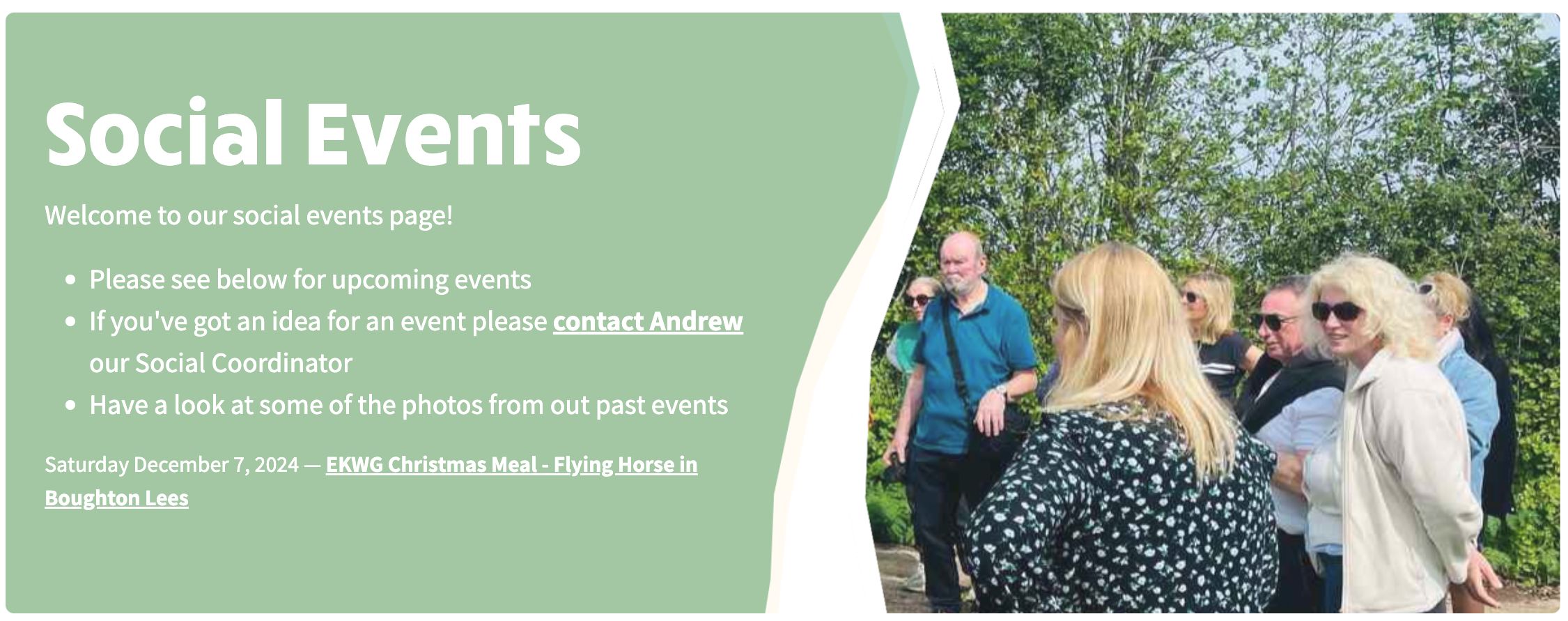
Backgrounds is one of the four Album views available - the others are Carousel, Gallery and Grid. The Backgrounds view turns an album into a full-width slideshow where images cycle behind an overlay of title, intro text and (optionally) an event link and date. It is the view to choose when a page needs a single visually strong banner rather than a thumbnail grid - for example the landing of a Social Events page or a weekends-away summary. Above is an example of the Backgrounds view on the East Kent Walking Group Social Events page.



The photos in the slideshow come from the same album image list as Carousel, Gallery and Grid. You upload and manage them in the usual way on the album row. What is different is that Backgrounds also layers a second set of images behind those photos: the site's system-wide background images (configured under Admin > System Settings > Backgrounds).
When the slideshow advances to the next album photo, it also advances to the next selected background. The two lists cycle independently, so a page with four album photos and three backgrounds will keep pairing them in turn. On the album row you pick which of the system backgrounds should take part, and you set how the overlay text is coloured and positioned on top.
Going into Edit Mode
- You need to be logged into the site as an administrator. If you haven't done that yet, follow this guide.
- Visit the page that contains (or should contain) the backgrounds slideshow.
- Toggle edit site from the website header. The album row opens with the Album Settings tab pre-selected, as shown below:
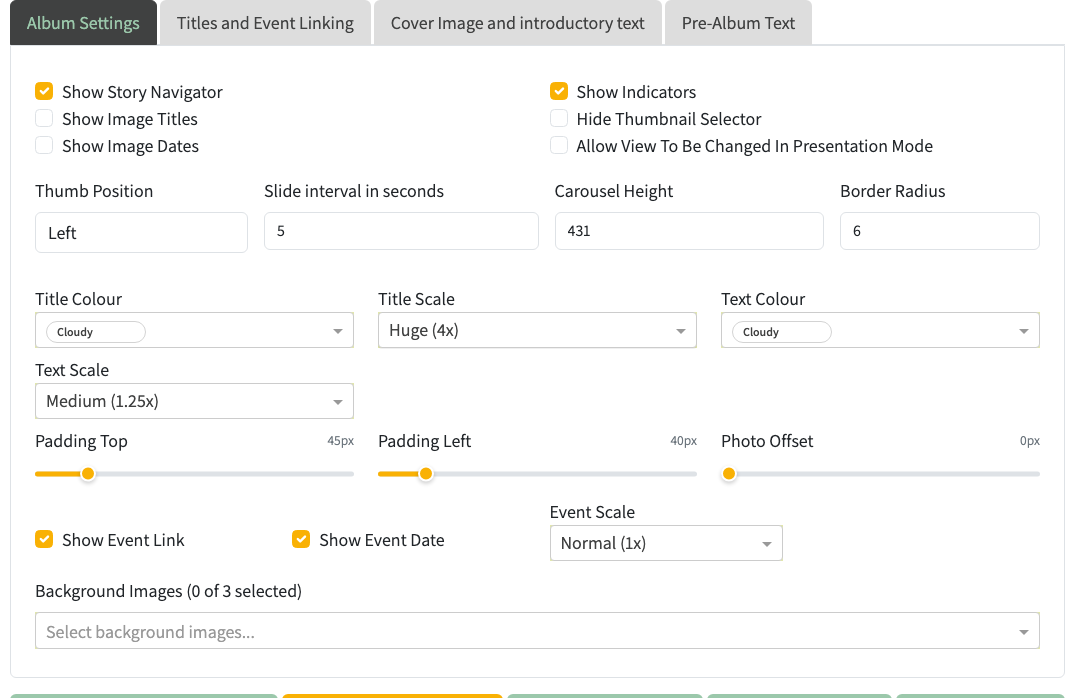
Album Settings tab when the album is configured as Backgrounds
When the Album View is set to Backgrounds the Album Settings tab shows a dedicated set of controls that only apply to this view:
Overlay text
- Title Colour and Text Colour - colour swatches used for the overlay title and intro text respectively. Pick colours that stay readable over every image in the slideshow.
- Title Scale - overall size multiplier for the title text. Scales run Small (1x), Medium (1.5x), Large (2x), Extra Large (3x), Huge (4x), Massive (5x), Giant (6x), Colossal (8x) and Logo (10x).
- Text Scale - same idea for the intro text underneath the title: Small (0.75x), Normal (1x), Medium (1.25x), Large (1.5x), Extra Large (2x), Huge (2.5x).
Overlay position
- Padding Top - pixels of space above the overlay text block (0-300).
- Padding Left - pixels of space to the left of the overlay text block (0-300).
- Photo Offset - percent by which the background photo is shifted so the focal subject doesn't sit under the text (0-400).
Event link and date
- Show Event Link - show the linked event title (e.g. Spring Blossoms & Lunch on the Creek) as part of the overlay.
- Show Event Date - show the event date next to or under the link.
- Event Scale - size multiplier for the event link/date when either is shown (Small, Normal, Medium, Large, Extra Large).
Background images
- Background Images - a multi-select dropdown listing every background image configured in Admin > System Settings > Backgrounds. Tick the ones that should cycle behind the album photos. The counter next to the label (e.g. Background Images (3 of 10 selected)) tells you how many you have picked out of the pool available. Leave this empty to use every system background.
Linking the slideshow to an event
The Show Event Link and Show Event Date checkboxes only produce output if the album itself has been linked to an event. To do that:
- Switch to the Titles and Event Linking tab.
- Pick the Link to Event Type (e.g. Social Events or Walks).
- In the event selector that appears, choose the specific event. The Album Subtitle will auto-fill with the event title and the date will populate automatically.
- Return to the Album Settings tab and tick Show Event Link / Show Event Date to pull those values onto the slideshow overlay.
If no event is linked, the checkboxes are simply ignored.
Switching an existing album to Backgrounds
- Go into edit site mode.
- Scroll to the album row. Above the preview there is a small toolbar with four icons - backgrounds, carousel, gallery, grid.
- Click the backgrounds icon. The preview switches to a live slideshow of the album's own photos, with the selected system backgrounds cycling behind them, and the Backgrounds-specific controls appear under the shared checkboxes.
- Confirm the album already has the photos you want in the slideshow (add or reorder them as you would for any other album view). Then choose which system backgrounds should cycle behind those photos, tune the overlay colours and padding, and Save.
For information on the other tabs Titles and Event Linking, Cover Image and Introductory Text and Pre-Album Text see the separate page on editing album elements.