This guide covers the Walk Exports admin page in detail: how to get there, how the two tabs work, how to pick the walks you want to upload, what actually happens when you press "Upload N walks to Ramblers", and how to inspect a previous run from the audit tab.
This page is only useful when your group is on Local Walk Population. If you are on Walks Manager population, walks already live on Ramblers and the upload buttons are hidden.
You also need the Walk Admin role - regular members cannot reach the export page (the route guard sends them back to the walks list).
The upload signs in to Ramblers Walks Manager on your behalf, so Walks Manager credentials that have the privileges to upload a CSV file for your group must be set correctly before any export will succeed.
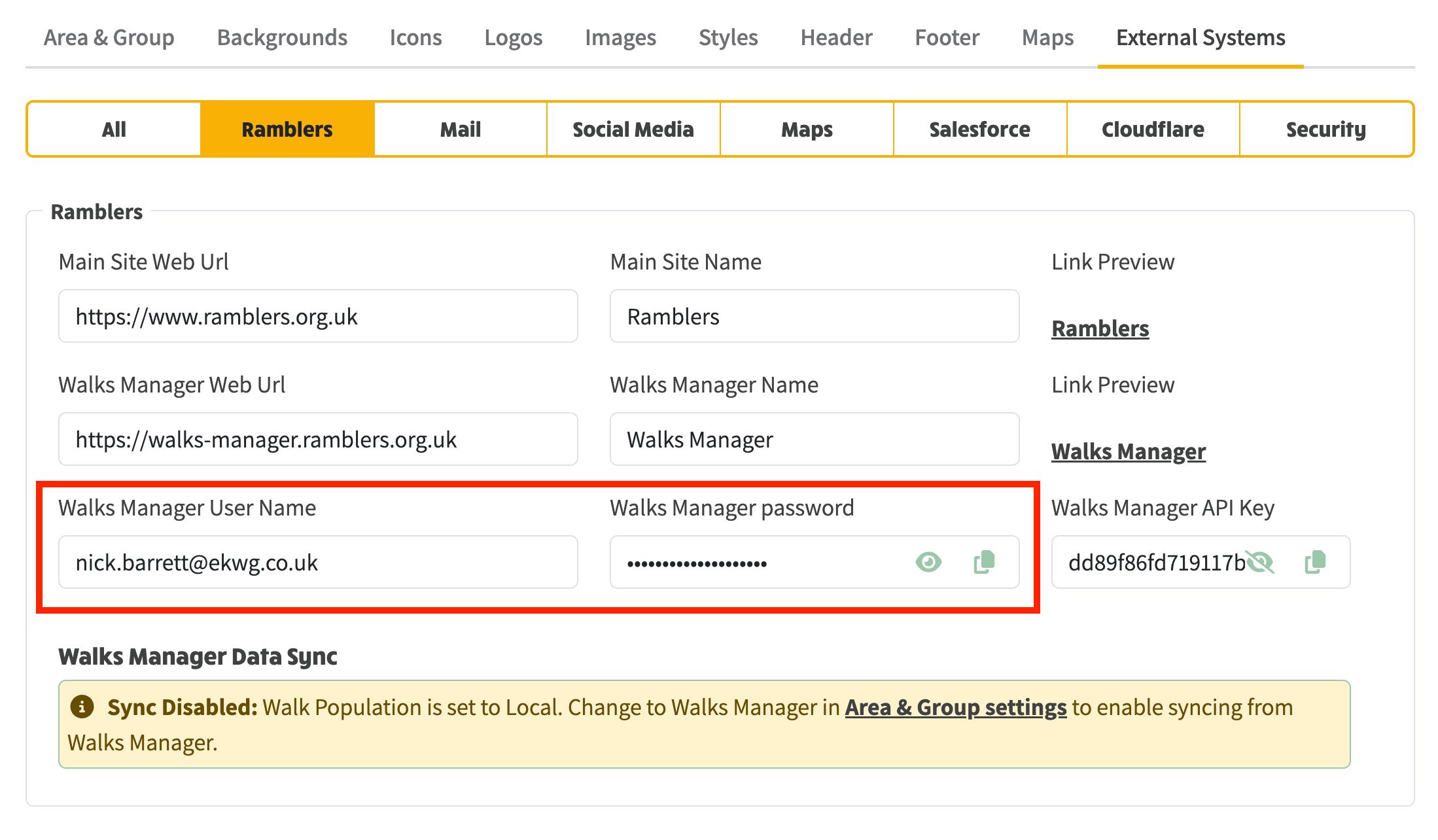
Go to Admin > System Settings > External Systems > Ramblers (/admin/settings/system-settings?tab=external-systems&sub-tab=ramblers) and check that the Walks Manager User Name and Walks Manager password fields hold the current login for a Walks Manager user with permission to upload walks for your group.
If valid credentials are not entered and stored correctly, the next export run will fail with a sign-in error, and the run's report will show the Walks Manager login page rather than the upload form. Update both fields here and re-run the export.
Admin > System Settings > External Systems > Ramblers - the Walks Manager User Name and password fields the export uses to sign in.
The tile is one of six on the Walks Admin index. Its bullets summarise the page in three lines: "Upload walks directly to Ramblers Walks Manager", "Export walks in CSV format", "Review audits of previous upload sessions".
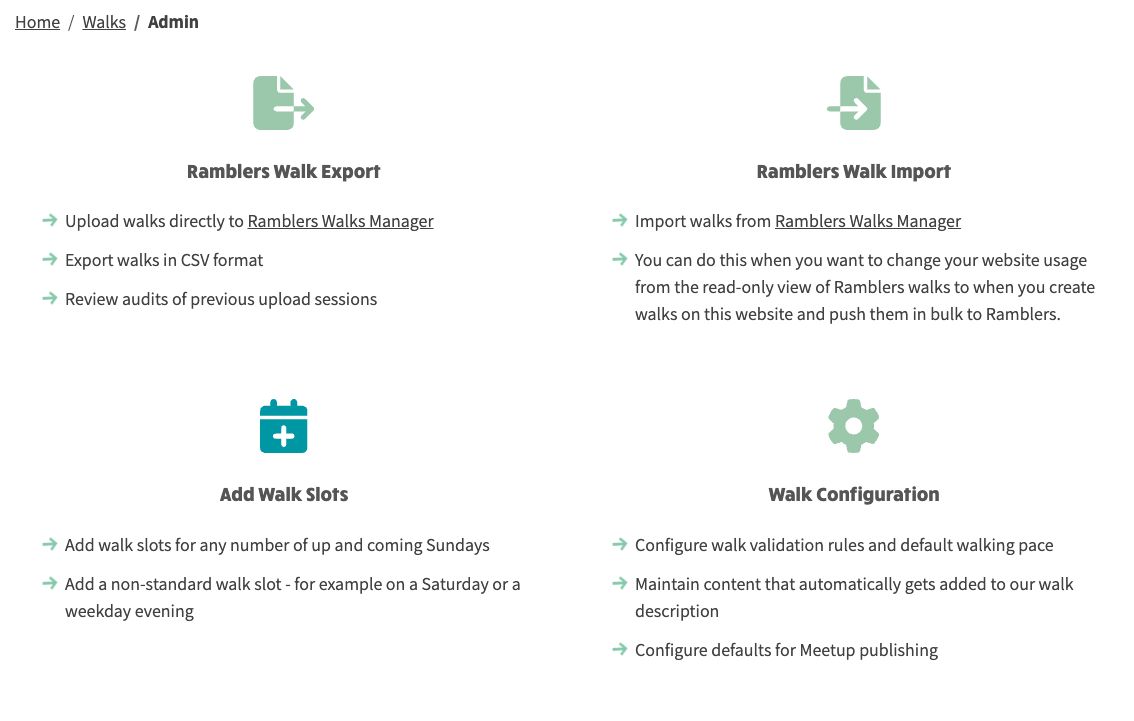
Above: The Walks Admin landing page. The Ramblers Walk Export tile is the entry point.
Once you have chosen which walks to send, there are two different ways to get them onto Ramblers Walks Manager. You pick the route by pressing one of the two buttons at the top of the page.
The Upload N walks to Ramblers button does the whole job for you. NGX-Ramblers signs in to Walks Manager on your behalf, uploads the walks, waits while Walks Manager validates them, and records a full report you can review afterwards on the audit tab. You never have to open Walks Manager yourself.
This route handles everything in one run - new walks, updates, and also removals, cancellations and reinstatements (see Walk Export Scenarios below). It is the recommended route for everyday use, and every run is kept in the audit log.
The Export N walks file to CSV button saves a CSV file to your own computer. Nothing is sent anywhere. You then sign in to Ramblers Walks Manager yourself and import that file using Walks Manager's own bulk-import feature. This route suits anyone who would rather keep the upload step under their own control, or who likes to open the file and check it before importing.
One important limit: the CSV is publish-only. It contains only the walks being added or updated. It cannot remove, unpublish, cancel or uncancel anything on Ramblers. So if you use the CSV route and a walk needs to be unpublished or taken off Ramblers - for example a walk you published earlier that is no longer going ahead - or needs to be cancelled or reinstated, you have to make that change yourself, by hand, in Walks Manager. The CSV will not do it for you. Only the automated upload route carries those actions out for you.
Both buttons stay disabled until you have selected at least one walk, and both show the running count of selected walks in their label.
Once you land on /walks/admin/export you'll see two tabs:
The page starts on the Walk upload selection tab.
The top of the tab shows three action buttons and a status banner.
The status banner reflects the current selection - when nothing is ticked you get the "No Walks Selected" yellow banner. The action buttons mirror this: their labels include the count of selected walks ("Upload 0 walks to Ramblers", "Export 0 walks file to CSV") and they stay disabled until the count is non-zero.
Below the buttons is a grid of walk cards - one card per actionable walk in the current programme. Each card shows:
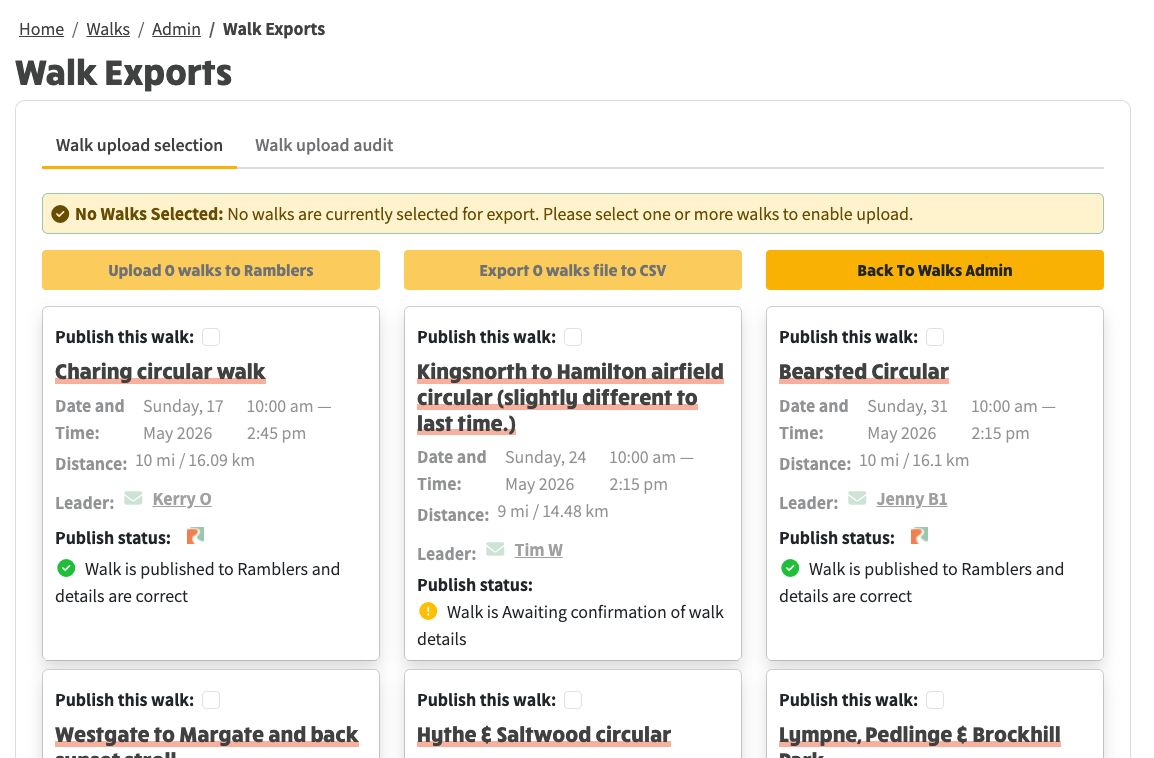
Above: Walk Upload Selection tab with nothing selected. Buttons are disabled.
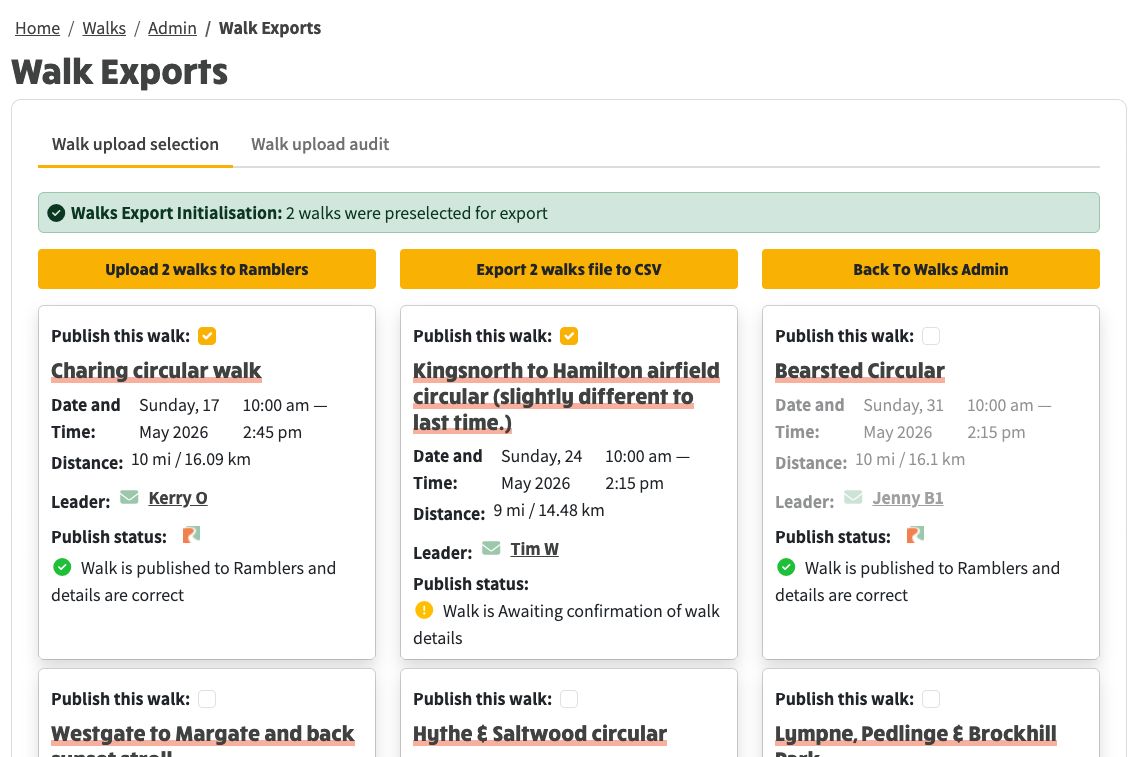
Above: Two walks selected. The buttons now read "Upload 2 walks to Ramblers" and "Export 2 walks file to CSV".
The automated upload does more than add new walks. It keeps Ramblers Walks Manager in step with four different things that can happen to a walk. Each one is set on the walk itself - on the walk edit page, on the Related Links tab, in the Ramblers panel - not on this export page. The export then picks each walk up automatically and labels it with the action it is about to carry out.
Once a walk has been saved with one of those changes, the export view preselects it automatically and shows which of the four actions it will perform, so a single automated run can handle new walks, removals, cancellations and reinstatements together. The CSV export route does not - it covers the Upload scenario only (see Option 2 above).
Cancelling and deleting are not the same thing. A deleted walk simply disappears. A cancelled walk stays visible on both your NGX-Ramblers site and Ramblers Walks Manager, but is clearly marked as cancelled, with the reason you gave.
That distinction matters because a walk may have been advertised for weeks, and members may be planning to turn up. Leaving it visible but plainly marked as cancelled, with a reason, tells them what has happened and why. When you run the export, that same cancellation notice is applied to the walk in Walks Manager. Uncancelling reverses it: the next export removes the cancelled marker and the walk is reinstated.
Walk cancellation applies only to sites on Local Walk Population.
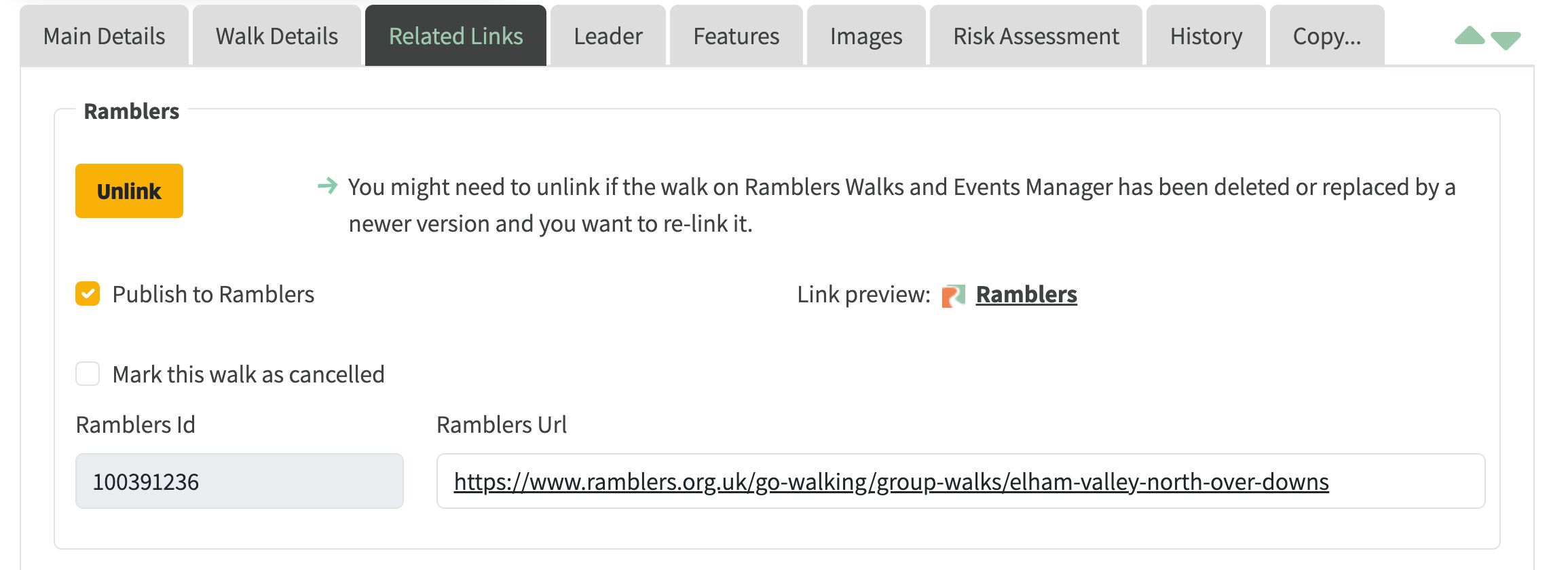
The Related Links > Ramblers panel on the walk edit page. The Publish to Ramblers and Mark this walk as cancelled checkboxes are what drive the four export scenarios.
This is the action that pushes your selection to Ramblers. Behind the scenes the upload is run by an automation that drives a web browser for you. The flow:
While the upload is running the "Upload N walks" button changes to a red "Cancel upload" button - useful if Ramblers is slow or you spotted a mistake.
The other button on the same row, "Export N walks file to CSV", takes the CSV export route instead (see Two Ways to Send Your Walks to Ramblers above): it saves the file to your computer without uploading anything, ready for you to import into Walks Manager yourself.
Switching tabs takes you to the audit log. The page shows:
Below those controls sits a sortable table with the columns Status / Time / Duration / Audit Message. Each row is one event from the upload, ordered most-recent-first by default.
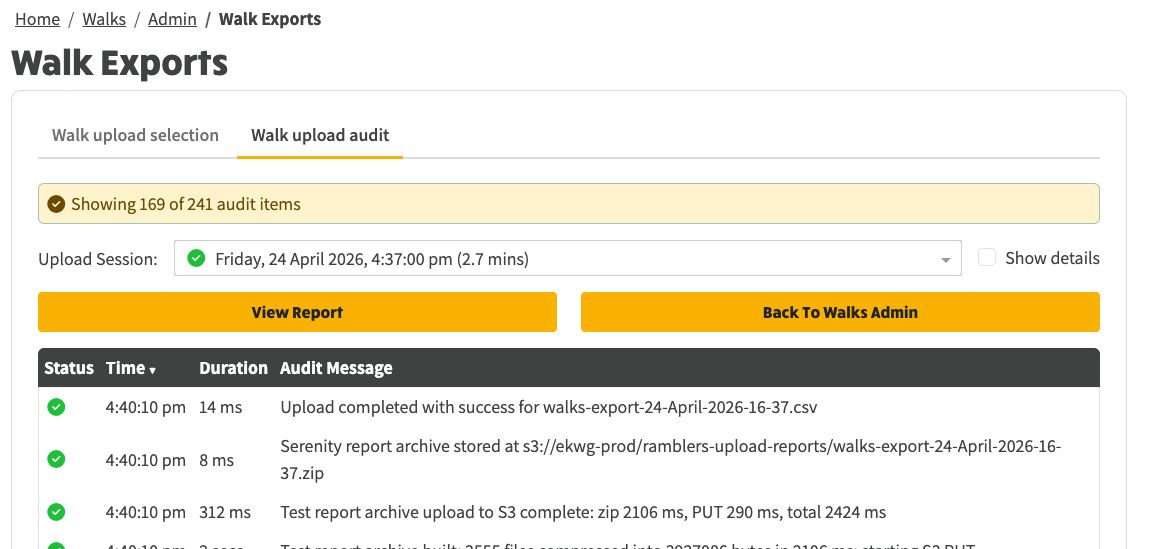
Above: Walk Upload Audit tab. The most recent session is selected automatically.
The screenshot below shows the most recent EKWG run - 24 April 2026, 4:37 pm, total duration 2.7 minutes. 169 of 241 audit items pass the default filter.
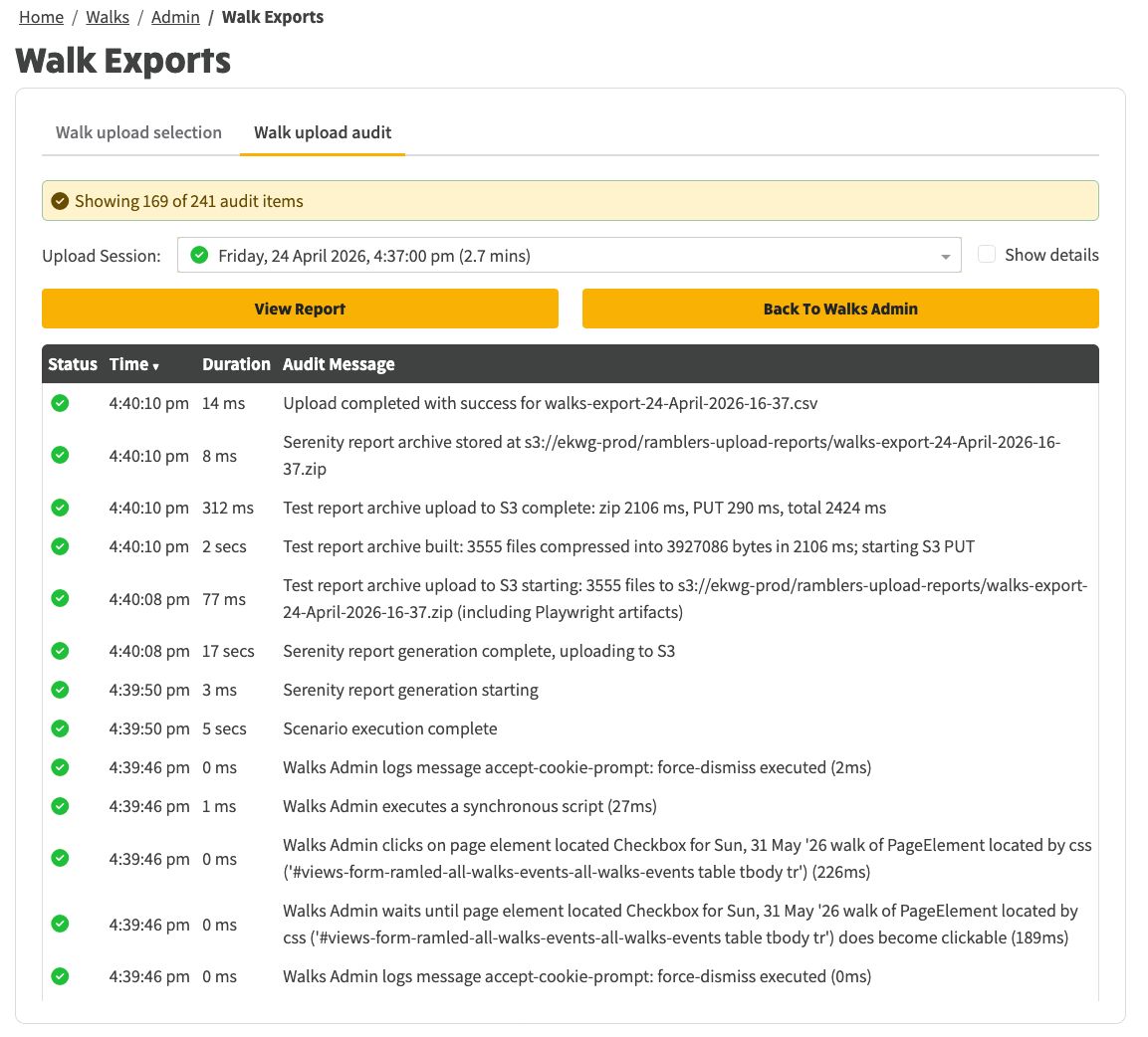
Above: Audit table for a successful run. Each step has a status, timestamp and duration.
Tick Show details to expand the list with low-level audit messages: per-walk validation results, the automation's intermediate steps, individual file uploads. The summary banner updates to reflect the new count ("Showing M of M audit items" - every row is shown).
Useful when something has failed and you need to find the exact step that broke.
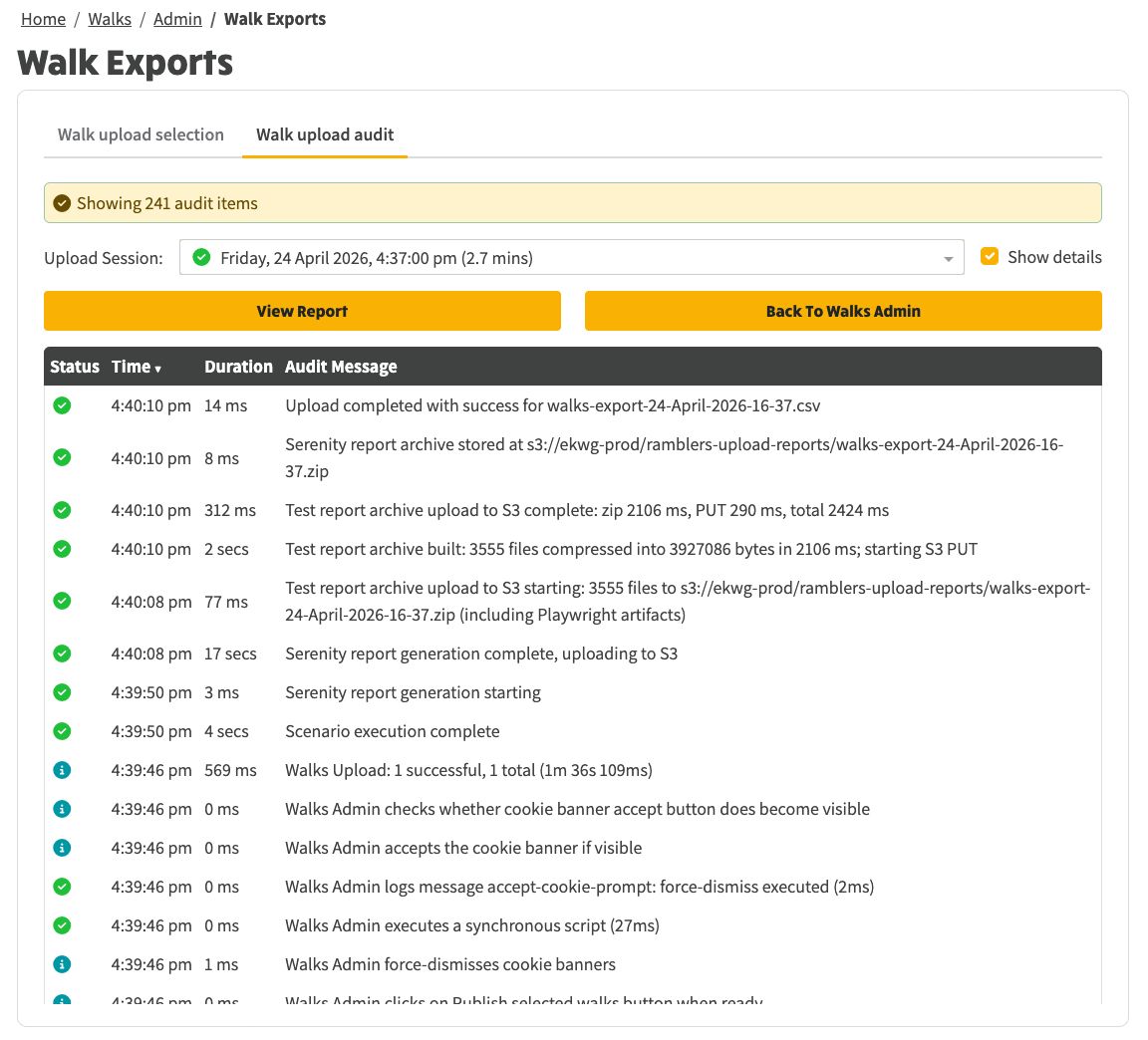
Above: Show details ticked. Every audit message is shown, including per-walk steps.
A run is recorded as successful when:
If any walk fails validation at Ramblers, the audit row for that walk gets a red status and a message describing the reason. The upload session itself can still finish with a success status for the walks that did pass.
If a walk doesn't appear in the selection grid (or its checkbox is disabled), the validation errors should be shown as an error alert when you check the selection checkbox. Typical blockers:
The publish-status text under each card on the selection tab explains exactly why a given walk is held back.
The export page requires the Walk Admin role. The route guard is enforced server-side - a regular member following a direct link is redirected to the walks list.